
openrtm integration plugin for choreonoid, python version tutorial (tankjoystick)
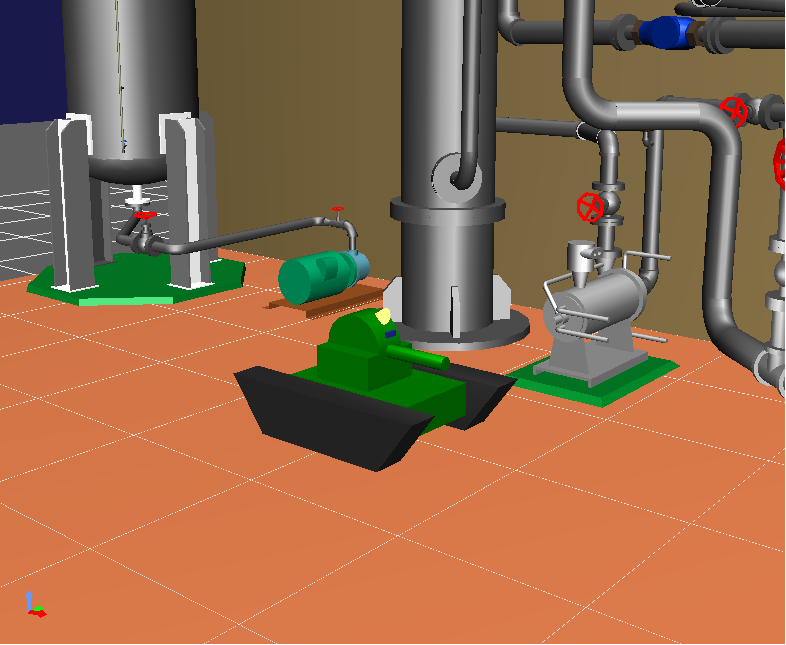
✏️ Edit this page on GitHubThis page explains the procedure for operating the Tank model with a gamepad using the Choreonoid OpenRTM integration plugin Python version. The model used and the RTC to be created are almost the same as those in the tutorial on the official Choreonoid page.
#contents
Creating the RTC
This chapter explains the procedure for developing an RTC that performs input and output for actuators, sensors, and similar elements on the simulator.
Starting RTC Builder
First, create a source code template with RTC Builder. Install OpenRTM-aist in order to use RTC Builder.
After installation is complete, start RTC Builder and create the template. On Windows 8.1, you can start it by clicking “Start” > “Apps view (lower-right arrow)” > “OpenRTM-aist 2.0.1” > “OpenRTP”.
The following can be used as a reference for the creation procedure.
Creating the RTC Template
The specification of the RTC to be created is as follows. Select Python as the language.

| Component Name | TankIoRTC_Py |
|---|---|
| CENTER: InPort | |
| Port Name | velocities |
| Type | TimedVelocity2D |
| Description | Target velocity of the vehicle body |
| InPort | |
| Port Name | torques |
| Type | TimedDoubleSeq |
| Description | Joint torque of the turret section |
| InPort | |
| Port Name | lightSwitch |
| Type | TimedBooleanSeq |
| Description | Light on/off |
| OutPort | |
| Port Name | angles |
| Type | PanTiltAngles |
| Description | Joint angles of the turret section |
| Language | |
| Python | |
Editing the Source Code
The generated source code contains a class with the RTC module name (for TankIoRTC_Py, class TankIoRTC_Py), so add the following functions to that class.
| Function Name | Argument | Content |
|---|---|---|
| setBody | body | Function for setting the Body object |
| inputFromSimulator | Function for writing processing such as outputting sensor measurement values from an outport. Executed after the simulation step | |
| outputToSimulator | Function for writing processing such as inputting actuator torques from an inport. Executed before the simulation step |
Specifically, write the following source code.
 class TankIoRTC_Py(OpenRTM_aist.DataFlowComponentBase):
 	(省略)

 	#ボディオブジェクト設定関数
 	def setBody(self, body):

 		self.ioBody = body

 		#Linkオブジェクト取得
 		self.cannonY = self.ioBody.link("CANNON_Y")
 		self.cannonP = self.ioBody.link("CANNON_P")
 		self.crawlerL = self.ioBody.link("CRAWLER_TRACK_L")
 		self.crawlerR = self.ioBody.link("CRAWLER_TRACK_R")

 		#Lightオブジェクト取得
 		self.light = self.ioBody.getLight("MainLight")


 	#センサの計測値などをアウトポートから出力する処理等を記述する関数
 	#シミュレーションステップ後に実行される
 	def inputFromSimulator(self):
 		if self.ioBody:
 			#砲台の角度取得、格納
 			self._d_angles.pan = self.cannonY.q
 			self._d_angles.tilt = self.cannonP.q

 			#砲台の角度出力
 			OpenRTM_aist.setTimestamp(self._d_angles)
 			self._anglesOut.write()


 	#アクチュエータのトルクなどをインポートから入力する処理等を記述する関数
 	#シミュレーションステップ前に実行される
 	def outputToSimulator(self):
 		if self.ioBody:
 			#砲台のトルク入力
 			if self._torquesIn.isNew():
 				data = self._torquesIn.read()
 				self.cannonY.u = data.data[0]
 				self.cannonP.u = data.data[1]
 			#車体の速度入力
 			if self._velocitiesIn.isNew():
 				data = self._velocitiesIn.read()
 				vx = data.data.vx
 				va = data.data.va

 				rms = (vx + va*self._wheel_distance[0])/self._wheel_radius[0]
 				lms = (vx - va*self._wheel_distance[0])/self._wheel_radius[0]

 				#クローラーの速度入力
 				self.crawlerL.dq = lms
 				self.crawlerR.dq = rms
 			#ライトのオンオフ入力
 			if self._lightSwitchIn.isNew():
 				data = self._lightSwitchIn.read()

 				self.light.on(data.data[0])
 				self.light.notifyStateChange()
First, in the setBody function, the Link objects and Light object to be controlled are obtained. Link and Light objects can be obtained by name.
You can check Link names by selecting the item corresponding to the model and then displaying the “Link” tab from the lower-left view.
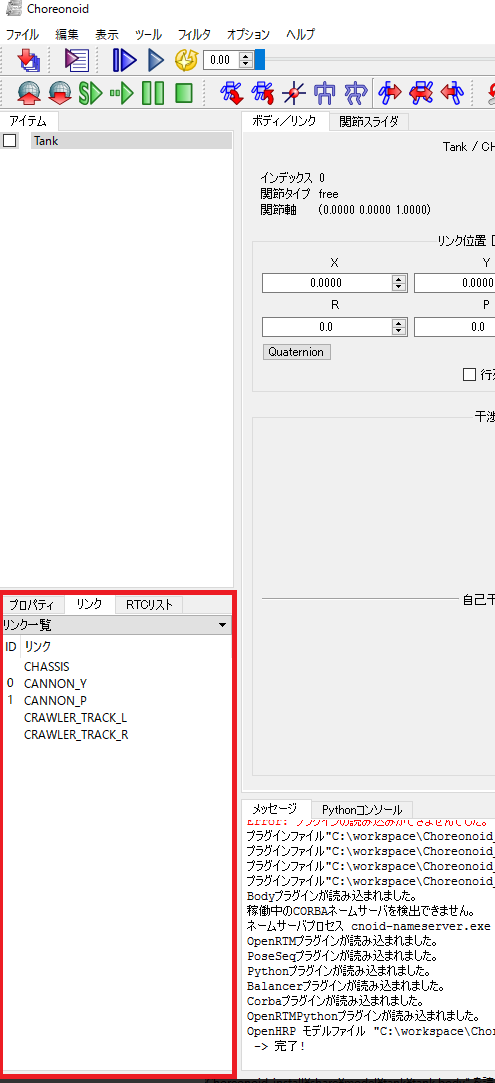
I do not know how to check Light names, so please check the official Choreonoid website.
 	def setBody(self, body):
 		self.ioBody = body

 		self.cannonY = self.ioBody.link("CANNON_Y")

 		(省略)

 		self.light = self.ioBody.getLight("MainLight")
Joint angles can be obtained using the q variable.
self._d_angles.pan = self.cannonY.q
Joint velocity input can be reflected in the simulator by storing values in the dq variable, and torque input by storing values in the u variable.
self.crawlerL.dq = lms
self.cannonY.u = data.data[0]
For turning the light on and off, store a bool variable in the on variable.
self.light.on = data.data[0]
Creating the RT System
Starting Choreonoid
Windows
On Windows, double-click bin/chorenoid.exe in the folder where Choreonoid was extracted.
Ubuntu
On Ubuntu, enter choreonoid from the command line.
Adding Items
World and Simulator
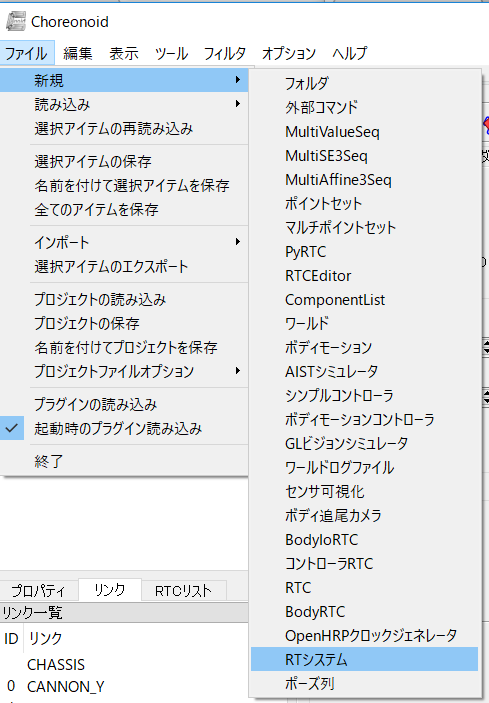
First, add a world item and a simulator item. From File > New, select and add World and AIST Simulator.
- The order of displayed items may change, so the screen may differ from this image.
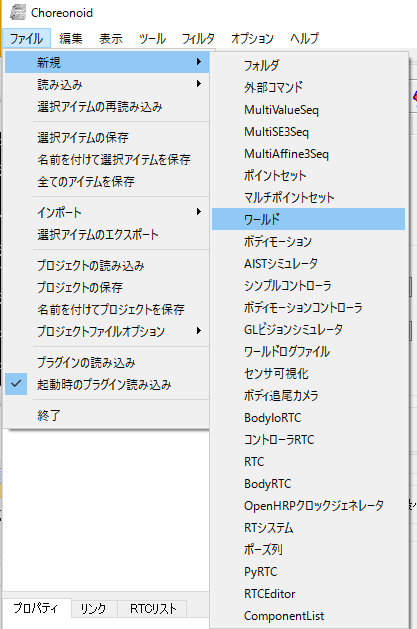
At this point, the item tree is as follows.
 World(World item)
    |-AISTSimulator(AIST Simulator)
For an overview of the item tree and how to move items, refer to the following page.
Model
Next, add the environment and Tank models.
From File > Import, select OpenHRP Model File, and then load the following files.
- {Choreonoid installation directory}/share/model/tank/tank.wrl
- {Choreonoid installation directory}/share/model/Labo1/Labo1.wrl

At this point, the item tree is as follows.
 World(World item)
    |-AISTSimulator(AIST Simulator)
    |-Tank(model/tank/tank.wrl)
    |-Labo1(model/Labo1/Labo1.wrl)
RT Components
Add RT Components. From File > New, select and add PyRTC.
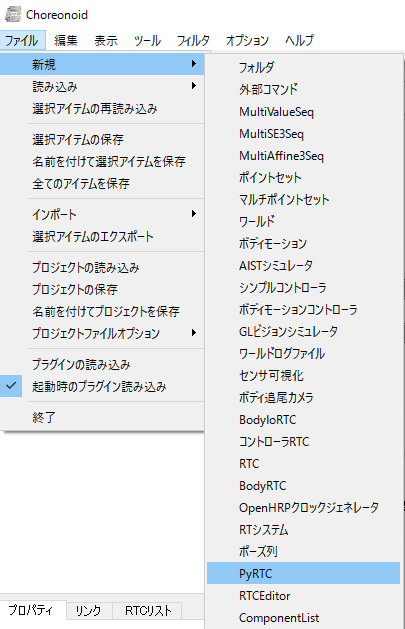
Add three items under the Tank item, and name them TankIO, Controller, and Joystick.
At this point, the item tree is as follows.
 World(World item)
    |-AISTSimulator(AIST Simulator)
    |-Tank(model/tank/tank.wrl)
      |-TankIO(PyRTC)
      |-Controller(PyRTC)
      |-Joystick(PyRTC)
    |-Labo1(model/Labo1/Labo1.wrl)
Setting the Python Files
Set the item named RTC module from the properties of TankIO, Controller, and Joystick.

Set the following files for each item.
| Item Name | File Name |
|---|---|
| TankIO | TankIoRTC_Py.py |
| Controller | TankJoystickControllerRTC_Py.py |
| Joystick | JoystickPySDL2.py |
When a Python file is set, the RTC starts.
- In this plugin, there is no distinction such as ControllerRTC, BodyIoRTC, and RTC like in the C++ version of the OpenRTM plugin included with Choreonoid. If processing such as controlling the robot on the simulator and obtaining sensor values is written in the RTC source code, it can operate in the same way as BodyIoRTC.
Building the RT System
Add an RT System. From File > New, select and add RT System.
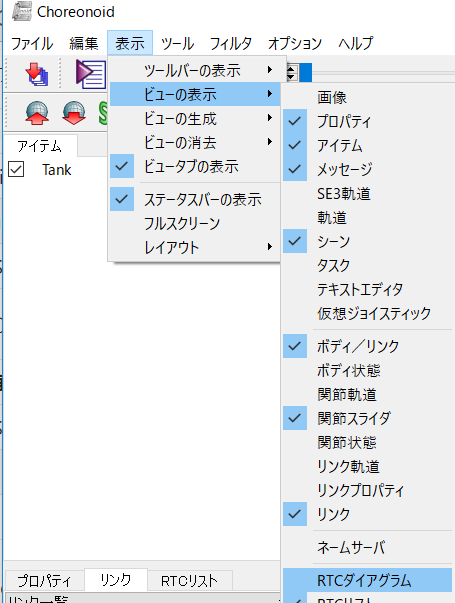
From View > Show View, display the RTC Diagram.
If ‘RTC List is not displayed, display it in the same way.
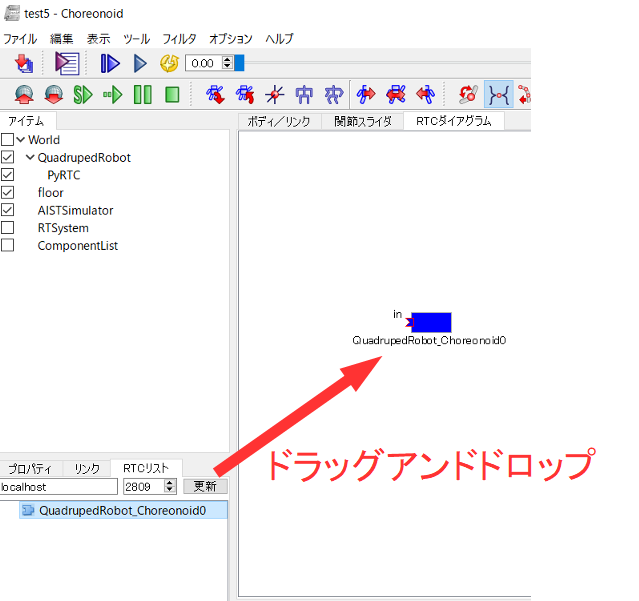
After displaying the RTC Diagram, you can display RTCs on the RTC Diagram by dragging and dropping them from the RTC List in the lower-left.
Connect them on the RTC Diagram as follows.

Running the Simulation
Before starting the simulation, set the time resolution to 1000 fps. When you start the simulation with this setting, you will be able to operate the crawler and arm on the simulator using the joystick of the gamepad, and turn the light on and off using buttons.
RTC Specifications
The basics are the same as the samples of the OpenRTM plugin included with Choreonoid, but some data types have been changed and configuration parameters have been added.
TankJoystickControllerRTC_Py
This is an RTC for controlling the Tank robot.

| Component Name | TankJoystickControllerRTC_Py |
|---|---|
| InPort | |
| Port Name | angles |
| Type | PanTiltAngles |
| Description | Joint angles of the turret section |
| InPort | |
| Port Name | axes_1 |
| Type | TimedVector2D |
| Description | Status of the right analog stick. When tilted, it outputs a value in the range from 0.0 to 1.0. Depending on the direction tilted, right is positive, left is negative, down is positive, and up is negative. |
| InPort | |
| Port Name | axes_2 |
| Type | TimedVector2D |
| Description | Status of the left analog stick |
| InPort | |
| Port Name | buttons |
| Type | TimedBooleanSeq |
| Description | Button on/off |
| OutPort | |
| Port Name | velocities |
| Type | TimedVelocity2D |
| Description | Target velocity of the vehicle body |
| OutPort | |
| Port Name | torques |
| Type | TimedDoubleSeq |
| Description | Joint torque of the turret section |
| OutPort | |
| Port Name | lightSwitch |
| Type | TimedBooleanSeq |
| Description | Light on/off |
| Configuration | |
| Parameter Name | timeStep |
| Type | double |
| Default Value | 0.001 |
| Description | Simulation step time |
| CENTER: Configuration | |
| Parameter Name | KP |
| Type | double |
| Default Value | 200.0 |
| Description | Proportional gain |
| Configuration | |
| Parameter Name | KD |
| Type | double |
| Default Value | 50.0 |
| Description | Derivative gain |
JoystickPySDL2
This is an RTC that outputs the status of the gamepad’s analog sticks, buttons, and so on.

| Component Name | TankJoystickControllerRTC_Py |
|---|---|
| OutPort | |
| Port Name | axes_1 |
| Type | TimedVector2D |
| Description | Status of the right analog stick. When tilted, it outputs a value in the range from 0.0 to 1.0. Depending on the direction tilted, right is positive, left is negative, down is positive, and up is negative. |
| OutPort | |
| Port Name | axes_2 |
| Type | TimedVector2D |
| Description | Status of the left analog stick |
| OutPort | |
| Port Name | buttons |
| Type | TimedBooleanSeq |
| Description | Button on/off |
| OutPort | |
| Port Name | hats |
| Type | TimedBooleanSeq |
| Description | D-pad status |
| OutPort | |
| Port Name | balls |
| Type | TimedVector2D |
| Description | Movement amount of the joy ball |
| Configuration | |
| Parameter Name | index |
| Type | int |
| Default Value | 0 |
| Description | Gamepad ID |