
openrtm integration plugin for choreonoid, python version tutorial (quadruped robot)
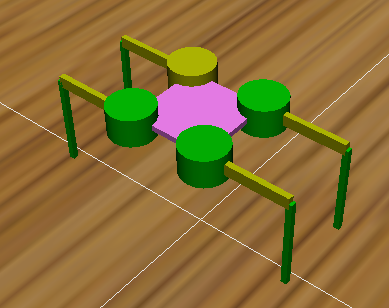
✏️ Edit this page on GitHubThis page explains how to use RTCEditor items and ComponentList items, using the creation of a quadruped robot simulator as an example.
#contents
Adding Items
World and Simulator
First, add a world item and a simulator item. From File > New, select World and AIST Simulator and add them.
At this point, the item tree is as follows.
 World(World item)
    |-AISTSimulator(AIST Simulator)
Model
Next, add the ground and quadruped robot models.
From File > Import, select OpenHRP Model File, and then load the following files.
- {Choreonoid installation directory}/share/model/QuadrupedRobot/QuadrupedRobot.yaml
- {Choreonoid installation directory}/share/model/house/floor.body
Then the 3D model will be displayed as follows. If it is not displayed, turn on the checkbox of the corresponding item in the item tree.
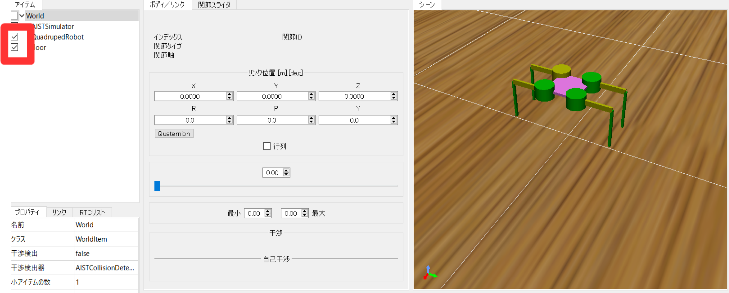
At this point, the item tree is as follows.
 World(World item)
    |-AISTSimulator(AIST Simulator)
    |-QuadrupedRobot(model/QuadrupedRobot/QuadrupedRobot.yaml)
    |-floor(model/house/floor.body)
RT Components
PyRTC Item
Add an RT Component. From File > New, select and add PyRTCItem.
Add the item under the QuadrupedRobot item, and name it QuadrupedRobotIO.
At this point, the item tree is as follows.
 World(World item)
    |-AISTSimulator(AIST Simulator)
    |-QuadrupedRobot(model/QuadrupedRobot/QuadrupedRobot.yaml)
      |-QuadrupedRobotIO(PyRTCItem)
    |-floor(model/house/floor.body)
Setting the Python File
Set the item named RTC module from the properties of QuadrupedRobotIO.
Set QuadrupedRobot_Choreonoid.py as the file name. This starts the input/output RTC for the quadruped robot.
ComponentList Item
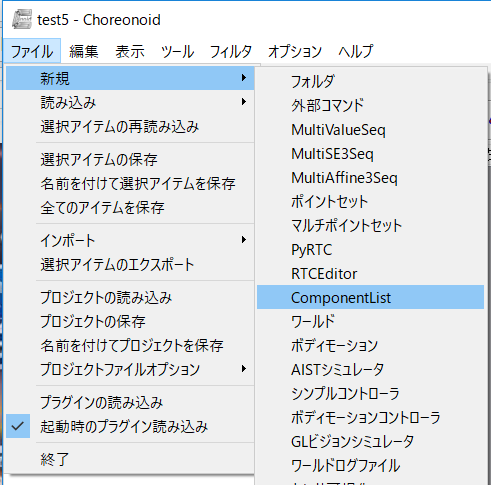
Start the RTC launcher. From File > Item, select and add ComponentListItem.
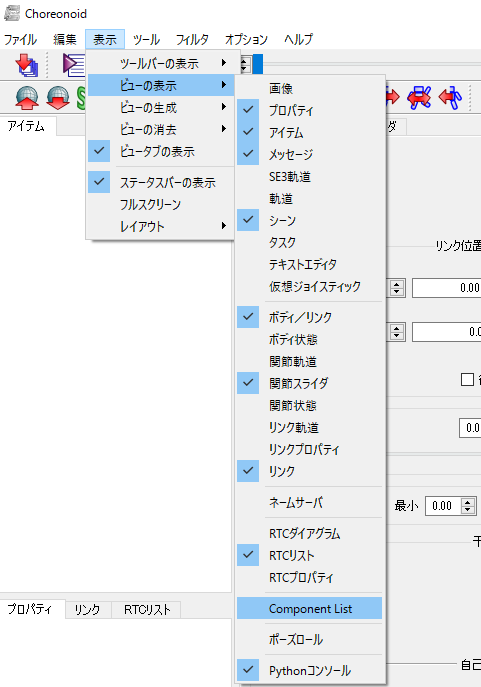
Next, select ComponentList from Show View.
Then the following window will be displayed.
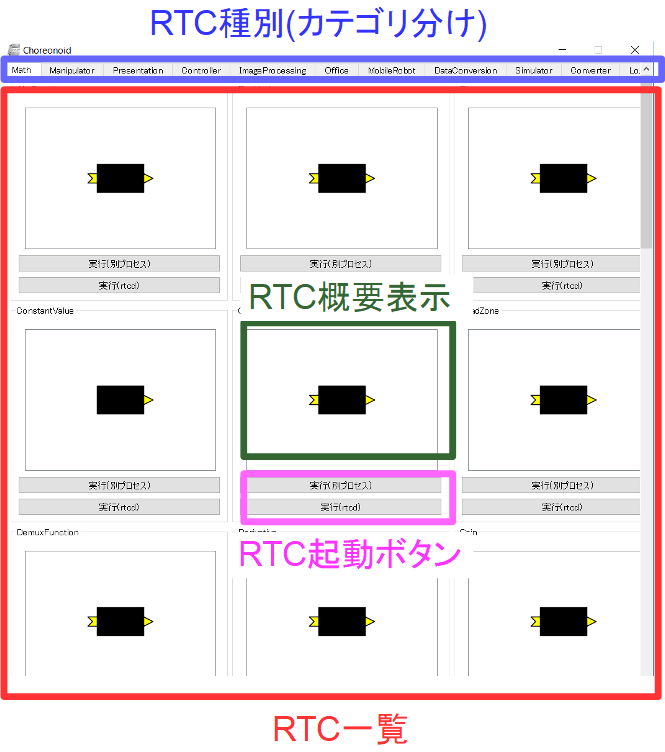
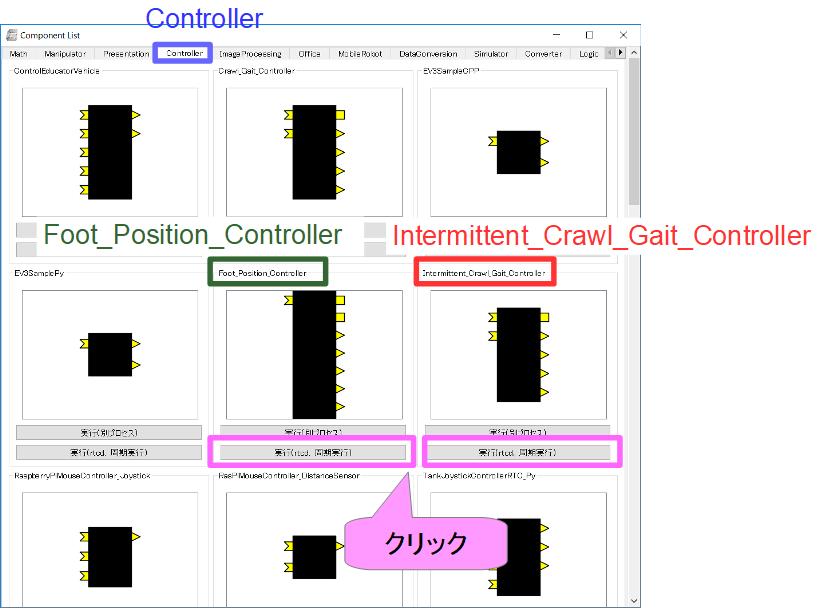
RTCs are classified by category, and you can display RTCs in other categories by switching tabs. Open the Controller tab and start the following two RTCs.
- Foot_Position_Controller (quadruped robot foot position control component)
- Intermittent_Crawl_Gait_Controller (quadruped robot intermittent crawl gait component)
You can start them simply by pressing the Run (rtcd, periodic execution) button.
- Originally, we would like to use a trigger-driven execution context, but this has not been realized due to a bug in the OpenRTM-aist C++ version.
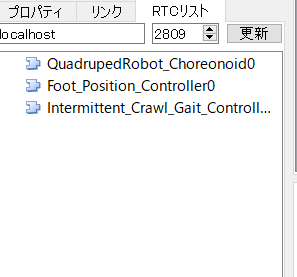
At this point, if you update the RTC list view, it will be displayed as follows.
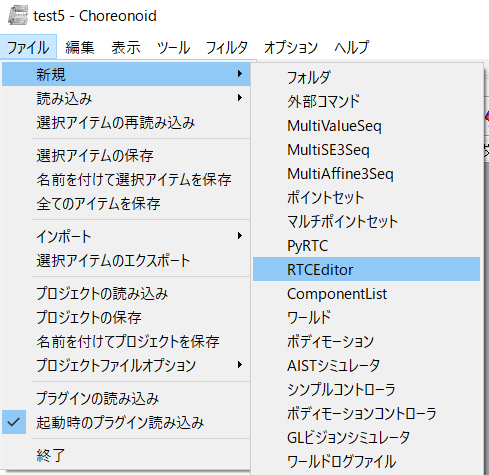
RTCEditor Item
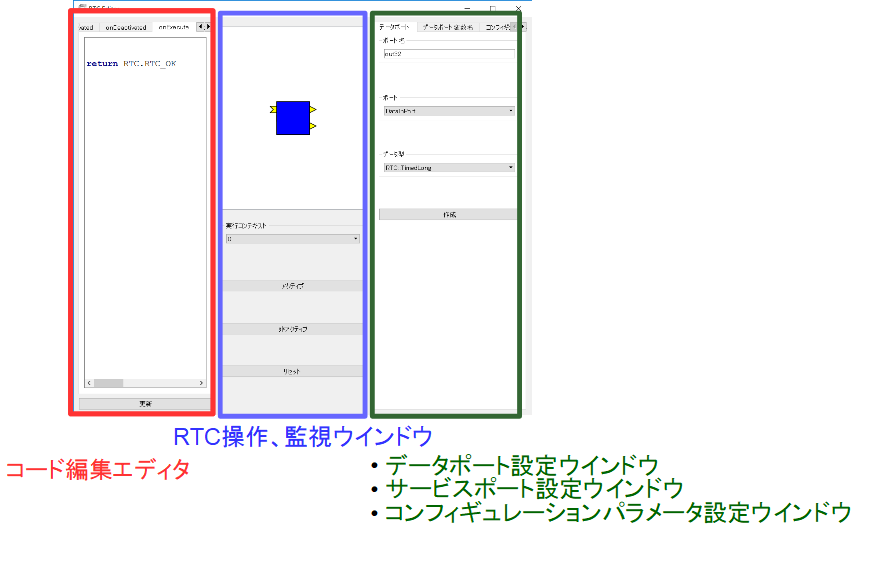
Start the RTC editor. From File > Item, select RTCEditorItem and add it under the world item.
Then the following window will be displayed.
Adding a Data Port
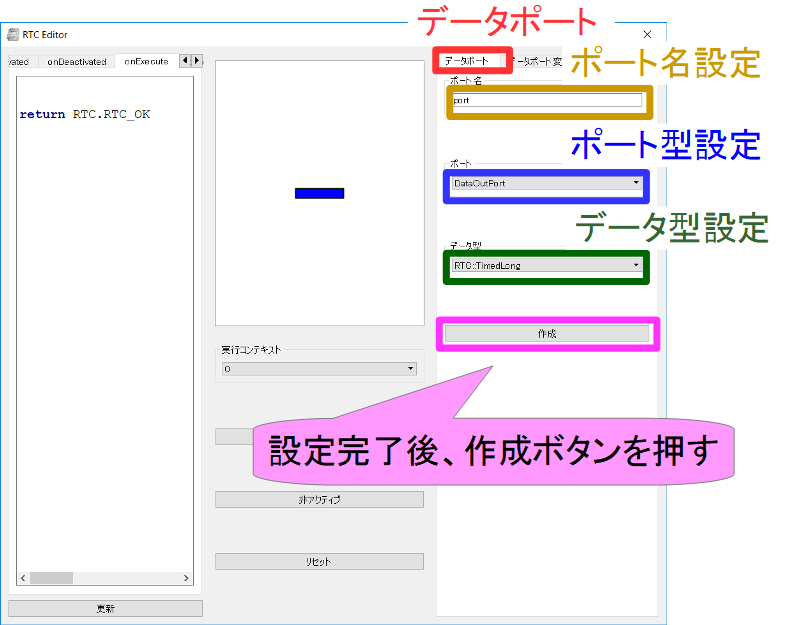
Add an outport for setting the target velocity of the quadruped robot. Configure the following settings from the window on the right.
| Port Name | out |
|---|---|
| Port | DataOutPort |
| Data Type | RTC::TimedVelocity2D |
Press the Create button to create the data port.
Editing Code
Edit the source code.
Data Port Variable Names
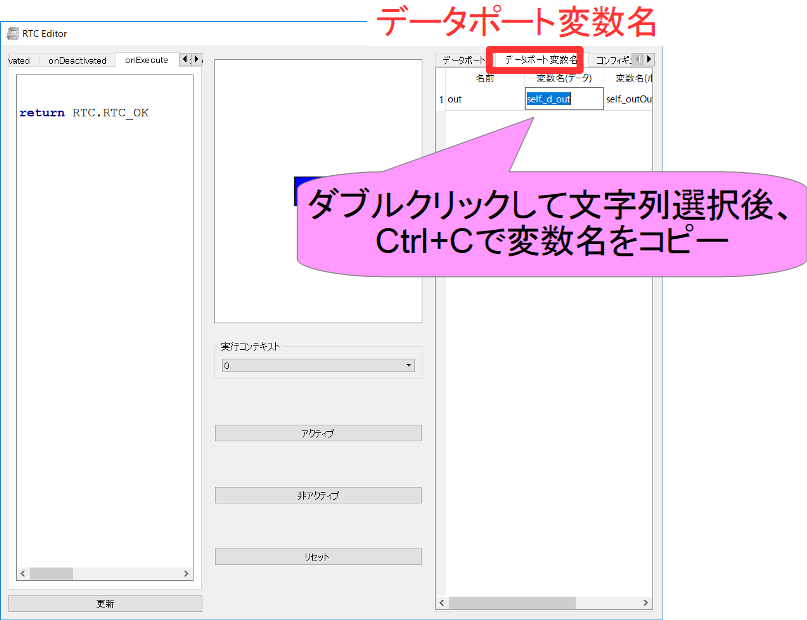
The variable names related to the data port you just created can be copied from the Data Port Variable Names tab on the right.
Writing Code
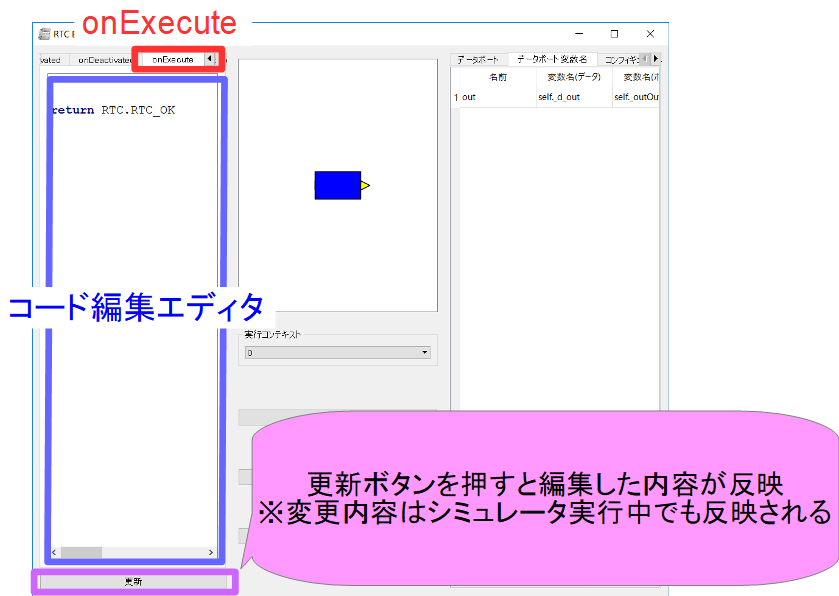
In the code editing window on the left, you can write processing to be executed in each activity + α (setBody, inputFromSimulator, outputToSimulator, global).
Write the following in the processing of the onExecute function.
 self._d_out.data.vx = 0.03
 self._d_out.data.va = 0
 self._outOut.write()

 return RTC.RTC_OK
The changes are reflected when you press the Update button.
At this point, the item tree is as follows.
 World(World item)
    -AISTSimulator(AIST Simulator)
    -QuadrupedRobot(model/QuadrupedRobot/QuadrupedRobot.yaml)
    -QuadrupedRobotIO(PyRTCItem)
    -floor(model/house/floor.body)
    -ComponentList
    -RTCEditor
Building the RT System
After adding the RT System item, display RTC Diagram from View > Show View.
Connect each RTC port as follows.
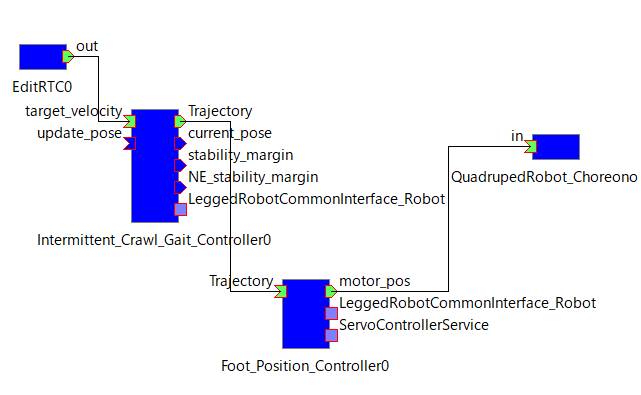
At this point, the item tree is as follows.
 World(World item)
    |-AISTSimulator(AIST Simulator)
    |-QuadrupedRobot(model/QuadrupedRobot/QuadrupedRobot.yaml)
      |-QuadrupedRobotIO(PyRTCItem)
    |-floor(model/house/floor.body)
    |-ComponentList
    |-RTCEditor
    |-RTSystem
Starting the Simulator
Finally, when you start the simulation, the quadruped robot moves forward.
Changing Code During Execution
For example, while the simulator is running, if you change the code of the RTCEditor onExecute function as follows and press the Update button, you can confirm that the quadruped robot changes its motion from moving forward to turning during simulation execution.
 self._d_out.data.vx = 0
 self._d_out.data.va = 0.8
 self._outOut.write()

 return RTC.RTC_OK