
control with a custom rtc
✏️ Edit this page on GitHub#contents
Beginner Exercise
Creating the Template Code
This section explains the procedure for connecting a newly created RTC to EducatorVehicle and controlling it.
First, create an RTC on Windows or Ubuntu by following the instructions on this page.
Enter the RTC specifications as follows.
| Basic | ||
|---|---|---|
| Module Name | EV3SampleCPP or EV3SamplePy | |
| Activities | ||
| Enabled Actions | onInitialize, onExecute, onActivated, onDeactivated | |
| Data Ports | ||
| InPort | ||
| Name | Data Type | Description |
| touch | RTC::TimedBooleanSeq | Touch sensor ON/OFF status |
| OutPort | ||
| Name | Data Type | Description |
| target_velocity | RTC::TimedVelocity2D | Target velocity |
| sound | RTC::TimedString | Sound output |
| Configuration | ||
| Name | Type | Description |
| forward_velocity | double | Forward velocity. Default value: 0.0. Constraint: -0.20<=x<=0.20. Widget: slider. Step: 0.02 |
| rotate_velocity | double | Rotational velocity. Default value: 0.0. Constraint: -3.1<=x<=3.1. Widget: slider. Step: 0.2 |
| Language / Environment | ||
| Language | C++ or Python | |
In this RTC, the velocities entered in the configuration parameters forward_velocity and rotate_velocity are sent to EducatorVehicle through target_velocity.
In addition, the touch sensor status is obtained through touch. When the touch sensor is turned on, the RTC stops the vehicle and issues a sound command through sound.
Note: This RTC is intended to run on EV3. However, it can also be executed on Windows or Ubuntu for testing and training purposes. In that case, it is recommended to generate a Visual Studio or Code::Blocks project with CMake before editing the code.
The procedure for generating projects and building with CMake is described on the following pages:
Editing the Code
First, edit the onExecute function.
The following code sends the values of forward_velocity and rotate_velocity through target_velocity.
C++ (src/EV3SampleCPP.cpp)
 RTC::ReturnCode_t EV3SampleCPP::onExecute(RTC::UniqueId ec_id)
 {
 	// Send the velocity configured through the configuration parameters
 	m_target_velocity.data.vx = m_forward_velocity;
 	m_target_velocity.data.va = m_rotate_velocity;
 	setTimestamp(m_target_velocity);
 	m_target_velocityOut.write();
   return RTC::RTC_OK;
 }
Python (EV3SamplePy.py)
 	def onExecute(self, ec_id):
 		# Send the velocity configured through the configuration parameters
 		self._d_target_velocity.data.vx = self._forward_velocity[0]
 		self._d_target_velocity.data.vy = 0
 		self._d_target_velocity.data.va = self._rotate_velocity[0]
 		OpenRTM_aist.setTimestamp(self._d_target_velocity)
 		self._target_velocityOut.write()
To ensure the robot stops when inactive, send zero velocity in onDeactivated.
C++ (src/EV3SampleCPP.cpp)
 RTC::ReturnCode_t EV3SampleCPP::onDeactivated(RTC::UniqueId ec_id)
 {
 	// Stop the robot
 	m_target_velocity.data.vx = 0;
 	m_target_velocity.data.vy = 0;
 	m_target_velocity.data.va = 0;
 	setTimestamp(m_target_velocity);
 	m_target_velocityOut.write();

   return RTC::RTC_OK;
 }
Python (EV3SamplePy.py)
 	def onDeactivated(self, ec_id):
 		# Stop the robot
 		self._d_target_velocity.data.vx = 0
 		self._d_target_velocity.data.vy = 0
 		self._d_target_velocity.data.va = 0
 		OpenRTM_aist.setTimestamp(self._d_target_velocity)
 		self._target_velocityOut.write()
 		return RTC.RTC_OK
According to the Common Interface Specification(No corresponding English project page available.), the positive X-axis represents the forward direction. Therefore, set the forward velocity in vx and the rotational velocity in va of the Velocity2D type.
For Python, also modify the following parts of the constructor.
Python (EV3SamplePy.py)
 		#self._d_target_velocity = RTC.TimedVelocity2D(*target_velocity_arg)
 		self._d_target_velocity = RTC.TimedVelocity2D(RTC.Time(0,0),RTC.Velocity2D(0,0,0))
 		#self._d_sound = RTC.TimedString(*sound_arg)
 		self._d_sound = RTC.TimedString(RTC.Time(0,0),[])
At this point, EducatorVehicle can already be operated, so you may skip the following steps if desired.
Next, implement processing to stop the robot when the touch sensor is turned ON.
Since new touch sensor data is not guaranteed to be available every time onExecute is called, declare a variable to temporarily store the sensor data.
C++ (include/EV3SampleCPP/EV3SampleCPP.h)
 private:
 	 bool m_last_sensor_data[2];	/* Variable for storing sensor data */
Python (EV3SamplePy.py)
 	def __init__(self, manager):
 		OpenRTM_aist.DataFlowComponentBase.__init__(self, manager)

 		# Variable for storing touch sensor data
 		self._last_sensor_data = [False, False]
Next, add processing to onExecute that stops the robot and outputs a sound when the touch sensor is ON.
C++ (src/EV3SampleCPP.cpp)
 RTC::ReturnCode_t EV3SampleCPP::onExecute(RTC::UniqueId ec_id)
 {
 	// Start here

 	// If new data has been received, store it in m_last_sensor_data
 	if (m_touchIn.isNew())
 	{
 		m_touchIn.read();
 		if (m_touch.data.length() == 2)
 		{
 			for (int i = 0; i < 2; i++)
 			{
 				// Play a sound when the touch sensor changes from OFF to ON
 				if (!m_last_sensor_data[i] && m_touch.data[i])
 				{
 					m_sound.data = "beep";
 					setTimestamp(m_sound);
 					m_soundOut.write();

 				}
 				m_last_sensor_data[i] = m_touch.data[i];
 			}
 		}
 	}

 	// Prevent forward movement when the touch sensor is ON
 	if (m_forward_velocity > 0)
 	{
 		for (int i = 0; i < 2; i++)
 		{
 			if (m_last_sensor_data[i])
 			{
 				m_target_velocity.data.vx = 0;
 				m_target_velocity.data.vy = 0;
 				m_target_velocity.data.va = 0;
 				setTimestamp(m_target_velocity);
 				m_target_velocityOut.write();
 				return RTC::RTC_OK;
 			}
 		}
 	}

 	// End here

 	// Send the velocity configured through the configuration parameters
 	m_target_velocity.data.vx = m_forward_velocity;

  (omitted below)
Python (EV3SamplePy.py)
	def onExecute(self, ec_id):

 		# Start here

 		# If new data has been received, store it in _last_sensor_data
 		if self._touchIn.isNew():
 			data = self._touchIn.read()
 			if len(data.data) == 2:
 				for i in range(2):

 					# Play a sound when the touch sensor changes from OFF to ON
 					if not self._last_sensor_data[i] and data.data[i]:
 						self._d_sound.data = "beep"
 						OpenRTM_aist.setTimestamp(self._d_sound)
 						self._soundOut.write()

 				self._last_sensor_data = data.data[:]

 		# Prevent forward movement when the touch sensor is ON
 		if self._forward_velocity[0] > 0:
 			for d in self._last_sensor_data:
 				if d:
 					self._d_target_velocity.data.vx = 0
 					self._d_target_velocity.data.vy = 0
 					self._d_target_velocity.data.va = 0
 					OpenRTM_aist.setTimestamp(self._d_target_velocity)
 					self._target_velocityOut.write()
 					return RTC.RTC_OK

		# End here

		# Send the velocity configured through the configuration parameters
		self._d_target_velocity.data.vx = self._forward_velocity[0]

 (omitted below)
Build
After editing the source code, build the project if you are using C++.
If you intend to run it on EV3, perform the build in a cross-compilation environment.
Move to the source code directory and execute the following commands:
 cd EV3SampleCPP
 cmake .
 make
If you are editing with Visual Studio or Code::Blocks, perform the build through the GUI.
Transfer the generated src/EV3SampleCPPComp to the EV3.
Do not transfer it when running on Windows or Ubuntu.
 sftp robot@<IP address>
 sftp> put EV3SampleCPP/src/EV3SampleCPPComp
For the Python version, also transfer EV3SamplePy.py.
 sftp robot@<IP address>
 sftp> put EV3SamplePy/EV3SamplePy.py
If cmake is not installed, execute:
sudo apt-get install cmake
Starting the RTC
Once the build is complete, start the RTC.
C++
EV3SampleCPPComp&
Python
python EV3SamplePy.py&
If you are running the RTC on Windows, double-click EV3SampleCPPComp.exe (or EV3SamplePy.py).
Next, start EducatorVehicle with the following command:
Compomnents/EducatorVehicleComp&
Verifying Operation
First, connect the data ports for testing.
Start RT System Editor on Windows.
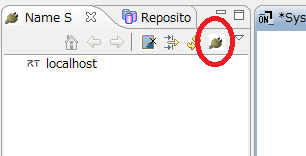
Add the Name Server running on the EV3 to the RT System Editor view.
Press the Add Name Server button and enter the EV3 IP address.
After adding the Name Server, connect the data ports as shown below.

| Port Connections | |
|---|---|
| EV3SampleCPP0 (EV3SamplePy0) | EducatorVehicle0 |
| target_velocity | velocity2D |
| touch | touch |
| sound | sound |
After activating the RTC, operation will begin.
First, try controlling EducatorVehicle by changing the configuration parameters of EV3SampleCPP (EV3SamplePy).
In RT System Editor, select EV3SampleCPP0 (EV3SamplePy0) and choose Edit in the Configuration View.

The following window will appear.

You can control the EV3 using the forward_velocity and rotate_velocity sliders.
Next, verify that the robot stops when the touch sensor is activated.
Touch the touch sensor with an object and confirm that the robot stops.
Also verify that a sound is played when it stops.
Advanced Exercise (Intermediate Level)
Next, implement obstacle avoidance behavior in which the robot backs up and then rotates when the touch sensor is activated.
The avoidance maneuver is performed by executing the following processing whenever touch sensor data is received.

Configuration Parameters
Add the following configuration parameters.
| Configuration | ||
|---|---|---|
| Name | Type | Description |
| back_speed | double | Reverse speed. Default value: 0.1 |
| back_time | double | Duration of reverse movement. Default value: 1.0 |
| rotate_speed | double | Rotation speed. Default value: 0.8 |
| rotate_time | double | Duration of rotational movement. Default value: 2.0 |
Implementing Functions
Implement the following functions.
| Function Name | Description | Arguments |
|---|---|---|
| stop_robot | Stops the robot | None |
| back_move | Moves backward | None |
| rotate_move | Rotates the robot | dir (rotation direction) |
stop_robot Function
The stop_robot function is implemented as follows.
It sets the target velocity to zero and sends it.
 void ControlEducatorVehicle::stop_robot()
 {
 	m_target_velocity_out.data.vx = 0;
 	m_target_velocity_out.data.vy = 0;
 	m_target_velocity_out.data.va = 0;
 	setTimestamp(m_target_velocity_out);
 	m_target_velocity_outOut.write();
 }
back_move Function
The back_move function is implemented as follows.
After outputting a reverse velocity command, it waits for a specified amount of time using the sleep function. This achieves backward movement at back_speed for a duration of back_time.
 void ControlEducatorVehicle::back_move()
 {
 	// Command reverse movement
 	m_target_velocity_out.data.vx = -m_back_speed;
 	m_target_velocity_out.data.vy = 0;
 	m_target_velocity_out.data.va = 0;
 	setTimestamp(m_target_velocity_out);
 	m_target_velocity_outOut.write();

 	// Wait for a fixed period
 	double sec, usec;
 	usec = modf(m_back_time, &sec);

 	coil::TimeValue ts((int)sec, (int)(usec*1000000.0));
 	coil::sleep(ts);

 	// Stop temporarily
 	stop_robot();
 }
Note: Waiting with
sleep()insideonExecute()is generally not desirable because operations from RT System Editor and other tools become unavailable during the wait period.However, in this exercise, implementing the behavior without stopping the execution context would significantly increase complexity, so this approach is used.
rotate_move Function
The rotate_move function is implemented as follows.
Similar to backward movement, it performs rotational movement at the speed specified by rotate_speed for the duration specified by rotate_time.
 void ControlEducatorVehicle::rotate_move(bool dir)
 {
 	// Command rotational movement
 	m_target_velocity_out.data.vx = 0;
 	m_target_velocity_out.data.vy = 0;

 	// Rotate left
 	if (dir)m_target_velocity_out.data.va = m_rotate_speed;

 	// Rotate right
 	else m_target_velocity_out.data.va = -m_rotate_speed;

 	setTimestamp(m_target_velocity_out);
 	m_target_velocity_outOut.write();

 	// Wait for a fixed period
 	double sec, usec;
 	usec = modf(m_rotate_time, &sec);

 	coil::TimeValue ts((int)sec, (int)(usec*1000000.0));
 	coil::sleep(ts);

 	// Stop temporarily
 	stop_robot();
 }
Implementing the onExecute Function
Finally, implement obstacle avoidance behavior according to the flowchart.
 RTC::ReturnCode_t ControlEducatorVehicle::onExecute(RTC::UniqueId ec_id)
 {
 	// Store the target velocity in variables
 	if (m_target_velocity_inIn.isNew())
 	{
 		m_target_velocity_inIn.read();
 		vx = m_target_velocity_in.data.vx;
 		vy = m_target_velocity_in.data.vy;
 		va = m_target_velocity_in.data.va;
 	}

 	// Process touch sensor input
 	if (m_touchIn.isNew())
 	{
 		while(m_touchIn.isNew())m_touchIn.read();

 		if (m_touch.data.length() >= 2)
 		{
 			touch_r = m_touch.data[0];
 			touch_l = m_touch.data[1];

 			// Only while moving forward
 			if (vx > 0)
 			{
 				// Left touch sensor
 				if (m_touch.data[0])
 				{
 					// Stop → Reverse → Rotate right
 					stop_robot();
 					back_move();
 					rotate_move(true);
 				}

 				// Right touch sensor
 				else if (m_touch.data[1])
 				{
 					// Stop → Reverse → Rotate left
 					stop_robot();
 					back_move();
 					rotate_move(false);
 				}
 			}
 		}
 	}

 	m_target_velocity_out.data.vx = vx;
 	m_target_velocity_out.data.vy = vy;
 	m_target_velocity_out.data.va = va;

 	setTimestamp(m_target_velocity_out);

 	// Send target velocity
 	m_target_velocity_outOut.write();

 	return RTC::RTC_OK;
 }
Advanced Exercise (Advanced Level)
In this section, you will create an RTC that detects the distance to the ground using an ultrasonic sensor and prevents the robot from falling off an edge.

When the height to the ground detected by the ultrasonic sensor exceeds a specified threshold, execute the following processing.

Data Ports and Configuration Parameters
Add the following data ports and configuration parameters.
| Data Ports | ||
|---|---|---|
| InPort | ||
| Name | Data Type | Description |
| ultrasonic | RTC::RangeData | Assumes the ultrasonic sensor is a range sensor and stores distance data in element 1 |
| current_pose | RTC::TimedPose2D | Current position and orientation |
| OutPort | ||
| Name | Data Type | Description |
| angle | RTC::TimedDouble | Angle of Motor M |
| Configuration | ||
| Name | Type | Description |
| sensor_height | double | Maximum ground height considered safe for landing. Default value: 0.20 |
| medium_motor_range | double | Operating range of Motor M. Default value: 1.6 |
Implementing Functions
Implement the following functions:
search_ground- Searches for safe ground using the ultrasonic sensor.
turn_move- Rotates the robot by a specified angle.
Implementing the Functions
Implement the search_ground function, which searches for a safe landing surface using the ultrasonic sensor, and the turn_move function, which rotates the robot by a specified angle.
 bool ControlEducatorVehicle::search_ground(double &a)
 {
 	// Rotate Motor M to the right
 	m_angle.data = (-1)*m_medium_motor_range;
 	setTimestamp(m_angle);
 	m_angleOut.write();

 	coil::TimeValue ts(2, 0);
 	coil::sleep(ts);

 	// Check whether the distance to the ground is below the threshold
 	if (m_ultrasonicIn.isNew())
 	{
 		while(m_ultrasonicIn.isNew())m_ultrasonicIn.read();

 		if (m_ultrasonic.ranges.length() >= 1)
 		{
 			if (m_ultrasonic.ranges[0] < m_sensor_height)
 			{
 				// Safe ground detected.
 				// Store the direction where safe ground was found.
 				a = m_medium_motor_range;
 				return true;
 			}
 		}
 	}

 	// Rotate Motor M to the left
 	m_angle.data = (-1)*-m_medium_motor_range;
 	setTimestamp(m_angle);
 	m_angleOut.write();

 	ts = coil::TimeValue(4, 0);
 	coil::sleep(ts);

 	// Check whether the distance to the ground is below the threshold
 	if (m_ultrasonicIn.isNew())
 	{
 		while(m_ultrasonicIn.isNew())m_ultrasonicIn.read();

 		if (m_ultrasonic.ranges.length() >= 1)
 		{
 			if (m_ultrasonic.ranges[0] < m_sensor_height)
 			{
 				// Safe ground detected.
 				// Store the direction where safe ground was found.
 				a = -m_medium_motor_range;
 				return true;
 			}
 		}
 	}

 	m_angle.data = 0;
 	setTimestamp(m_angle);
 	m_angleOut.write();

 	return false;
 }
turn_move Function
 void ControlEducatorVehicle::turn_move(double a)
 {

 	int max_count = 100;
 	coil::TimeValue ts(0,10000);

 	// Obtain the current orientation
 	double spos = 0;

 	for (int i = 0; i < max_count; i++)
 	{
 		if (m_current_poseIn.isNew())
 		{
 			m_current_poseIn.read();
 			spos = m_current_pose.data.heading;
 			break;
 		}

 		coil::sleep(ts);

 		// Cancel rotation if no data is received within the timeout period
 		if (i == max_count - 1)return;
 	}

 	max_count = 1000;

 	// Start rotational movement
 	double data_new_count = 0;
 	double max_data_new_count = 100;

 	for (int i = 0; i < max_count; i++)
 	{
 		if (m_current_poseIn.isNew())
 		{
 			while(m_current_poseIn.isNew())m_current_poseIn.read();

 			// Set target angular velocity proportional to orientation error
 			double pos = m_current_pose.data.heading - spos;
 			double k = 1;

 			m_target_velocity_out.data.vx = 0;
 			m_target_velocity_out.data.vy = 0;

 			double diff = (a - pos);
 			double vela = k * diff;

 			if(vela > m_rotate_speed)vela = m_rotate_speed;
 			if(vela < -m_rotate_speed)vela = -m_rotate_speed;

 			// Output target velocity
 			m_target_velocity_out.data.va = vela;

 			setTimestamp(m_target_velocity_out);
 			m_target_velocity_outOut.write();

 			// Stop when the orientation error becomes sufficiently small
 			if(sqrt(pow(diff,2)) < 0.03)
 			{
 				stop_robot();
 				return;
 			}

 			data_new_count = 0;
 		}
 		else
 		{
 			// End processing if no data is received for a certain period
 			data_new_count += 1;

 			if(data_new_count > max_data_new_count)
 			{
 				stop_robot();
 				return;
 			}

 			coil::sleep(ts);
 		}
 	}

 	stop_robot();
 }
onExecute Function
Finally, implement onExecute as shown below.
 RTC::ReturnCode_t ControlEducatorVehicle::onExecute(RTC::UniqueId ec_id)
 {
 	// Store target velocity in variables
 	if (m_target_velocity_inIn.isNew())
 	{
 		m_target_velocity_inIn.read();
 		vx = m_target_velocity_in.data.vx;
 		vy = m_target_velocity_in.data.vy;
 		va = m_target_velocity_in.data.va;
 	}

 	// Start processing when ultrasonic sensor data is received
 	if (m_ultrasonicIn.isNew())
 	{
 		while(m_ultrasonicIn.isNew())m_ultrasonicIn.read();

 		if (m_ultrasonic.ranges.length() >= 1)
 		{
 			range = m_ultrasonic.ranges[0];

 			// Check whether the robot is moving forward
 			if (vx > 0)
 			{
 				// Check whether the detected distance to the ground exceeds the threshold
 				if (m_ultrasonic.ranges[0] > m_sensor_height)
 				{
 					// Set stop flag to true
 					// (The flag will be reset when the next sensor reading is below the threshold)
 					stop_flag = true;

 					// Stop temporarily
 					stop_robot();

 					// Set Motor M angle to zero
 					m_angle.data = 0;
 					setTimestamp(m_angle);
 					m_angleOut.write();

 					// Rotate Motor M and search for safe ground
 					double a = 0;
 					bool ret = search_ground(a);

 					// Return Motor M to the center position
 					m_angle.data = 0;
 					setTimestamp(m_angle);
 					m_angleOut.write();

 					// If safe ground is found, perform a rotation maneuver
 					if (ret)
 					{
 						turn_move(a);
 					}

 					coil::TimeValue ts(2, 0);
 					coil::sleep(ts);
 				}

 				// If the detected distance is below the threshold,
 				// clear the stop flag
 				else
 				{
 					stop_flag = false;
 				}
 			}
 		}
 	}
 	// Stop if the stop flag is true
 	if (stop_flag)
 	{
 		m_target_velocity_out.data.vx = 0;
 		m_target_velocity_out.data.vy = 0;
 		m_target_velocity_out.data.va = 0;
 	}

 	// If the stop flag is false, output the target velocity as-is
 	else
 	{
 		m_target_velocity_out.data.vx = vx;
 		m_target_velocity_out.data.vy = vy;
 		m_target_velocity_out.data.va = va;
 	}

 	setTimestamp(m_target_velocity_out);
 	m_target_velocity_outOut.write();

   return RTC::RTC_OK;
 }
Saving the RT System
The RT system can also be saved from RT System Editor, but rtshell can be used to automate restoration of the RT system.
After connecting the ports and setting the configuration parameters in RT System Editor, execute the rtcryo command.
rtcryo localhost -o testSystem.rtsys
This saves the RT system information to a file named testSystem.rtsys.
However, when using RTCs registered with multiple Name Servers, as in this exercise, you must specify multiple Name Servers as follows.
rtcryo localhost 192.168.11.1 -o testSystem.rtsys
To restore the saved RT system, use the rtresurrect command.
rtresurrect testSystem.rtsys
To activate the RTCs, use the rtstart command.
rtstart testSystem.rtsys
To deactivate the RTCs, use the rtstop command.
rtstop testSystem.rtsys
To disconnect the ports, use the rtteardown command.
rtteardown testSystem.rtsys
One thing to note is that, by default, RTCs are registered under .host_cxt using the host name on the Name Server.
Since the host name differs depending on the environment, an RT system saved with this procedure may not be reproducible in another environment.
Therefore, by editing rtc.conf so that RTCs are registered directly under the root of the Name Server, the RT system can be restored in other environments as well.
naming.formats: %n.rtc