
tutorial (ev3, part 3)
✏️ Edit this page on GitHub#contents
In this section, we will build an RT system that coordinates two EV3 units.
Use the first EV3 as an access point, and connect both the laptop PC and the second EV3 to that access point.
Note: EV3 (Unit 1) will be distributed with an odd-numbered ID. Please check the number indicated on the EV3 label. EV3 (Unit 2) will be distributed with the next consecutive number after EV3 (Unit 1). (Example: EV3 (Unit 1): 7, EV3 (Unit 2): 8)

Assembling EV3 (Unit 2)
Follow the instructions in Part 2 to assemble the second Educator Vehicle.
Connecting to the EV3
Connecting the Laptop PC and EV3 (Unit 1)
Complete the procedure in Part 2 through the hardware operation test.
At this point, the laptop PC should already be connected to the EV3 configured as an access point.

Connecting EV3 (Unit 1) and EV3 (Unit 2)
First, power on EV3 (Unit 2).
After startup, it will automatically connect to EV3 (Unit 1).
If the automatic connection succeeds, an IP address will be displayed in the upper-left corner of the EV3 screen.
The displayed IP address will be in the form 192.168.11.yyy.

If a different IP address is displayed, please verify that you received the correct EV3 unit number.
Starting the Name Server and RTC
Start the Name Server and RTC from the EV3 (Unit 2) screen.
From the EV3 menu, select “File Browser” → “scripts”.
The Name Server and RTC can be started by executing the start_rtcs.sh script.
 ------------------------------
 192.168.11.yyy
 ------------------------------
         File Browser
 ------------------------------
 /home/robot/scripts
 ------------------------------
 ../
 Component/
 ・・
 [start_rtcs.sh                 ]
 ------------------------------

Adding a Name Server
From RT System Editor, connect to the Name Server at 192.168.11.yyy.
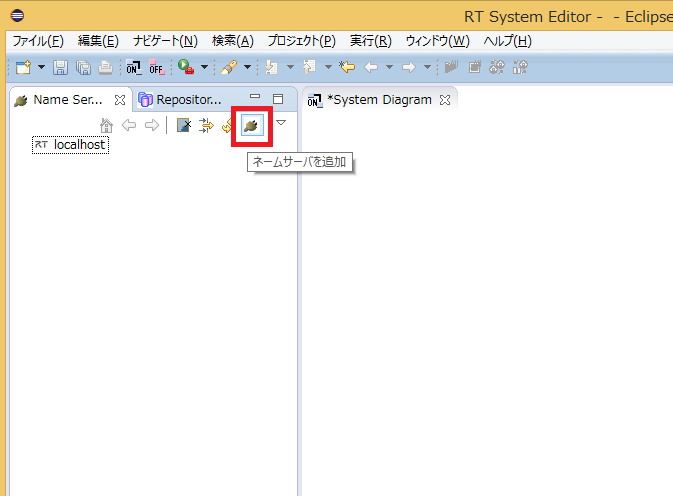
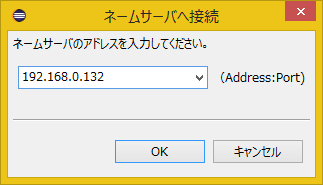
At this point, the Name Service View in RT System Editor should contain the Name Servers:
- localhost
- 192.168.0.1
- 192.168.11.yyy
The RTC registered on the Name Server at 192.168.11.yyy is named EducatorVehicle1.
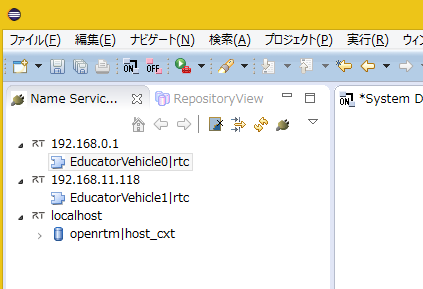
- localhost
- RobotController0
- 192.168.0.1
- EducatorVehicle0
- 192.168.11.yyy
- EducatorVehicle1
Operation Test
Connect EducatorVehicle0 (192.168.0.1) and EducatorVehicle1 (192.168.11.yyy) on the system diagram.
By connecting the current velocity output of EducatorVehicle1 to the target velocity input of EducatorVehicle0, EV3 (Unit 1) will follow the movement of EV3 (Unit 2).
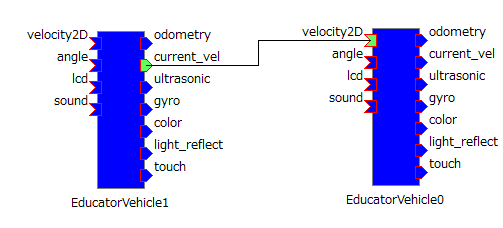
Activate the RTCs and rotate the wheels of the second Educator Vehicle. The first Educator Vehicle will move accordingly.

Optional Exercises
This completes the main hands-on exercise. If you have extra time, try some of the following challenges.
Examples
-
Control EV3 (Unit 1) using the ON/OFF state of the touch sensor on EV3 (Unit 2)
-
Control Two EV3 Units Simultaneously with a Joystick Component
The joystick component is included as a sample in OpenRTM-aist Python (TkJoyStickComp.py).
Since the OutPort data type of TkJoyStickComp.py is TimedFloatSeq, you must create an RTC that converts it to the TimedVelocity2D type.
If a string (TimedString type) is input to the InPort named sound of EducatorVehicleRTC, the EV3 will speak the text.
When outputting a string (const char* ) through a DataPort, you must copy the string using the CORBA::string_dup() function.
m_out.data = CORBA::string_dup("abc");
- Use various sensors (Color Sensor, Ultrasonic Sensor, Gyro Sensor)