
initial setup
✏️ Edit this page on GitHub#contents
Raspbian
Follow the instructions on this page to write Raspbian to an SD card.
If you are using the SD card included with the full kit, this step is not required.
Assembly
First, insert the SD card into the Raspberry Pi.
Once assembled, the SD card cannot be replaced unless the Raspberry Pi is removed.
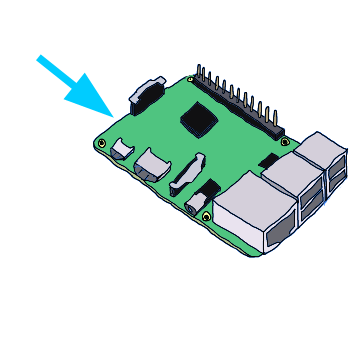
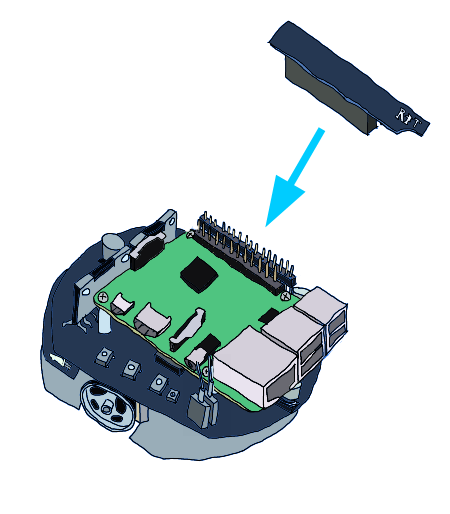
Next, mount the Raspberry Pi onto the Raspberry Pi Mouse body.
Secure the Raspberry Pi to the spacers using the included screws.

Finally, connect the supplied board to the pin headers on both the Raspberry Pi and the Raspberry Pi Mouse body to complete the assembly.
Starting Raspbian
The following procedures are performed after booting Raspbian.
First, connect a display, mouse, keyboard, and LAN cable to the Raspberry Pi.
The Raspberry Pi Mouse can be powered not only by the battery but also from an AC outlet using the included power cable. However, be careful about the orientation of the connector when connecting it to the Raspberry Pi Mouse.
The Raspberry Pi Mouse power switches are located as shown below.
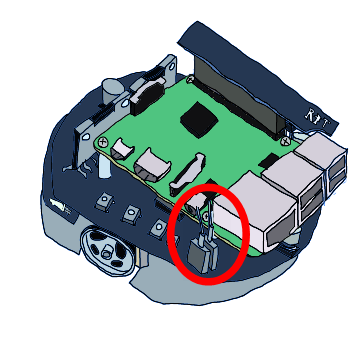
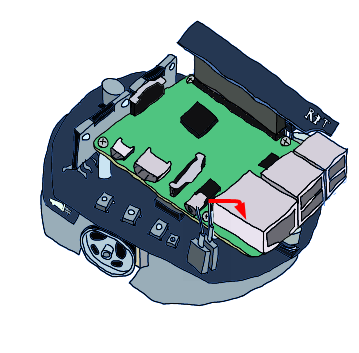
The front switch controls the motor power, and the inner switch controls the Raspberry Pi power.
Turn the inner switch ON.
Once Raspbian has started, log in using:
- Username:
pi - Password:
raspberry
After logging in, start X Window with the following command:
startx
Device Driver
After Raspbian starts, clone the repository using the following command:
git clone https://github.com/rt-net/RaspberryPiMouse.git
If git is not installed, install it first with the following command:
sudo apt-get install git
Next, check the kernel version with:
uname -r
For example, if you are using a Raspberry Pi 2 Model B with kernel version 4.1.6-v7+, load the kernel module using:
 cd RaspberryPiMouse/lib/Pi2B+/4.1.6-v7+/
 sudo insmod rtmouse.ko
If the SPI interface is not enabled, enable it using the following command or from:
[Menu] > [Preferences] > [Raspberry Pi Configuration]
sudo raspi-config
Use the arrow keys to select Advanced Options and press Enter.
Next, select A5 SPI using the same procedure.
Then select Yes using the left/right arrow keys and press Enter on OK to enable SPI.
After returning to the main screen, select Finish with the left/right arrow keys and exit.
For more details, refer to this page.
If you are using the SD card included with the full kit, this step is not required.
OpenRTM-aist
C++ Version
To install the C++ version of OpenRTM-aist on Raspbian, run the following commands:
 wget http://svn.openrtm.org/OpenRTM-aist/tags/RELEASE_1_1_1/OpenRTM-aist/build/pkg_install_debian.sh
 sudo sh pkg_install_debian.sh
For more information, refer to this page.
The host PC is assumed to be running Windows.
For instructions on installing OpenRTM-aist on Windows, refer to this page.
Since the sample RT systems also use Python-based sample components, install the Python version as well.
In addition, the sample RT systems use rtshell, so install it by following the instructions on this page.
Python Version
To install the Python version, first run the following commands:
 wget http://svn.openrtm.org/OpenRTM-aist-Python/tags/RELEASE_1_1_0/OpenRTM-aist-Python/installer/install_scripts/pkg_install_python_debian.sh
 sudo sh pkg_install_python_debian.sh