
operation check (linux edition)
✏️ Edit this page on GitHubAfter installation has completed successfully, perform an operation test using the included samples. The samples are normally located in the following directory.
- /usr/share/openrtm-1.2/components/python/
Use the sample component set SimpleIO to verify that OpenRTM-aist has been built and installed correctly.
#contents(3)
Sample Component Set SimpleIO
This is a sample set consisting of the RT Components ConsoleIn and ConsoleOut. ConsoleIn is a component that outputs numerical values entered from the console through an OutPort, while ConsoleOut is a component that displays numerical values received through an InPort on the console. These components are samples intended to demonstrate simple I/O (input/output). They operate by creating a connection from the OutPort of ConsoleIn to the InPort of ConsoleOut and activating these two components.
In the following explanation, it is assumed that the samples are located under /usr/share/openrtm-1.2/components/python/SimpleIO and that the search path has been configured for the Python executable.
Verifying Operation Using the Samples
Starting the Name Server
- Start the name server. It can be started with the following command.
$ rtm-naming
- In environments where OpenRTM-aist (C++) is not installed, the following scripts are provided so that it can be started.
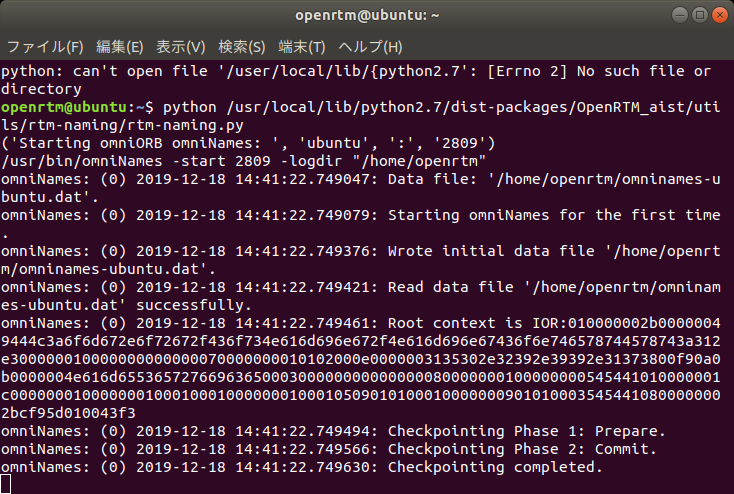
$ python /usr/lib/python2.7/dist-packages/OpenRTM_aist/utils/rtm-naming/rtm-naming.py
      or
$ python3 /usr/lib/python3/dist-packages/OpenRTM_aist/utils/rtm-naming/rtm-naming.py
| Here, {Python2.7 | python3} depends on the version of Python installed in the Linux environment when the Python edition of OpenRTM-aist was installed. If Python 2.7 was installed, use “python2.7”. (The default on Ubuntu 18.04 is Python 2.7.) |
The following screen will be displayed.
Starting the Sample Components
- Open a terminal.
- Change the current directory to /usr/share/openrtm-1.2/components/python/SimpleIO.
$ cd /usr/share/openrtm-1.2/components/python/SimpleIO
- Start the ConsoleIn component with the following command.
$ python ConsoleIn.py
- Open another terminal.
- Set the current directory to the same location as above.
- Start the ConsoleOut component with the following command.
$ python ConsoleOut.py
Checking Names on the Name Service
- Open another terminal.
Check the registered names as follows.
$ rtls -R localhost
.:
ConsoleIn0.rtc  ConsoleOut0.rtc
Connecting the Sample Components
- Connect the ConsoleIn0 component and ConsoleOut0 component using the following command.
In the terminal opened above, enter:
rtcon /localhost/ConsoleIn0.rtc:out /localhost/ConsoleOut0.rtc:in
Activating the Sample Components
- In the terminal above, enter:
rtact /localhost/ConsoleIn0.rtc /localhost/ConsoleOut0.rtc
When executed, the terminals running ConsoleIn.py and ConsoleOut.py will change as shown below, and the terminal running ConsoleIn.py will display the prompt “Please input number:”.
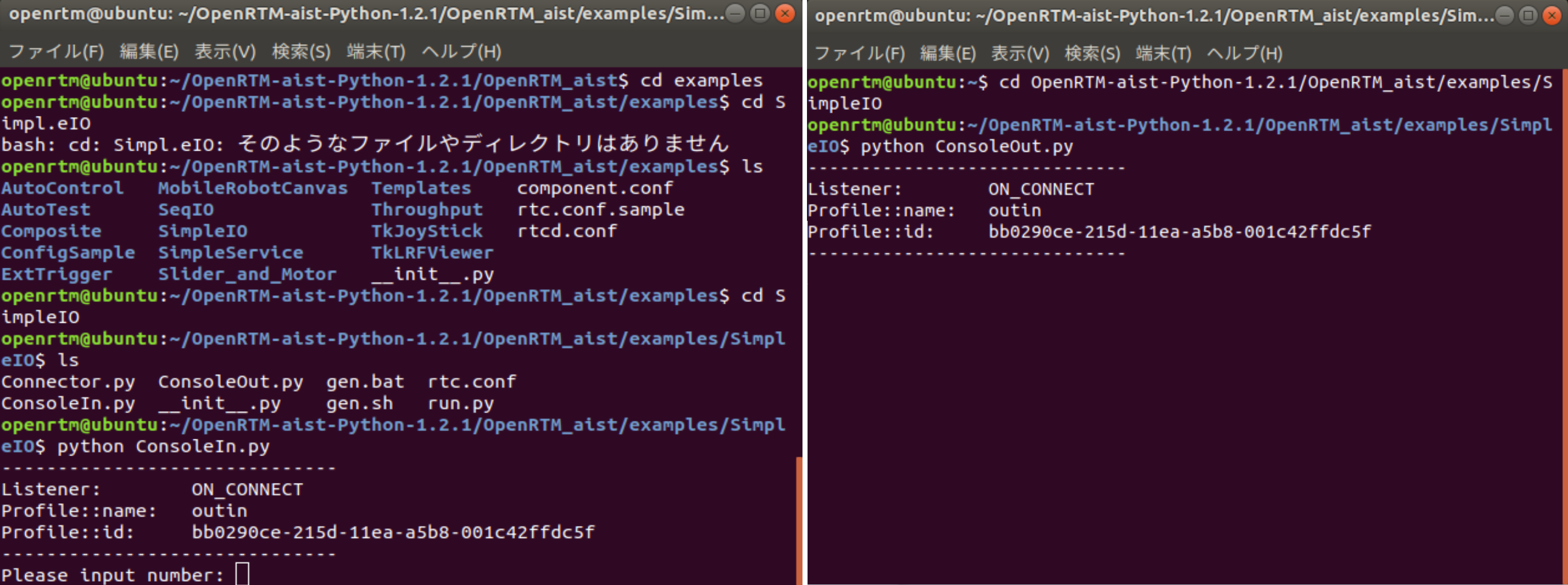
- Enter an arbitrary numerical value (within the range of short int: 32767 or less) in the terminal running ConsoleIn and press the Enter key.
- The same value entered will be displayed in the ConsoleOut.py terminal window. This confirms that data has been transferred from the ConsoleIn component to the ConsoleOut component.
Deactivating and Exiting the Sample Components
- Deactivate the components with the following command.
rtdeact /localhost/ConsoleIn0.rtc /localhost/ConsoleOut0.rtc
-
The ConsoleIn.py terminal will be waiting for input, so enter an arbitrary numerical value (32767 or less) and press the Enter key.
-
Enter the following commands and confirm in each terminal that ConsoleIn.py and ConsoleOut.py have terminated.
rtexit /localhost/ConsoleIn0.rtc
rtexit /localhost/ConsoleOut0.rtc
This completes the verification of the basic component operations using the command line.