
controlling the kobuki mobile robot
✏️ Edit this page on GitHub#contents
Kobuki is a research mobile robot manufactured by Yujin Robotics.
It is approximately the same size as a Roomba robot vacuum and can be controlled from a PC via a USB serial connection.
Kobuki is equipped with I/O interfaces, serial communication ports, power connectors, buttons, LEDs, and other features, making it suitable as an experimental robot platform.
A script for installing the software required to run the Kobuki sample applications described below can be downloaded from:
- http://svn.openrtm.org/Embedded/trunk/RaspberryPi/tools/rpi.sh
$ wget http://svn.openrtm.org/Embedded/trunk/RaspberryPi/tools/rpi.sh
$ chmod 755 rpi.sh
$ sudo ./rpi.sh hostname --type kobuki
This script automatically performs the environment setup and compiles the Kobuki sample applications described in this guide.
Connecting Raspberry Pi and Kobuki
The figure below shows the main panel of Kobuki.
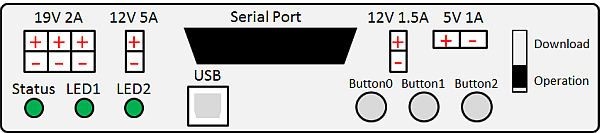
Use the 5V/1A DC output connector to power the Raspberry Pi, and use the USB connector for communication.
Power Supply
Kobuki provides a DC output connector capable of supplying 5V at 1A, which can be used to power a Raspberry Pi.
The connector specifications are:
| Kobuki 5V/1A Connector | |
|---|---|
| Housing | Molex PN: 43645-0200 |
| Terminal | Molex PN: 43030-0001 |

These connectors can also be purchased from RT Robot Shop and similar suppliers.
- Kobuki Connector Set (¥450) http://www.rt-shop.jp/index.php?main_page=product_info&cPath=1001_1022&products_id=784
By creating a DC-to-USB power cable as shown below, power can be supplied to the Raspberry Pi.

Nowadays, many portable batteries with USB outputs for smartphones are available and can also be used as power sources.
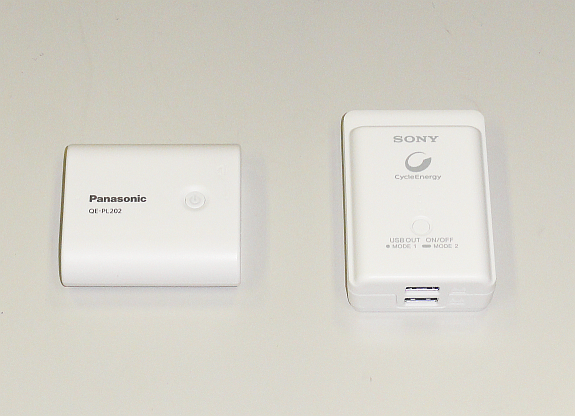
USB Connection
Use the USB cable included with Kobuki to connect Kobuki and the Raspberry Pi.
On the Raspberry Pi, the device appears as:
$ ls /dev/ttyUSB*
/dev/ttyUSB0
Hardware Setup
Mount the Raspberry Pi on the Kobuki platform and connect both power and USB cables.
If the Raspberry Pi is connected to a wireless LAN, Kobuki can be controlled remotely over Wi-Fi.

Since the Raspberry Pi may come loose while Kobuki is moving, securing it with hook-and-loop tape (Velcro) is recommended.
Compiling the KobukiAIST RT Component
Although RT component compilation was covered previously, we review it here.
First, check out the KobukiAIST RT component from the repository below and build it.
- KobukiAIST RTC http://svn.openrtm.org/components/trunk/mobile_robots/kobuki
$ svn co http://svn.openrtm.org/components/trunk/mobile_robots/kobuki
$ cd kobuki
$ mkdir build
$ cd build
$ cmake -DCMAKE_INSTALL_PREFIX=/usr ..
$ make
$ cd src
$ sudo make install
After installation, the executable should be installed at:
/usr/lib/openrtm-1.1/rtc/KobukiAISTComp
To test it:
$ rtm-naming
$ sudo /usr/lib/openrtm-1.1/rtc/KobukiAISTComp
Root privileges are required because access to /dev/ttyUSB0 is necessary.
Start RTSystemEditor and connect to the Raspberry Pi using its hostname or IP address.
You should see a component named KobukiAIST0.
Open its Configuration dialog.
You can control LEDs such as LED1 and LED2 by selecting RED, GREEN, and other options using the radio buttons. The LEDs should illuminate accordingly.
Automatically Starting the KobukiAIST Component
To automatically start the KobukiAIST component when Raspberry Pi boots, create the following script as:
/etc/kobuki.sh
Create the file:
$ sudo vi /etc/kobuki.sh
Contents:
#!/bin/sh
#
# KobukiAIST RTC launch script
#

ns=/usr/bin/rtm-naming
kobukiRTC=/usr/lib/openrtm-1.1/rtc/KobukiAISTComp
workdir=/tmp/kobuki

$ns
sleep 5

if test -d $workdir ; then
        echo ""
else
        mkdir $workdir
fi

cd $workdir

while :
do
    rm -f $workdir/*.log
    $kobukiRTC
    sleep 5
done
Make it executable:
$ sudo chmod 755 /etc/kobuki.sh
Then insert the following line into /etc/rc.local, just before exit 0:
/etc/kobuki.sh 2>&1 | perl -p -e 's/\n/\r\n/g' 1>&2 &
exit 0
Now, whenever Raspberry Pi boots, the KobukiAIST component will automatically start.
Even if the component exits, it will automatically restart after 5 seconds.
As long as Kobuki remains powered on, the component will continue running.
Operating the Kobuki Component
Using TkJoystick
TkJoystick is a sample component included with OpenRTM-aist-Python.
However, it outputs only joystick X-Y values and differential wheel speeds, and does not provide a 2D velocity vector (TimedVelocity2D) output.
Try modifying TkJoystick to output a TimedVelocity2D and connect it to Kobuki.
Original TkJoystick RTC:
- http://svn.openrtm.org/OpenRTM-aist-Python/trunk/OpenRTM-aist-Python/OpenRTM_aist/examples/TkJoyStick/
Windows installation locations:
C:\Program Files (x86)\OpenRTM-aist\x.y\examples\Python\TkJoyStick
C:\Program Files\OpenRTM-aist\x.y\examples\Python\TkJoyStick
Hint
Inside TkJoystick.py, the left and right wheel speeds are already calculated.
Using mobile robot kinematics, you can derive:
- Linear velocity (v)
- Angular velocity (ω)
Refer to:
- Mathematics of Wheeled Mobile Robots http://www.mech.tohoku-gakuin.ac.jp/rde/contents/course/robotics/wheelrobot.html
The TimedVelocity2D data structure is:
struct Velocity2D
{
  double va; // angular velocity [rad/s]
  double vx; // forward velocity [m/s]
  double vy; // lateral velocity [m/s]
};

struct TimedVelocity2D
{
  Time tm;
  Velocity2D data;
};
(Translation continues into autonomous movement control, sensor mapping, and the KobukiAutoMove example.)
Autonomous Navigation
Next, let’s make Kobuki move autonomously using its sensors.
Kobuki is equipped with:
- Bumper sensors
- Proximity sensors (near/far)
- Cliff sensors
In this example, we will implement a simple Roomba-like behavior:
- Move forward continuously.
- When a wall or obstacle is detected:
- Move backward slightly.
- Rotate.
- Resume moving forward.
(Actual Roomba robots use more sophisticated algorithms.)
The sensor outputs of the KobukiAIST RTC are shown below.
Note that the IR sensors are intended to receive infrared signals from the docking station and cannot be used for obstacle detection.
Therefore, only the bumper and cliff sensors should be used for obstacle and cliff detection.
| No. | Enum | Description |
|---|---|---|
| 0 | RIGHT_BUMPER | Right bumper |
| 1 | CENTER_BUMPER | Center bumper |
| 2 | LEFT_BUMPER | Left bumper |
| 3 | RIGHT_WHEEL_DROP | Right wheel drop |
| 4 | LEFT_WHEEL_DROP | Left wheel drop |
| 5 | RIGHT_CLIFF | Right cliff sensor |
| 6 | CENTER_CLIFF | Center cliff sensor |
| 7 | LEFT_CLIFF | Left cliff sensor |
| 8 | RIGHT_IRFAR_RIGHT | Right IR / Dock Right Far |
| 9 | RIGHT_IRFAR_CENTER | Right IR / Dock Center Far |
| 10 | RIGHT_IRFAR_LEFT | Right IR / Dock Left Far |
| 11 | RIGHT_IRNEAR_RIGHT | Right IR / Dock Right Near |
| 12 | RIGHT_IRNEAR_CENTER | Right IR / Dock Center Near |
| 13 | RIGHT_IRNEAR_LEFT | Right IR / Dock Left Near |
| 14 | CENTER_IRFAR_RIGHT | Center IR / Dock Right Far |
| 15 | CENTER_IRFAR_CENTER | Center IR / Dock Center Far |
| 16 | CENTER_IRFAR_LEFT | Center IR / Dock Left Far |
| 17 | CENTER_IRNEAR_RIGHT | Center IR / Dock Right Near |
| 18 | CENTER_IRNEAR_CENTER | Center IR / Dock Center Near |
| 19 | CENTER_IRNEAR_LEFT | Center IR / Dock Left Near |
| 20 | LEFT_IRFAR_RIGHT | Left IR / Dock Right Far |
| 21 | LEFT_IRFAR_CENTER | Left IR / Dock Center Far |
| 22 | LEFT_IRFAR_LEFT | Left IR / Dock Left Far |
| 23 | LEFT_IRNEAR_RIGHT | Left IR / Dock Right Near |
| 24 | LEFT_IRNEAR_CENTER | Left IR / Dock Center Near |
| 25 | LEFT_IRNEAR_LEFT | Left IR / Dock Left Near |
| 26 | KOBUKI_DOCKED | Docking completed |
To receive these sensor outputs, you will need:
- One InPort of type
RTC::TimedBooleanSeq - One OutPort of type
TimedVelocity2Dfor sending velocity commands to Kobuki
| Basic Profile | |
|---|---|
| Component Name | KobukiAutoMove |
| Module Description | Kobuki auto move component |
| Version | 1.0.0 |
| Vendor | AIST |
| Activities | |
| onInitialize, onFinalize, onActivated, onDeactivated, onExecute | |
| Data Ports | |
| [in] bumper | |
| Description | Sensor information (true: obstacle detected; false: no obstacle) |
| Data Type | TimedBooleanSeq |
| Details | data[0]: Right bumper, data[1]: Center bumper, ... data[7]: Left cliff sensor |
| [out] targetVelocity | |
| Description | Mobile robot velocity vector |
| Data Type | TimedVelocity2D |
| Details | vx: linear velocity, vy: 0.0, va: angular velocity |
| Units | vx [m/s], va [rad/s] |
Using the information above, try creating a simple RTC that enables Kobuki to move autonomously.
If you encounter problems connecting components, refer to the Troubleshooting section.
Hint
As shown earlier, Kobuki velocity commands use the TimedVelocity2D type:
struct Velocity2D
{
  double va; // angular velocity [rad/s]
  double vx; // forward velocity [m/s]
  double vy; // lateral velocity [m/s]
};

struct TimedVelocity2D
{
  Time tm;
  Velocity2D data;
};
For a differential-drive robot:
vy = 0.0
Moving forward:
va = 0.0;
vx = 0.2;
vy = 0.0;
Moving backward:
va = 0.0;
vx = -0.2;
vy = 0.0;
Rotating in place:
va = 1.0;
vx = 0.0;
vy = 0.0;

When data arrives at the InPort, read the bumper information.
The bumper status is stored in the .data array of the TimedBooleanSeq object.
From the table above:
- data[0] = Right bumper
- data[1] = Center bumper
- data[2] = Left bumper
If any of these values becomes true, a collision has been detected.
The robot should then:
- Move backward.
- Rotate.
- Move forward again.
Set the appropriate values in the TimedVelocity2D structure and write them to the OutPort to send velocity commands to Kobuki.
The control algorithm is illustrated below.
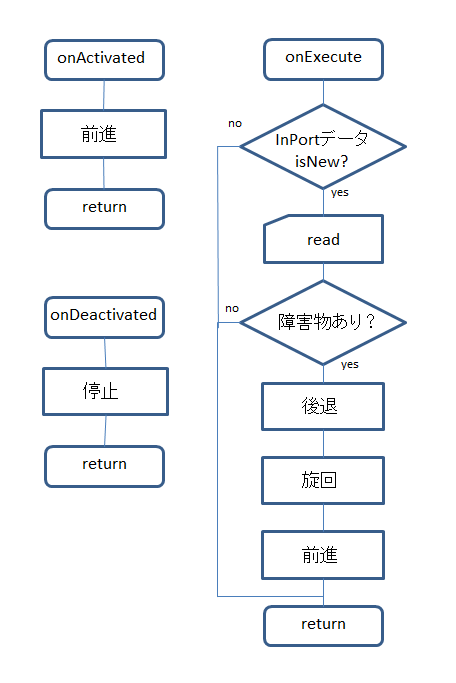
Ideally, the robot would measure how far it has moved backward or rotated and use feedback control.
For simplicity, however, you may use sleep functions.
On Linux:
coil::sleep(coil::TimeValue(0.01)); // wait 10 ms
On Windows, the accuracy of coil::sleep() is poor, so the standard Sleep() function is recommended.
Using these hints, try implementing a control component that enables Kobuki to move autonomously.
Reference Solutions
Reference implementations of the modified TkJoyStick component and the autonomous navigation component are provided below: