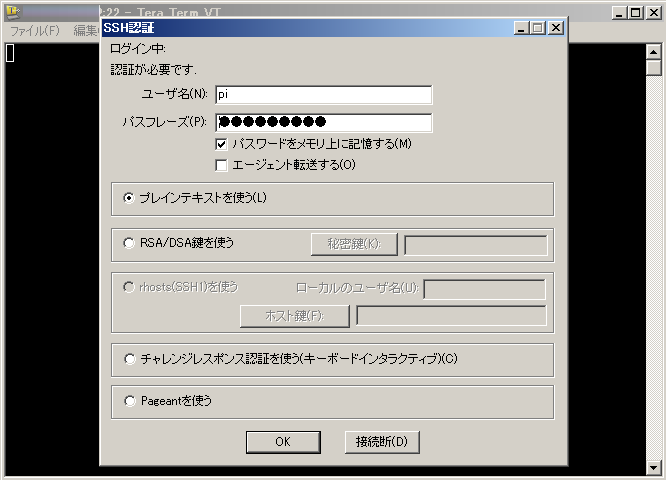
how to use xfinder
✏️ Edit this page on GitHub#contents(4)
When a Raspberry Pi is running in a headless configuration (without a monitor or keyboard attached), it can be difficult to determine its IP address and perform initial setup.
One option is to connect a monitor and keyboard, configure a hostname, and then use Avahi to discover the IP address from the hostname as described previously. However, this approach is not available for a completely unconfigured Raspberry Pi.
What is xfinder?
xfinder is a utility that discovers the IP addresses of CPU boards such as Raspberry Pi and BeagleBone by identifying their Ethernet interface MAC (Media Access Control) addresses and then allows users to log in to them.
Every Ethernet interface is assigned a unique 48-bit MAC address. The upper 24 bits identify the vendor (such as the company that manufactured the networking hardware).
Ethernet communication requires devices to know each other’s MAC addresses. To obtain a MAC address from an IP address, a protocol called ARP (Address Resolution Protocol) is used.
xfinder searches the network for specific MAC address patterns. By identifying devices such as Raspberry Pi boards, it helps users discover the IP addresses of headless systems and log in via SSH, making setup and development much easier.
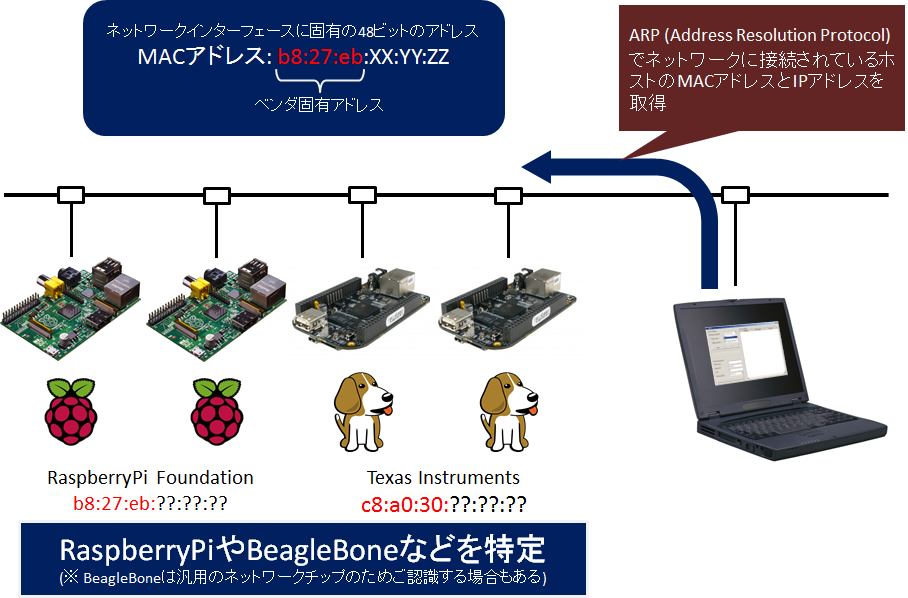
xfinder is distributed as a single executable that can be used in two modes:
- Command-line mode (CUI)
- Graphical User Interface mode (GUI)
This section explains how to use xfinder in GUI mode.
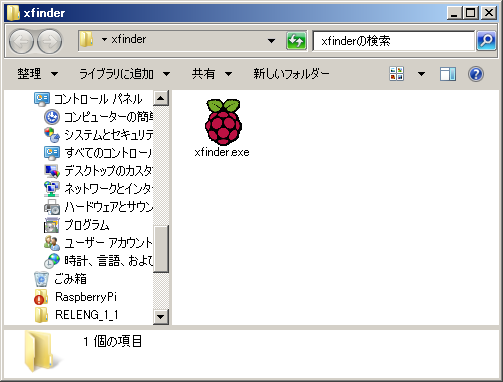
Downloading xfinder
xfinder can be downloaded from the following location:
| xfinder | http://openrtm.org/pub/RaspberryPi/xfinder.exe |
|---|
Using xfinder (GUI Mode)
Using xfinder consists of three basic steps:
- Scan the network and locate Raspberry Pi boards or similar devices.
- Verify the discovered devices.
- Log in using a terminal application such as Tera Term and perform setup or development tasks.
Startup
When you launch xfinder.exe, the following screen appears.
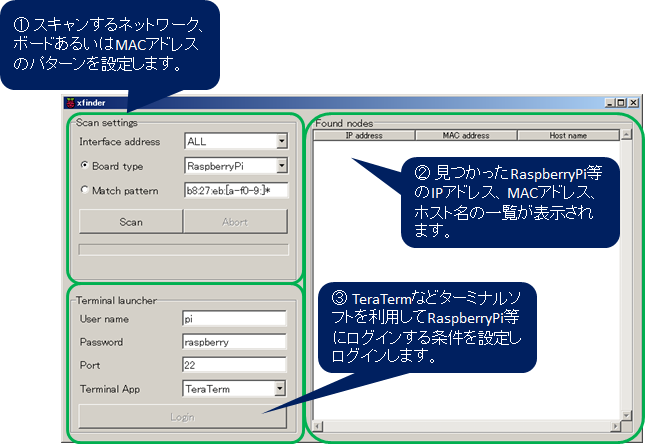
The workflow is as follows:
- Specify scan conditions in the upper-left pane (network interface, board type, MAC address pattern, etc.) and start scanning.
- Select a discovered Raspberry Pi or other board from the list that appears.
- Configure login settings in the lower-left pane and launch a terminal application.
After the terminal application starts, you can log in to the target Raspberry Pi and perform configuration or software development.
You can also launch the terminal application and log in directly by double-clicking a board in the list displayed in the right pane.
Scan Settings
The Scan settings pane in the upper-left corner is used to configure network scanning parameters.
Interface Address
Select the network interface from which xfinder should search for Raspberry Pi devices.
If your PC has multiple network interfaces, multiple IP addresses will be displayed. Choose the network you want to scan.
For example:
- One interface connected to the Internet
- Another connected to a private LAN containing the Raspberry Pi
In this case, select the private network address.
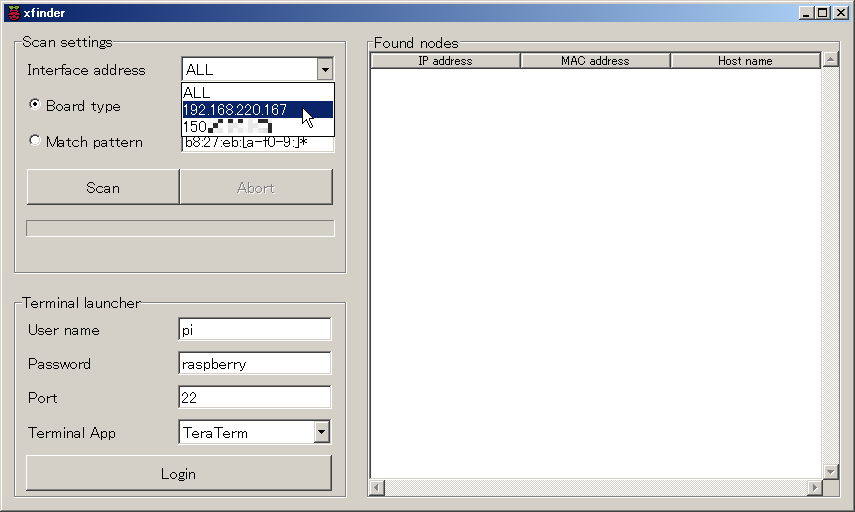
To scan all network interfaces, select ALL.
If you are unsure which IP address corresponds to which interface, check:
Control Panel → Network and Internet → Network and Sharing Center → Change Adapter Settings
Click each adapter icon to view its assigned IP address.
You can also open a Command Prompt and run:
ipconfig
to view all interfaces and their assigned IP addresses.
Board Type
Select the type of board to search for.
Available options include:
- Raspberry Pi
- BeagleBone
By default, Raspberry Pi is selected.
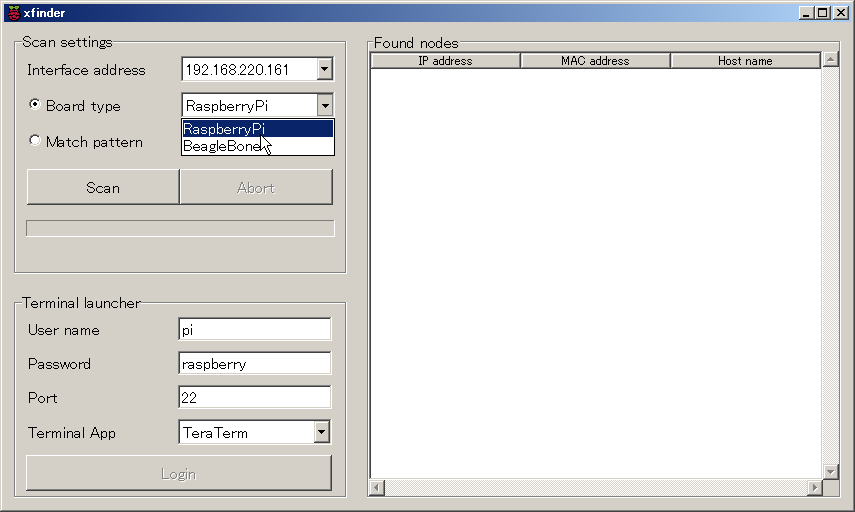
If the board you want to locate is not listed, determine the first six hexadecimal digits of its network interface MAC address and enter them manually in the Match Pattern field described below.
If your Raspberry Pi uses only a USB Wi-Fi adapter, selecting Raspberry Pi here may not find it.
Instead, enter the first six hexadecimal digits of the Wi-Fi adapter’s MAC address (for example, Buffalo adapters often begin with 10:6f:3f) in the Match Pattern field.
Match Pattern
Use this field when searching for boards other than Raspberry Pi or BeagleBone.
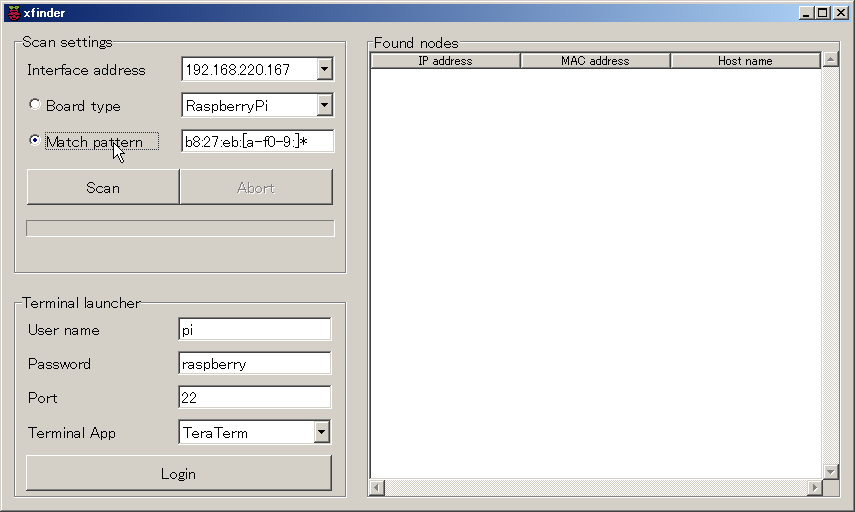
This field can also be used when a Raspberry Pi is connected via a Wi-Fi adapter.
By entering the manufacturer’s MAC address prefix (the first six hexadecimal digits), xfinder can locate the device.
Be aware that common Wi-Fi adapter vendors may result in many matching devices being found on the network.
Scan Button / Abort Button
- Scan: Starts a network scan. Disabled while a scan is in progress.
- Abort: Stops a scan before completion. Enabled only while scanning.
The progress bar below the buttons displays scan progress.
Found Nodes
The Found nodes pane on the right displays discovered devices, including:
- IP address
- MAC address
- Host name
IP Address
Displays the IP address of each discovered board.
Click the column header to sort by IP address.
MAC Address
Displays the MAC address of each discovered board.
Click the column header to sort by MAC address.
Host Name
Displays the host name of each discovered board.
Click the column header to sort by host name.
Double-clicking an entry automatically launches the configured terminal application using the settings specified in the Terminal launcher pane.
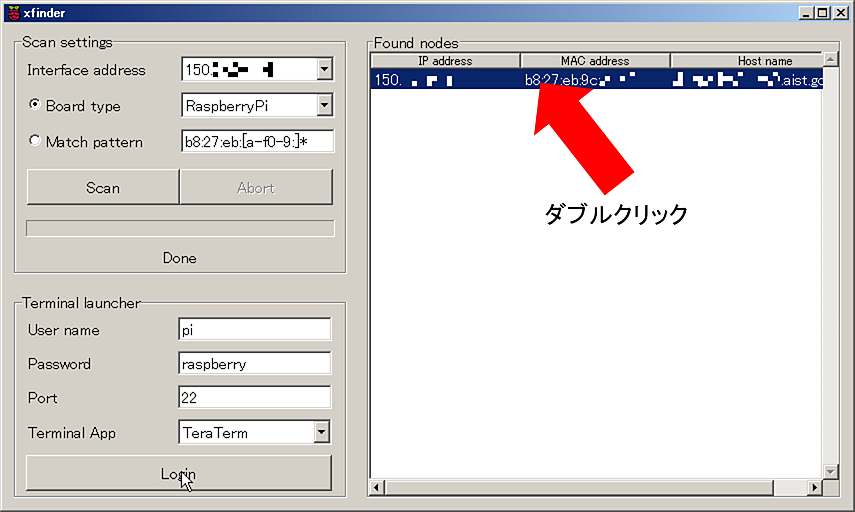
Terminal Launcher
The Terminal launcher pane on the left is used to log in to a discovered host using a terminal application.
User Name
Enter the username used for login.
This field is automatically populated based on the selected Board type.
Password
Enter the login password.
This field is also automatically populated according to the selected Board type.
Port
Enter the port number used for login.
By default, the SSH port is used.
Terminal App
Select the terminal application to use.
On Windows, supported applications include:
- Tera Term
- Poderosa
- PuTTY
At startup, xfinder checks which applications are installed and displays only those available.
Login Button
This button becomes enabled after selecting a node in the Found nodes list.
Clicking Login launches the selected terminal application and logs in to the target board using the specified settings.
| Board Type | User Name | Password |
|---|---|---|
| Raspberry Pi | pi | raspberry |
| BeagleBone | root | (no password) |