
running sample components
✏️ Edit this page on GitHub#contents
The following example uses GPIO to detect switch ON/OFF states and control LED illumination through RT Components (DigitalIn-RTC and DigitalOut-RTC). By building and running these components, you can gain a better understanding of how to use the Raspberry Pi’s GPIO functionality.
The sample component source code can be downloaded from:
Raspberry Pi GPIO
The Raspberry Pi provides GPIO (General Purpose Input/Output) pins that can be used to interface with a variety of external devices.
The GPIO pin assignments are shown below.

When using GPIO pins, pay close attention to the pin layout. In particular, incorrect wiring involving the 5V pins may damage the Raspberry Pi itself or the SD card. Proceed with caution.
Breadboard Wiring Examples
In this example, we will build:
- An LED circuit
- A switch circuit for detecting ON/OFF states
Using a breadboard makes circuit assembly straightforward. However, since the number of components is small, the circuits can also be built by soldering wires directly.
The required parts are listed below.
| Parts List | |
|---|---|
| LED Circuit | |
| LED | 1 |
| Resistor | 100Ω (Brown-Black-Brown-Gold) to 330Ω (Orange-Orange-Brown-Gold) |
| Wires | As needed |
| Switch Circuit | |
| LED | 1 |
| Resistor | 330Ω (Orange-Orange-Brown-Gold) to 1kΩ (Brown-Black-Red-Gold) |
| Wires | As needed |
If you have only one Raspberry Pi, connect both the LED and switch circuits to the same board.
If you have two Raspberry Pis, it may be interesting to connect an LED and switch to each device and communicate between them.
Wiring Example for DigitalIn-RTC
DigitalIn-RTC outputs a Boolean value (true/false) received through its data port to a specified GPIO pin.
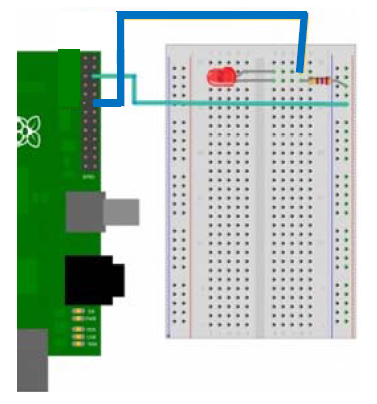
To observe the GPIO output, connect an LED and resistor between the Ground pin and GPIO 18, as shown below.
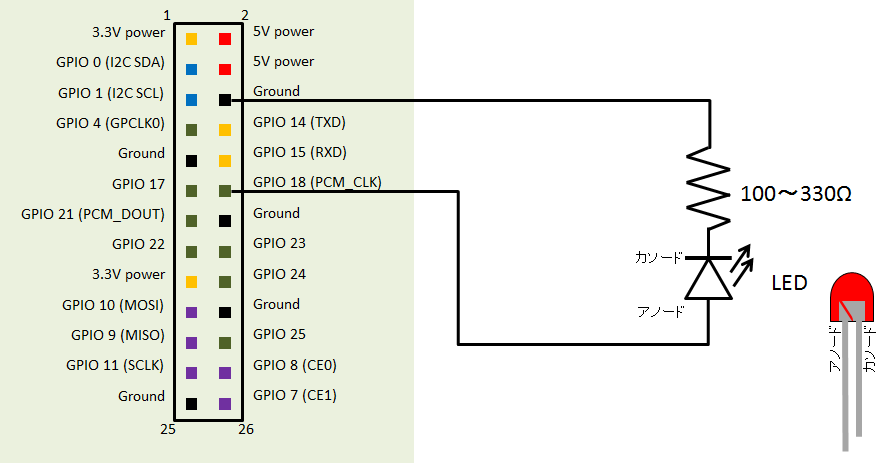
The equivalent breadboard wiring is shown below.
Wiring Example for DigitalOut-RTC
DigitalOut-RTC reads a Boolean value (true/false) from a GPIO pin and outputs it through a data port.
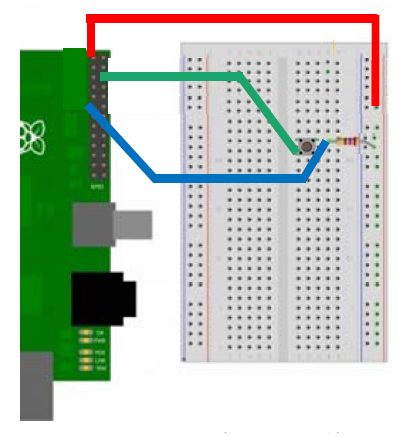
To provide input to the GPIO pin, connect a resistor and switch to Ground, 3.3V Power, and GPIO 17, as shown below.

The corresponding breadboard wiring is shown below.
Compiling the Components
Download the source code onto the Raspberry Pi and compile the DigitalIn-RTC and DigitalOut-RTC components.
Compiling DigitalIn-RTC
$ unzip RaspberryPi_sample.zip
$ cd RaspberryPi_sample/DigitalInRPI/
$ vi CMakeLists.txt
Edit CMakeLists.txt to disable documentation generation.
option(BUILD_DOCUMENTATION "Build the documentation" ON)
 ↓
option(BUILD_DOCUMENTATION "Build the documentation" OFF)
Then build the component.
$ mkdir build
$ cd build
$ cmake ..
-- The C compiler identification is GNU 4.6.3
-- The CXX compiler identification is GNU 4.6.3
   : omitted
-- Configuring done
-- Generating done
-- Build files have been written to:
   /home/pi/RaspberryPi_sample/DigitalInRPI/build
If OpenRTM-aist is installed correctly, configuration should complete without errors.
If errors occur indicating that OpenRTM or Coil cannot be found, verify that OpenRTM-aist (C++ version) is installed correctly.
Example:
$ dpkg -l | grep openrtm
Build the component:
$ make
  : omitted
Scanning dependencies of target DigitalInComp
[ 66%] Building CXX object ...
[100%] Building CXX object ...
Linking CXX executable DigitalInComp
[100%] Built target DigitalInComp
$
The compiled executable is located in the src directory.
$ ls src/
CMakeFiles  cmake_install.cmake
DigitalInComp  DigitalIn.so  Makefile
Compiling DigitalOut-RTC
Compile DigitalOut-RTC in the same manner.
$ cd RaspberryPi_sample/DigitalOutRPI/
$ vi CMakeLists.txt
Edit CMakeLists.txt:
option(BUILD_DOCUMENTATION "Build the documentation" ON)
 ↓
option(BUILD_DOCUMENTATION "Build the documentation" OFF)
Then configure the build.
$ mkdir build
$ cd build
$ cmake ..
-- The C compiler identification is GNU 4.6.3
-- The CXX compiler identification is GNU 4.6.3
   : omitted
-- Configuring done
-- Generating done
-- Build files have been written to:
   /home/pi/RaspberryPi_sample/DigitalOutRPI/build
Build the component.
$ make
-- OpenRTMConfig.cmake found.
-- Configured by configuration mode.
   : omitted
Scanning dependencies of target DigitalOutComp
[ 66%] Building CXX object ...
[100%] Building CXX object ...
Linking CXX executable DigitalOutComp
[100%] Built target DigitalOutComp
$
The compiled executable is located in the src directory.
$ ls src/
CMakeFiles  cmake_install.cmake
DigitalOutComp  DigitalOut.so  Makefile
Running the Components
After both RTCs have been successfully compiled, start the Name Server and launch the components.
$ rtm-naming
$ sudo /home/pi/RaspberryPi_sample/DigitalOutRPI/build/src/DigitalOutComp &
$ sudo /home/pi/RaspberryPi_sample/DigitalInRPI/build/src/DigitalInComp &
Because these sample components use GPIO, they must be executed with root privileges.
Start RTSystemEditor on a PC and connect to the Name Server running on the Raspberry Pi.
Place the RTCs in the system diagram, connect their ports, and activate them.
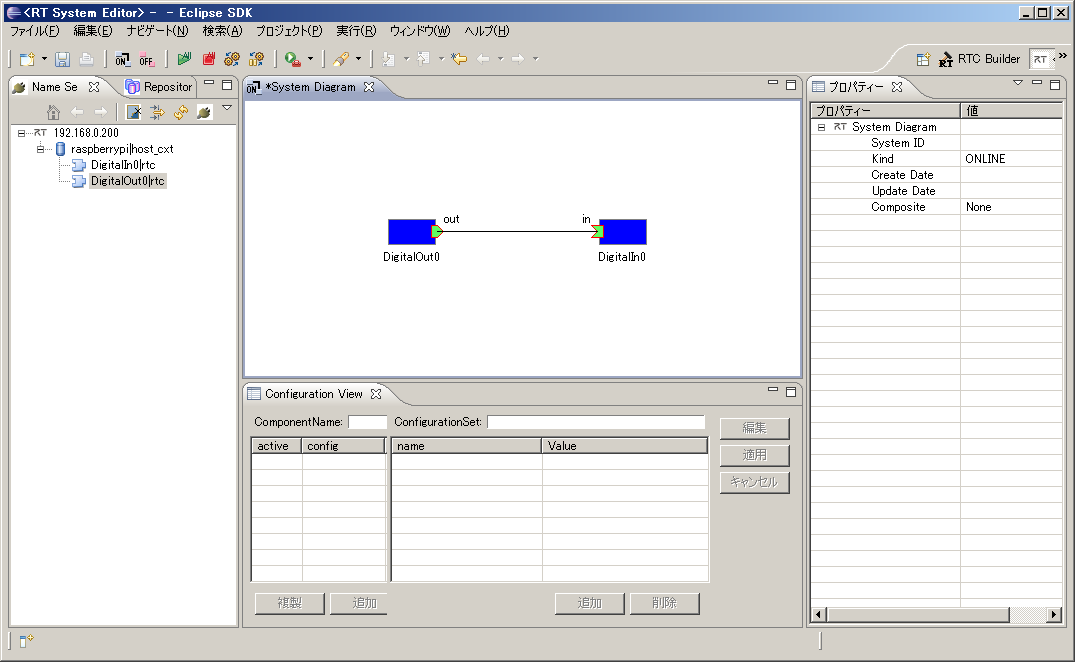
When both RTCs are operating correctly, pressing and releasing the tact switch will cause the LED to turn on and off accordingly.
Comments
About Name Server Configuration
Permalink Submitted by SUZUKAWA Yuichi on Tue, 2013-04-23 00:53.
| I tried this method immediately, but although the Naming Server started successfully, it did not appear in Eclipse, which caused some confusion. As a workaround, I manually configured the Raspberry Pi naming server host address as something like: ```text 192.168.0.X:100 ``` and forcibly opened the port. Normally, it uses localhost, which causes it to appear as: ```text RaspberryPi:port_number ``` making it inaccessible from outside. |
Creating a Raspberry Pi UART Communication Component
Permalink Submitted by SUZUKAWA Yuichi on Tue, 2013-04-23 01:02.
| As an additional note, I successfully created a simple UART loopback communication component. The program was based on the following reference sites and worked with only minor modifications. Reference sites: - Chick Lab: *Serial Communication on Raspberry Pi* http://chicklab.blog84.fc2.com/blog-entry-46.html - Junk Room of Crafts and Gadgets http://junkroom2cyberrobotics.blogspot.jp/2013/03/raspberry-pi-uart.html The code worked almost unchanged after porting. |