tkcalibgui
✏️ Edit this page on GitHub#contents
TkCalibGUI
Please note that this sample is not included with the Python or Java editions of OpenRTM-aist. On Linux, build and install it according to Building OpenCV Sample Code on Linux.
Overview
This is a sample RT Component with a GUI interface. The sample component can be started by running TkCalibGUI.bat.
It provides a GUI for the ImageCalibration component used for camera calibration.
When this component is launched and a camera component is selected from the available list, it automatically starts the ImageCalibrationComp component and automatically connects the ports between the components.
Using the GUI buttons, you can save camera images required for calibration and calculate camera parameters.
Component Execution Requirements
If OpenRTM-aist C++ was installed using the Windows installer, simply running TkCalibGUI.bat is sufficient.
If OpenRTM-aist was built from source, the required runtime environment must be prepared. This component checks whether the required environment is available.
If the requirements are not met, a message dialog similar to the one below is displayed. Follow the instructions to install the missing components.
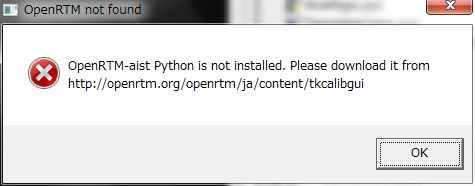
For Windows Environments
| Message | Required Action |
| OpenRTM-aist Python is not installed. | You can download the Windows installer from the OpenRTM-aist Python Edition page. Select the installer version (32-bit or 64-bit) that matches your OpenRTM-aist C++ installation. |
| Ttk is not installed. | Install pyttk. It is included with Python 2.7, but must be installed separately for Python 2.6. |
| PIL is not installed. | Install PIL. |
| NumPy is not installed. | Install NumPy. |
| rtctree is not installed. |
rtctree 3.0.1 or later is required. An installer is planned, but until then, download the ZIP archive from the GitHub page using the "Download Zip" button, extract it, and install it by running setup.py: python setup.py installAdd the path to site-packages\rtctree\rtmidl to the system environment variable PYTHONPATH.Example: C:\Python27\Lib\site-packages\rtctree\rtmidl
|
For Linux (Ubuntu) Environments
| Message | Required Action |
| OpenRTM-aist Python is not installed. | You can download the all-in-one installation script from the OpenRTM-aist Python Edition page. |
| Ttk is not installed. | $ sudo apt-get install python-tk |
| PIL is not installed. | $ sudo apt-get install python-pil.imagetk |
| NumPy is not installed. | $ sudo apt-get install python-numpy |
| rtctree is not installed. |
rtctree 3.0.1 or later is required. Download it from GitHub and install it by running setup.py, as described for Windows. Add PYTHONPATH to ~/.bashrc or a similar shell configuration file:
export PYTHONPATH="/usr/local/lib/python2.7/dist-packages/rtctree/rtmidl"
|
Startup Screen
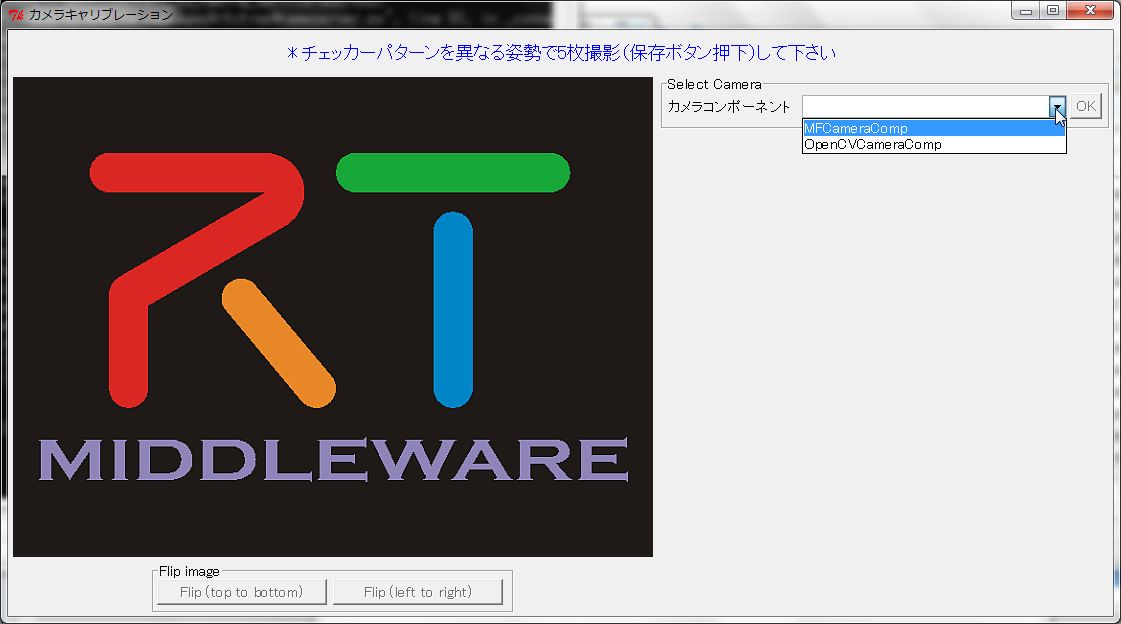
First, select the camera component to use from the list. This list displays the camera components available in the current environment.
In a Windows 10 environment using VC2019, OpenCVCameraComp and MFCameraComp are available. Both provide similar functionality, but OpenCVCameraComp is newer and generally less dependent on the execution environment.
The executable launched by tkCalibGUI.bat also starts the ImageCalibration component. Although the ImageCalibration component can be launched independently using ImageCalibration.bat, no sample component is provided for standalone operation. Therefore, if you want to use ImageCalibration without TkCalibGUI, you must create your own component to connect to it.
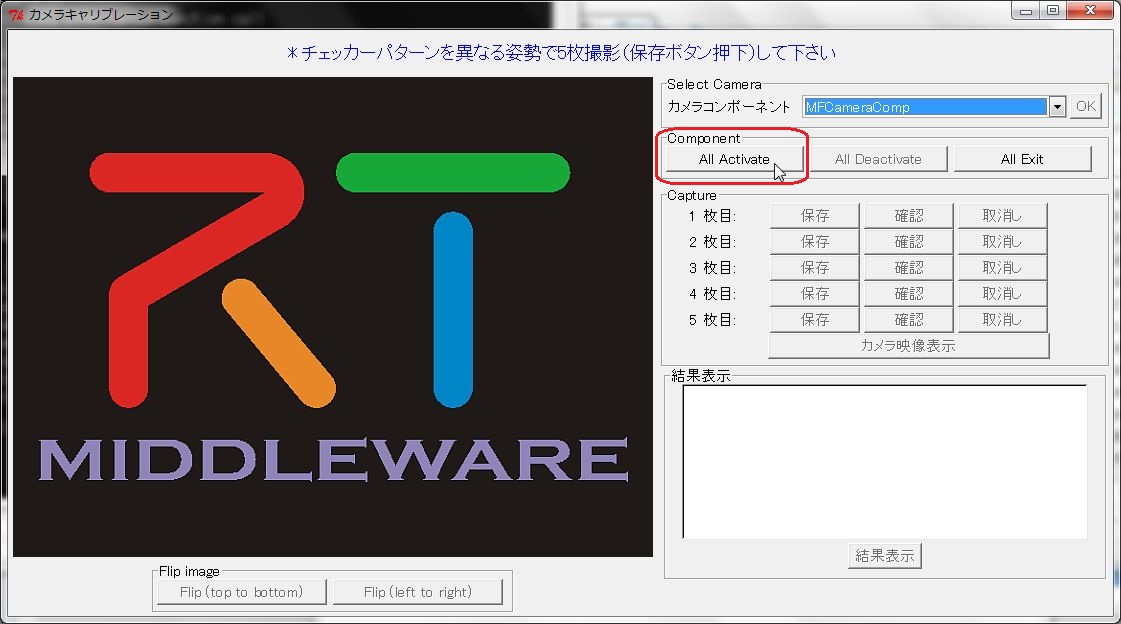
Click the [All Activate] button to display the camera image.
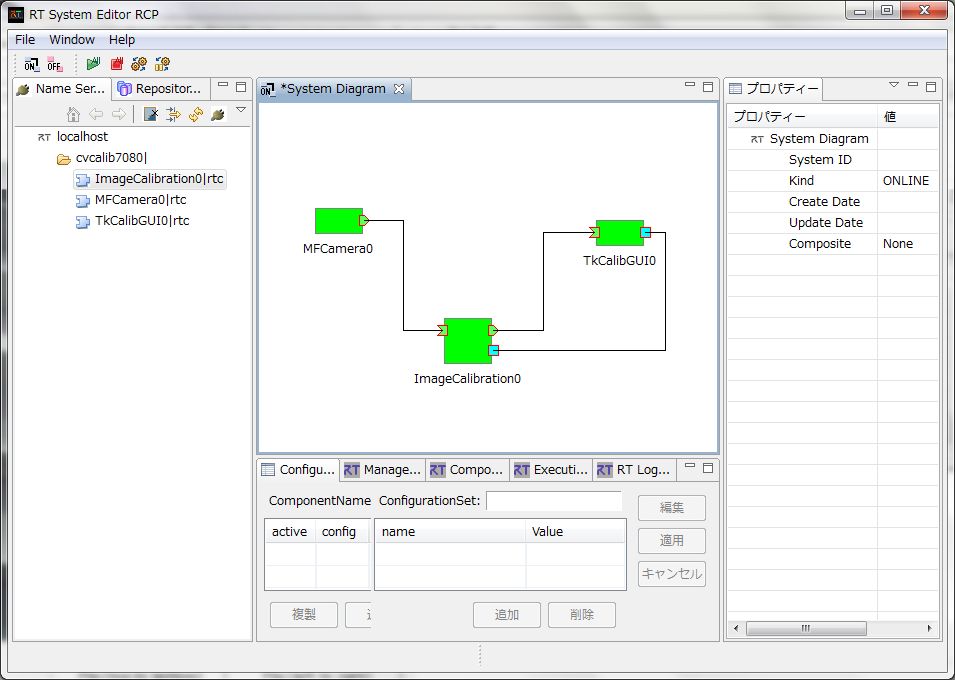
At this point, the component connections are as shown below. All components except TkCalibGUI are started automatically, and their ports are connected automatically.
Usage
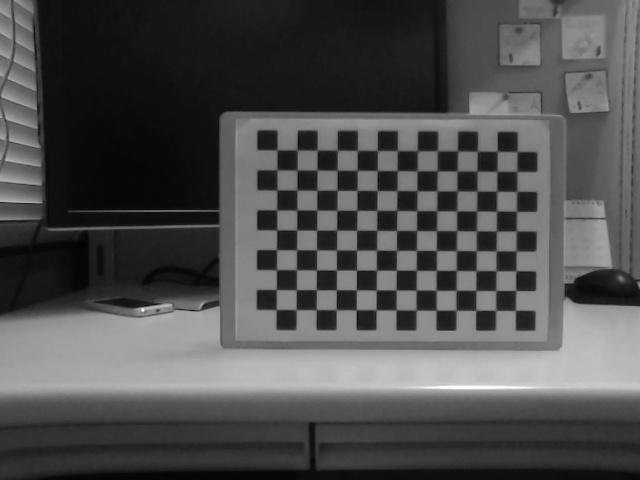
Prepare a checkerboard pattern (calibration pattern). In this example, the following pattern is used:
The number of checkerboard corners must be specified in the Configuration settings of ImageCalibration.
The values:
- checker_h
- checker_w
represent the number of shared vertices between black and white squares (that is, the number of squares minus one in each direction).
The number of images to capture (image_num) can also be changed in the Configuration settings.
To capture calibration images, photograph the checkerboard from various angles while covering as much of the image area as possible. Save the specified number of images.
You can verify each captured image using the [Confirm] button.
If you click the [Delete] button, the image is removed and should be captured again.
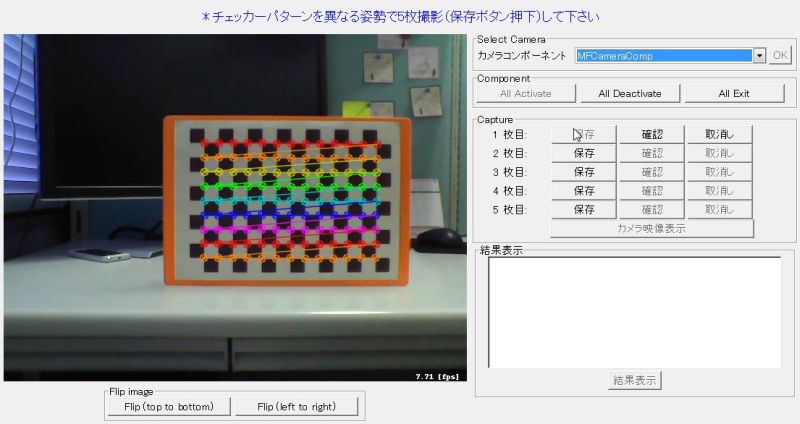
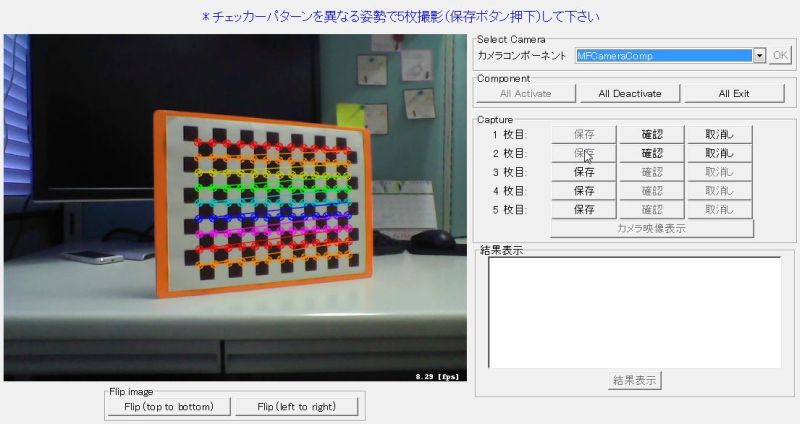
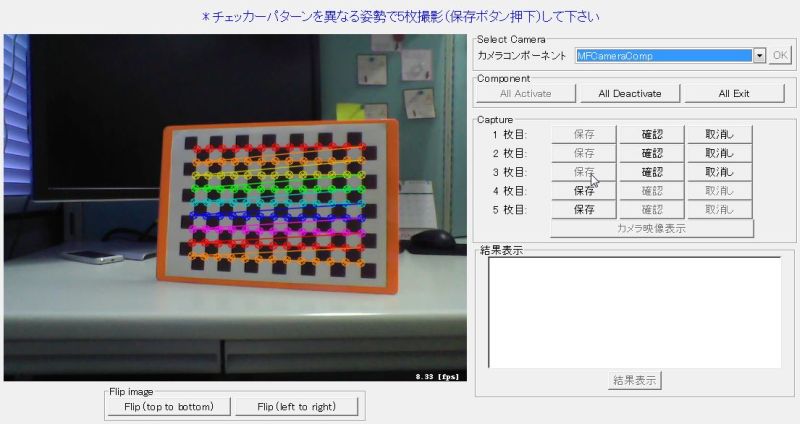
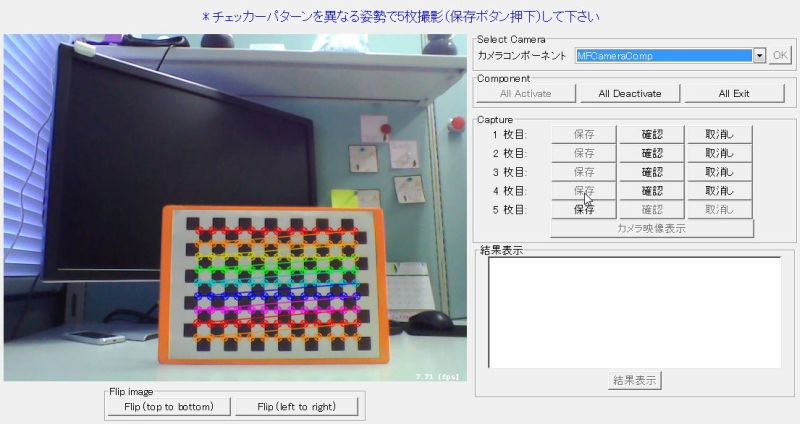
Once the required number of images has been saved, the [Show Results] button becomes available.
Clicking it displays the calculated camera parameter values.
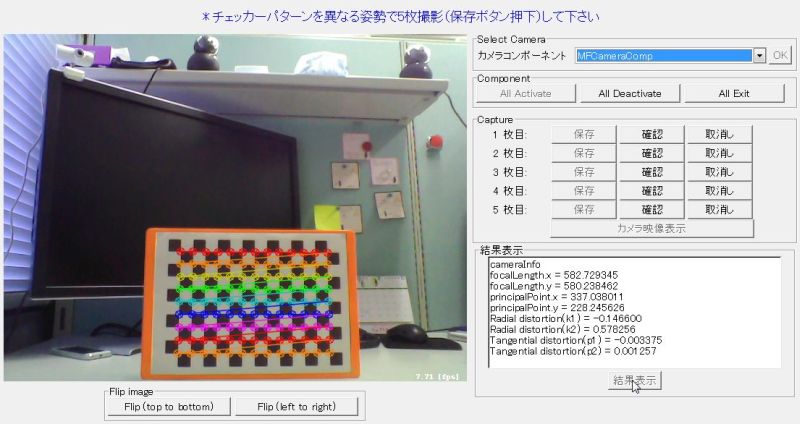
The camera parameters are written to a file named camera.yml in the same directory as the component executable.
%YAML:1.0
calibration_time: "Thu May 22 16:38:06 2014\n"
image_width: 640
image_height: 480
board_width: 13
board_height: 9
cameraMatrix: !!opencv-matrix
   rows: 3
   cols: 3
   dt: d
   data: [ 5.8272934483011682e+002, 0., 3.3703801084645710e+002, 0.,
       5.8023846162074653e+002, 2.2824562602176763e+002, 0., 0., 1. ]
distCoeffs: !!opencv-matrix
   rows: 1
   cols: 5
   dt: d
   data: [ -1.4659954975042236e-001, 5.7825601645508595e-001,
       -3.3745642103035984e-003, 1.2569676956708463e-003,
       -9.8011775330916773e-001 ]
Image Output (Reference)
For reference, when the [Save] button is clicked, image files are written to the directory specified by the system environment variable TEMP or TMP.
- File names:
capture0.jpg–capture4.jpg(when five images are saved; grayscale images)
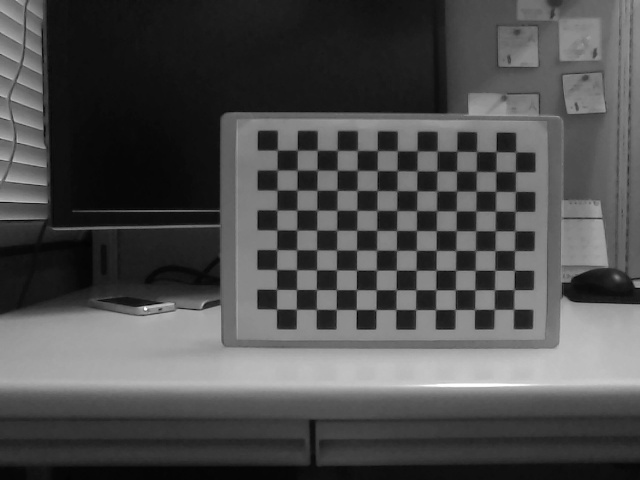
Using the generated camera parameters, distortion-corrected versions of the images are also written to the same directory.
- File names:
undistorted0.jpg–undistorted4.jpg(the numbering corresponds to the matchingcapture*.jpgfiles)