tklrfviewer
✏️ Edit this page on GitHub#contents
This sample is included only with the Python edition.
Overview
tkLRFViewer is an example RTC that displays output from a Laser Range Finder (LRF) sensor.
It is used by connecting it to an RTC that acquires input from a laser range finder. The RTC used for connection depends on the specific sensor device being used. For example, refer to the documentation for the Hokuyo Electric URG Series.(No corresponding English project page available.)
An LRF sensor scans the surrounding environment by rotating a laser distance sensor and continuously outputs measured distance data. The output data typically consists of:
- Start angle of the scan
- End angle of the scan
- Angular interval between measurements
- Sequence of measured distance values
This component is used to visualize the scanned distance data.
Startup Screen
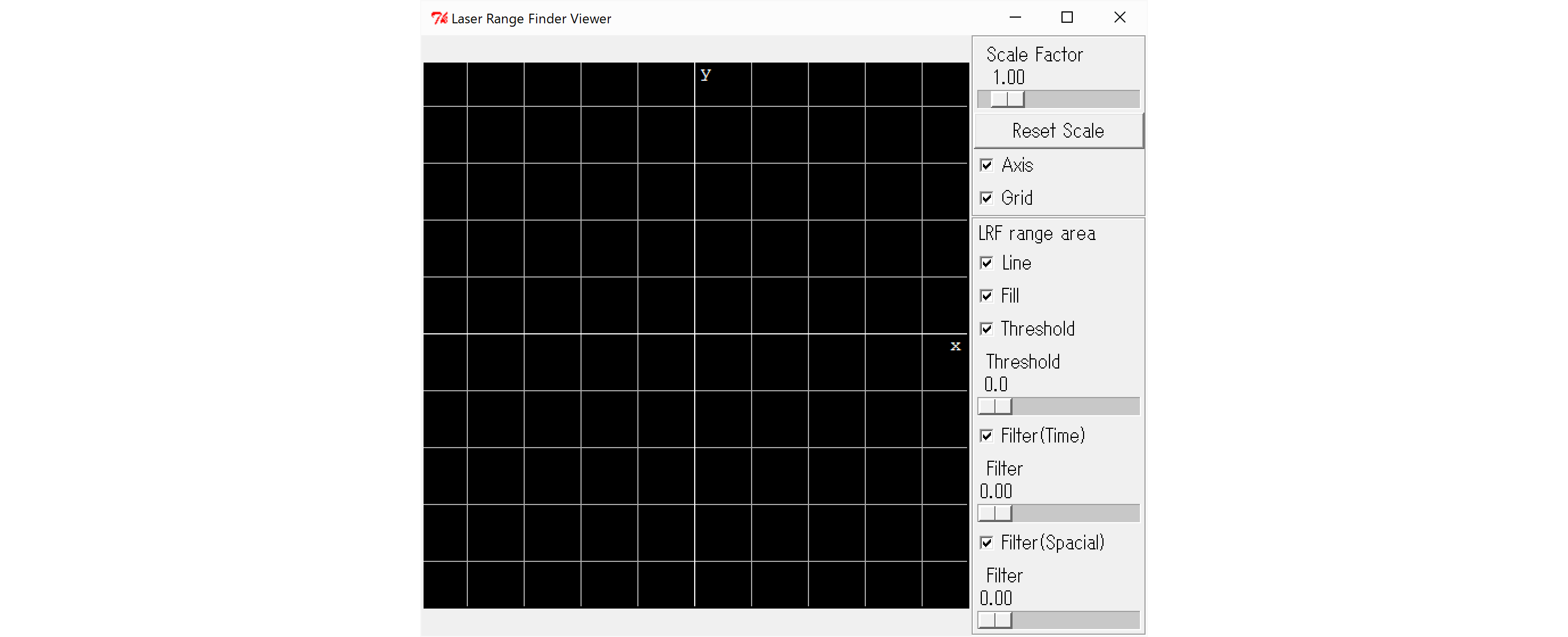
When this component is started, the following GUI window is displayed.
Usage
To use this RTC, you must first prepare an RTC that:
- Reads sensor output from an external Laser Range Finder.
- Converts the sensor data into the RangeData type.
- Outputs the converted data through an OutPort.
Please refer to the Laser Range Finder resources mentioned above when preparing the required RTC.
- In Windows environments, tkLRFViewer can be started by opening:
Program Files\OpenRTM-aist\1.2.x\Components\Python
and double-clicking:
tkLRFViewer.bat
Start the RTC corresponding to your sensor and connect it to this component using RTSystemEditor or a similar tool.
The tkLRFViewer GUI contains four sliders:
- Scale Factor
- Threshold
- Filter(Time)
- Filter(Spatial)
It also contains:
- Axis checkbox
- Grid checkbox
- Line checkbox
- Fill checkbox
- Threshold checkbox
- Filter(Time) checkbox
- Filter(Spatial) checkbox
- Reset Scale button
The functions of these controls are described below.
| Name | Function |
|---|---|
| Scale Factor | Controls display scaling. The display is based on a virtual space of 480 m × 480 m and is scaled according to this value. For typical measurements within a few meters, values around 0.01 are recommended.* |
| Reset Scale Button | Resets the Scale Factor to 1.0. |
| Axis Checkbox | Displays the X and Y coordinate axes when checked. |
| Grid Checkbox | Displays grid lines when checked. |
| Line Checkbox | Draws range measurement data as connected curves when checked. |
| Fill Checkbox | Draws range measurement data as filled polygons when checked. |
| Threshold Checkbox and Slider | Enables threshold processing when checked. If an input distance is smaller than the specified lower limit*, it is treated as invalid and displayed as if the distance were 1000 m. |
| Filter(Time) Checkbox and Slider | Enables temporal filtering when checked. The slider controls the strength of filtering applied across time. |
| Filter(Spatial) Checkbox and Slider | Enables spatial filtering when checked. The slider controls filtering strength applied to changes between adjacent scan points in the rotational scanning direction. |
* The current scaling behavior and threshold implementation are not necessarily practical for real-world applications. For actual use, modifying and tuning the source code according to your environment is recommended.
GUI Output Example
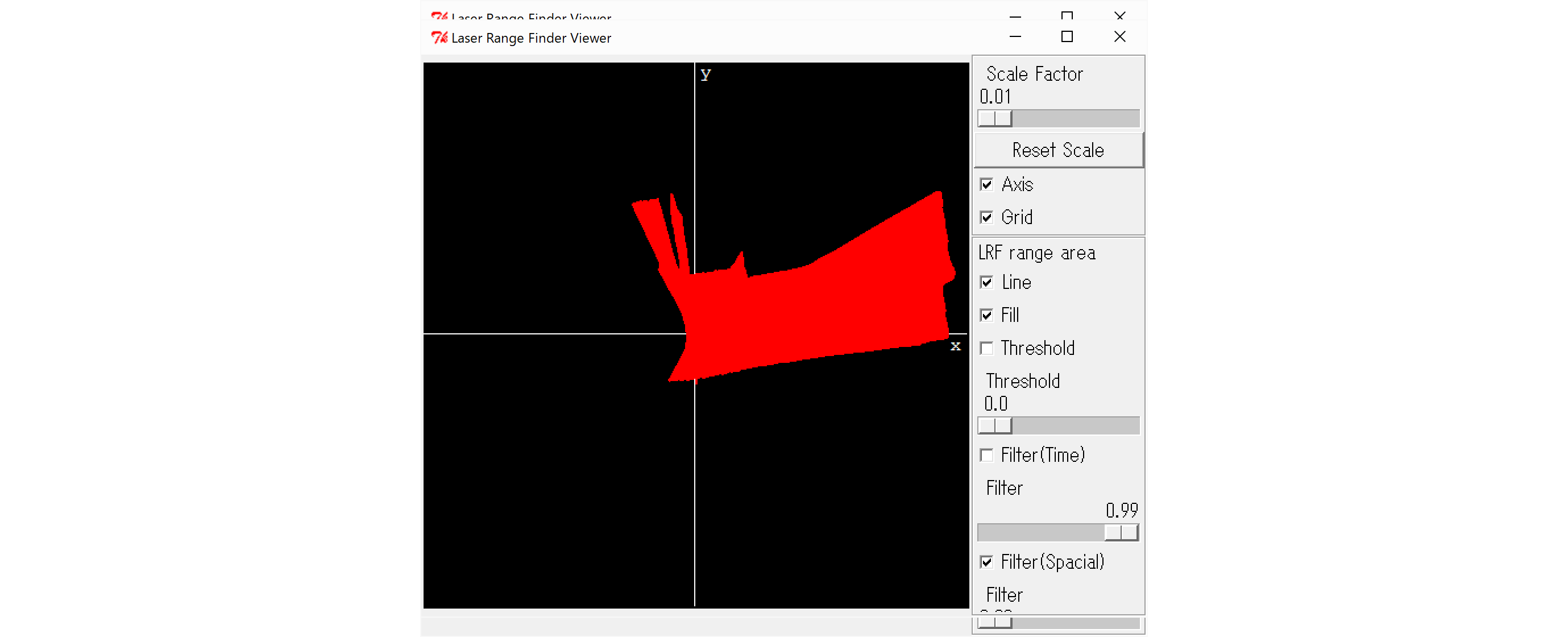
The GUI displays scan results as shown below.