
tutorial (introduction to rt component development, ev3, ubuntu)
✏️ Edit this page on GitHub#contents
Introduction
This page explains the procedure for creating a component to control the Educator Vehicle in the simulator.
Educator Vehicle is one of the LEGO MINDSTORMS EV3 assembly examples.

Downloading the Materials
First, download the materials.
The included simulator can simulate the following modified Educator Vehicle.
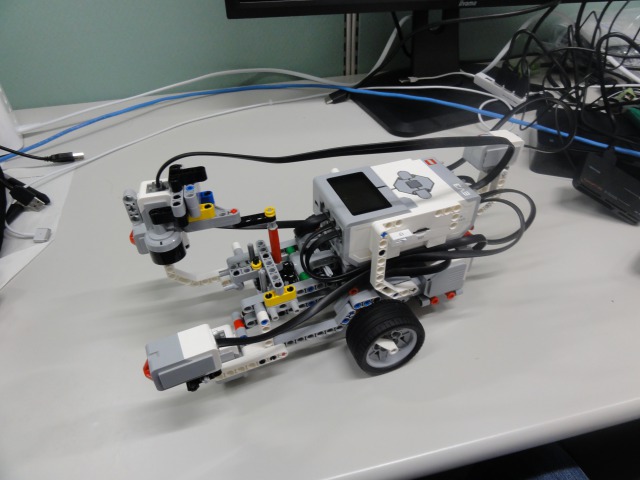
In addition to controlling the L motor and M motor, simulation of the touch sensor, gyro sensor, and ultrasonic sensor is also supported.
RT Component to be Created
- RobotController Component
This component connects to the EV3Simulator component and controls the robot in the simulator.
Creating the RobotController Component
In this tutorial, you will create a component that controls the robot in the simulator using a GUI (slider controls) and automatically stops when the touch sensor is turned on.

Procedure
The procedure is as follows.
- Verify the development environment
- Determine the component specifications
- Generate template source code using RTC Builder
- Edit the source code
- Verify component operation
Operating Environment / Development Environment
A development environment is built on Linux (Ubuntu 18.04 is assumed here).
Installing OpenRTM-aist
 $ wget https://raw.githubusercontent.com/OpenRTM/OpenRTM-aist/master/scripts/pkg_install_ubuntu.sh
 $ pkg_install_ubuntu.sh -l all --yes
Installing JDK
 # For Ubuntu 18.04 and 18.10
 $ sudo apt-get install openjdk-8-jdk

 # For Ubuntu 16.04
 $ sudo apt-get install default-jdk
For Ubuntu 18.04 and 18.10, switch to Java 8 with the following command.
$ sudo update-alternatives --config java
After starting Eclipse, RTSystemEditor may fail to connect to the Name Server. In that case, add your host name to the localhost entry in /etc/hosts.;
 $ hostname
 ubuntu1404 ← The host name is ubuntu1404

 $ sudo vi /etc/hosts
 127.0.0.1       localhost

Change it as follows:

 127.0.0.1       localhost ubuntu1404
Installing Git
$ sudo apt-get install git
Installing cmake-gui
$ sudo apt-get install cmake-qt-gui
Installing Code::Blocks
Code::Blocks is an integrated development environment for C/C++.
Install it with the following command.
$ sudo apt-get install codeblocks
If you want to install the latest version, execute the following commands.
 $ sudo add-apt-repository ppa:damien-moore/codeblocks-stable
 $ sudo apt-get update
 $ sudo apt-get install codeblocks
Installing Premake and GLUT
These are required to build ODE.
$ sudo apt-get install premake4 freeglut3-dev
EV3Simulator Component
The simulator component must be built manually.
Enter the following commands.
 $ wget https://raw.githubusercontent.com/OpenRTM/RTM_Tutorial_EV3/master/script/install_ev3_simulator.sh
 $ sudo sh install_ev3_simulator.sh
Training sessions may be conducted in environments without Internet access. In that case, run the script provided on the distributed USB memory.
$ sudo sh install_ev3_simulator_usb.sh
Component Specifications
RobotController has an OutPort for outputting target velocity, an InPort for inputting sensor values, and configuration parameters for setting the target velocity.
| Component Name | RobotController |
|---|---|
| InPort | |
| Port Name | in |
| Type | TimedBooleanSeq |
| Description | Sensor values |
| OutPort | |
| Port Name | out |
| Type | TimedVelocity2D |
| Description | Target velocity |
| Configuration | |
| Parameter Name | speed_x |
| Type | double |
| Default Value | 0.0 |
| Constraint | -1.5<x<1.5 |
| Widget | slider |
| Step | 0.01 |
| Description | Forward velocity setting |
| Configuration | |
| Parameter Name | speed_r |
| Type | double |
| Default Value | 0.0 |
| Constraint | -2.0<x<2.0 |
| Widget | slider |
| Step | 0.01 |
| Description | Rotational velocity setting |
About the TimedVelocity2D Type
The TimedVelocity2D type is used as a data type for storing the movement velocity of a mobile robot on a two-dimensional plane.
     struct Velocity2D
     {
           /// Velocity along the x axis in metres per second.
           double vx;
           /// Velocity along the y axis in metres per second.
           double vy;
           /// Yaw velocity in radians per second.
           double va;
     };


     struct TimedVelocity2D
     {
           Time tm;
           Velocity2D data;
     };
This data type can store the velocity in the X-axis direction (vx), the velocity in the Y-axis direction (vy), and the rotational velocity around the Z-axis (va).
vx, vy, and va represent velocities in the robot-centered coordinate system.
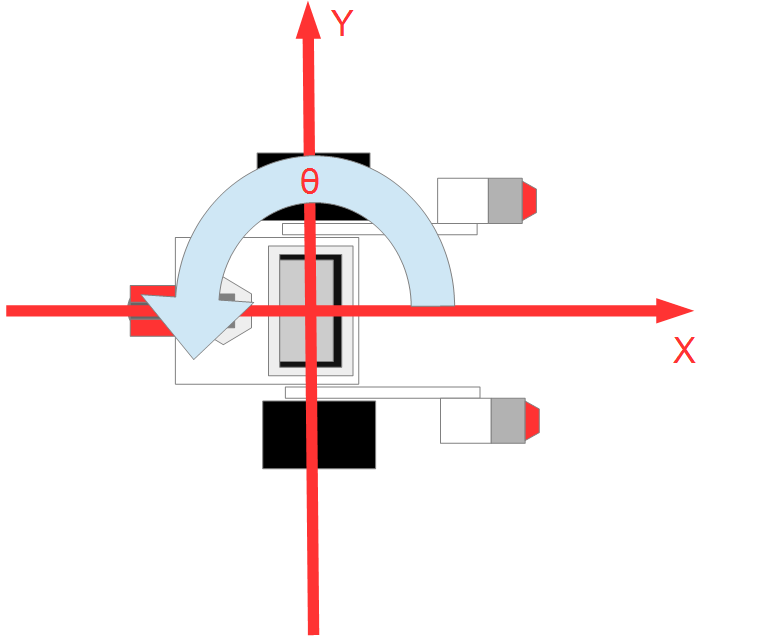
vx is the velocity in the X direction, vy is the velocity in the Y direction, and va is the angular velocity around the Z axis.
For a robot such as the modified Educator Vehicle, which has two wheels mounted on the left and right sides, vy becomes 0 if lateral slipping is assumed not to occur.
The robot is controlled by specifying the forward velocity vx and rotational velocity va.
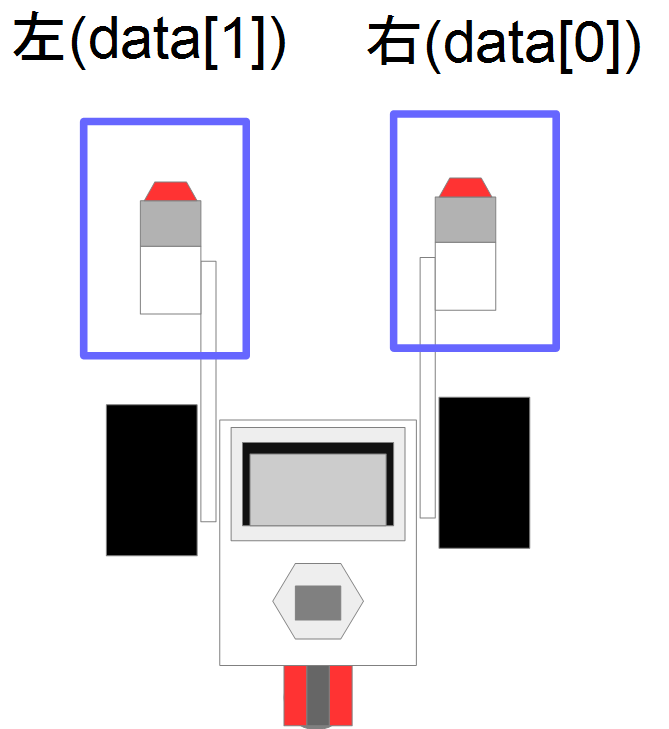
About the Touch Sensor
Generating Template Code for the RobotController Component
Template code for the RobotController component is generated using RTCBuilder.
Starting RTCBuilder
In Eclipse, the folder used for development work is called a “workspace,” and in principle all generated files are stored under this folder.
The workspace can be created in any accessible folder. In this tutorial, the following workspace is assumed.
- /home/
/workspace
First, start Eclipse.
Move to the directory where OpenRTP was extracted and enter the following command.
$ openrtp
When Eclipse starts for the first time, you will be prompted to specify the workspace location. Specify the workspace shown above.
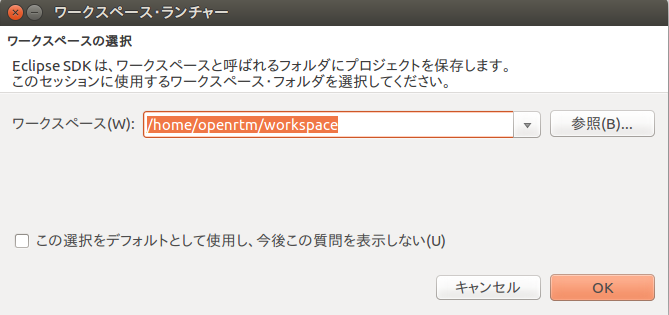
A Welcome page like the following will then be displayed.

Since the Welcome page is not needed at this point, click the “×” button in the upper-left corner to close it.
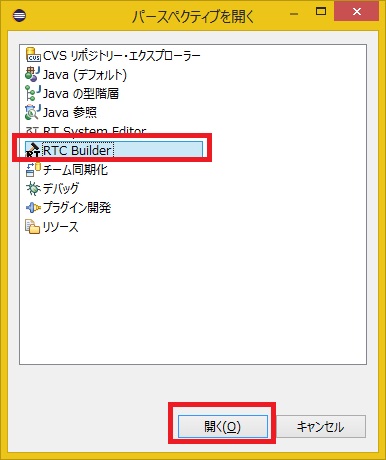
Click the [Open Perspective] button in the upper-right corner.

Select “RTC Builder” to start RTCBuilder. The RTCBuilder icon, represented by a hammer and RT symbol, will appear on the menu bar.
Creating a New Project
To create the RobotController component, first create a project in RTC Builder.
Click the [Open New RTCBuilder Editor] icon in the upper-left corner.

Enter the project name (RobotController in this example) in the Project Name field and click the Finish button.
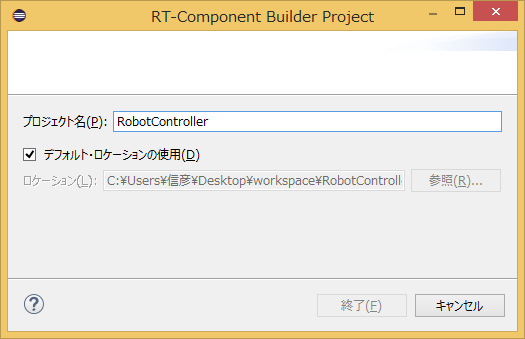
A project with the specified name will be generated and added to the Package Explorer.

An RTC profile XML file (RTC.xml) with default values is automatically generated inside the project.
Starting the RTC Profile Editor
When RTC.xml is generated, the RTCBuilder editor associated with the project should automatically open.
If it does not open, double-click RTC.xml in the Package Explorer.

Entering Profile Information and Generating Code
First, select the Basic tab on the far left and enter the basic information.
Enter information such as the RobotController component name defined earlier, the description, and the version.
Fields with red labels are required. The remaining fields may be left at their default values.
- Component Name: RobotController
- Description: Any value (e.g., Robot Controller component)
- Version: Any value (e.g., 1.0.0)
- Vendor Name: Any value
- Category: Any value (e.g., Controller)

Next, select the Activity tab and specify the action callbacks to use.
The RobotController component uses the following callbacks:
- onActivated()
- onDeactivated()
- onExecute()
As shown below, first click ① onActivated, then select ON using radio button ②.
Perform the same procedure for onDeactivated and onExecute.

Next, select the Data Ports tab and enter the data port information.
Enter the following values according to the specifications defined earlier.
The variable names and display positions are optional and may be left unchanged.
- InPort Profile:
- Port Name: in
- Data Type: TimedBooleanSeq
- OutPort Profile:
- Port Name: out
- Data Type: TimedVelocity2D

Next, select the Configuration tab and enter the configuration information according to the specifications defined earlier.
The constraint conditions and widgets are used when displaying component configuration parameters in RTSystemEditor. They allow values to be changed through GUI elements such as sliders, spin buttons, and radio buttons.
Configure the forward velocity speed_x and rotational velocity speed_r so that they can be controlled using sliders.
- speed_x
- Name: speed_x
- Data Type: double
- Default Value: 0.0
- Constraint: -1.5<:x<:1.5
- Widget: slider
- Step: 0.01
- speed_r
- Name: speed_r
- Data Type: double
- Default Value: 0.0
- Constraint: -2.0<:x<:2.0
- Widget: slider
- Step: 0.01

Next, select the Language / Environment tab and choose the programming language.
Here, select C++.
The language/environment setting has no default value. If you forget to specify the language, an error will occur during code generation, so be sure to specify it.

Finally, click the Generate Code button in the Basic tab to generate the component template code.

The generated code files are created in the workspace folder specified when Eclipse was started. You can check the current workspace from [File] → [Switch Workspace…].;
Generating Files Required for Building with CMake
The code generated by RTC Builder includes a CMakeLists.txt file for generating various files required for building with CMake.
By using CMake, Visual Studio project files, solution files, Makefiles, and other build-related files can be automatically generated from CMakeLists.txt.
Using CMake (cmake-gui)
Use CMake to configure the build environment.
First, start CMake (cmake-gui).
$ cmake-gui

At the top of the window are text boxes where you specify the source code location (where CMakeLists.txt exists) and the build directory.
Where is the source codeWhere to build the binaries
The source code location is the directory where the RobotController component source code was generated and where CMakeLists.txt exists.
By default, this is:
<workspace directory>/RobotController
You can also set this by dragging and dropping the directory from the file manager into cmake-gui.
The build directory is where project files, object files, and generated binaries are stored.
Any location may be used, but in this tutorial the following directory is recommended:
<workspace directory>/RobotController/build
| Where is the source code | /home/<username>/workspace/RobotController |
| Where to build the binaries | /home/<username>/workspace/RobotController/build |
After entering these paths, click the Configure button.
A dialog like the following will appear, allowing you to specify the type of project to generate.
In this tutorial, select:
CodeBlocks - Unix Makefiles
If you do not use Code::Blocks, select:
Unix Makefiles
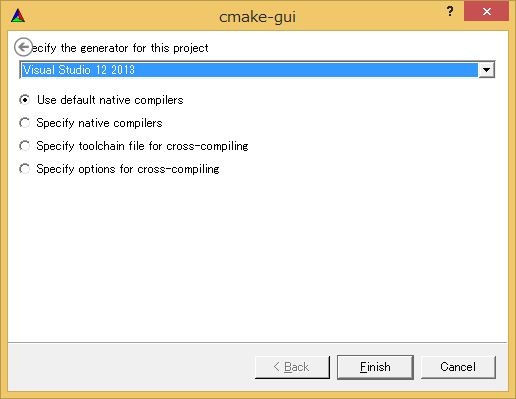
If you are not using cmake-gui, you can generate the files from the command line as follows:
$ mkdir build
$ cd build
$ cmake .. -G "CodeBlocks - Unix Makefiles"
Clicking [Finish] in the dialog starts the Configure process. If there are no problems, “Configuring done” will be displayed in the log window at the bottom. Then click the [Generate] button.
When “Generating done” is displayed, generation of the project files, solution files, and related files has been completed.
CMake generates cache files during the Configure stage. Therefore, if you change settings or modify the environment while troubleshooting, select [File] > [Delete Cache], delete the cache, and then rerun the process starting from Configure.
Editing the Header and Source Files
Next, double-click RobotController.cbp in the build directory specified earlier to start Visual Studio 2013.
Edit the header file (include/RobotController/RobotController.h) and source file (src/RobotController.cpp).
You can open the editor by clicking RobotController.h and RobotController.cpp from the Projects view in Code::Blocks.

&color(red){On 64-bit environments, Code::Blocks may become unstable. In that case, disabling the plugin called code completion may resolve the issue.};
Select “Plugins” > “Manage plugins…“.

Select “code completion” and click the [Disable] button.

If Code::Blocks does not operate correctly, try this procedure.
Implementing Activity Processing
In the RobotController component, the configuration parameters (speed_x, speed_y) are controlled using sliders, and their values are output from the OutPort (out) as target velocities.
Values input through the InPort (in) are stored in variables, and the robot is stopped when those values exceed a certain threshold.
The processing performed in onActivated(), onExecute(), and onDeactivated() is shown in the figure below.

Editing the Header File (RobotController.h)
Declare the variable sensor_data for temporarily storing sensor values.
   private:
	 bool sensor_data[2];	       // Variable for temporarily storing sensor values
Editing the Source File (RobotController.cpp)
Implement onActivated(), onDeactivated(), and onExecute() as shown below.
 RTC::ReturnCode_t RobotController::onActivated(RTC::UniqueId ec_id)
 {
 	// Initialize sensor values
 	for (int i = 0; i < 2; i++)
 	{
 		sensor_data[i] = false;
 	}

 	return RTC::RTC_OK;
 }
 RTC::ReturnCode_t RobotController::onDeactivated(RTC::UniqueId ec_id)
 {
  	    // Stop the robot
  	    m_out.data.vx = 0;
  	    m_out.data.va = 0;
  	    m_outOut.write();

  	    return RTC::RTC_OK;
 }
 RTC::ReturnCode_t RobotController::onExecute(RTC::UniqueId ec_id)
 {
 	// Check whether input data exists
 	if (m_inIn.isNew())
 	{
 		// Read input data
 		m_inIn.read();
 		for (int i = 0; i < m_in.data.length(); i++)
 		{
 			// Store input data
 			if (i < 2)
 			{
 				sensor_data[i] = m_in.data[i];
 			}
 		}
 	}

 	// Determine whether to stop only while moving forward
 	if (m_speed_x > 0)
 	{
 		for (int i = 0; i < 2; i++)
 		{
 			// Check whether the touch sensor is on or off
 			if (sensor_data[i] == true)
 			{
 				// Stop if a touch sensor is on
 				m_out.data.vx = 0;
 				m_out.data.va = 0;
 				m_outOut.write();
 				return RTC::RTC_OK;
 			}
 		}
 	}

 	// If all touch sensors are off, operate according to the configuration parameter values
 	m_out.data.vx = m_speed_x;
 	m_out.data.va = m_speed_r;
 	m_outOut.write();

 	return RTC::RTC_OK;
  }
Building with Code::Blocks
Executing the Build
Click the [Build] button in Code::Blocks to build the project.

Verifying Operation of the RobotController Component
Connect the created RobotController component to the simulator component and verify its operation.
Download the EV3Simulator component from the following URL.
Since training sessions may be conducted in environments without Internet access, the files are also included on the distributed USB memory.
Starting RTSystemEditor
Open the OpenRTP perspective and start RT System Editor from the window.

Starting the Name Service
Start the Name Service used to register component references.
Press the Name Service startup button in RT System Editor to start it.
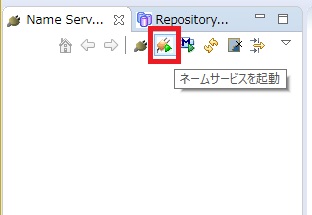
If omniNames does not start when you click “Start Naming Service”, check that the full computer name is set to 14 characters or fewer.;
Starting the RobotController Component
Start the RobotController component.
Run the RobotControllerComp file in the RobotController\build\src folder.
$ RobotControllerComp
Starting the Simulator Component
After moving to the directory where the EV3SimulatorComp component was installed, start it using the following command.
$ src/EV3SimulatorComp
Connecting the Components
As shown below, connect the RobotController component and EV3Simulator component in RTSystemEditor.
The system diagram can be displayed using the Open New System Editor button in the upper-left corner.

Activating the Components
Click the [All Activate] icon at the top of RTSystemEditor to activate all components.
If activation succeeds, the components will be displayed in light green as shown below.

Verifying Operation
As shown below, configuration settings can be changed from the [Edit] button in the Configuration View.

Move the sliders and verify that you can control the modified Educator Vehicle in the simulator.

If the system is operating correctly, the robot will stop in front of the wall when moving straight from the starting position.

If the system is not operating correctly, the robot will continue moving forward after contacting the wall.

Verifying Operation on the Actual Robot
If actual EV3 units are available during the training session, operation can also be verified using the real hardware.
The procedure is as follows.
- Assemble the modified Educator Vehicle
- Start the EV3 access point
- Connect to the EV3 access point
- Connect the ports
- Activate the components
Assembling the Modified Educator Vehicle
The EV3 is distributed to participants in a disassembled state.
Assemble it as described below.
However, the ultrasonic sensor, color sensor, and gyro sensor are not used during the training and therefore do not need to be installed.
Tasks marked with ※ are optional and should be performed only if time remains.
First, take out the base section.
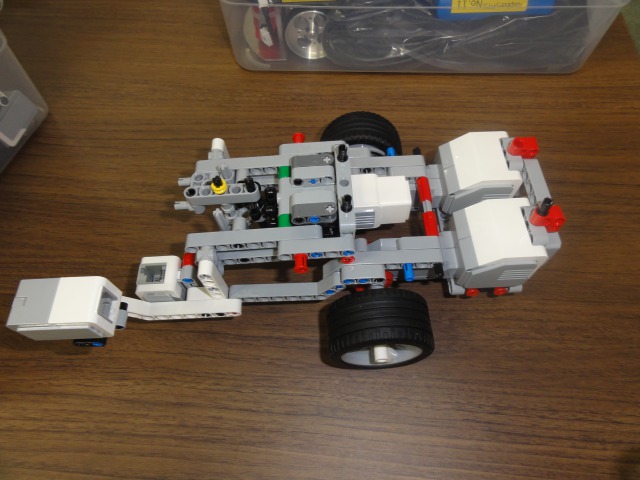
First, connect a 15 cm cable to the M motor. ※
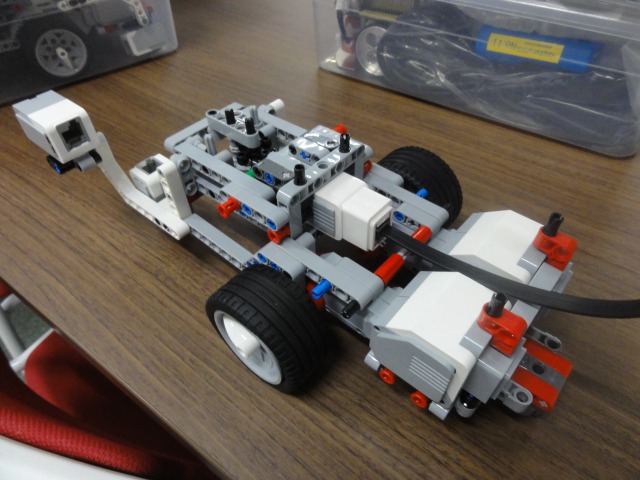
Next, attach the EV3 main unit.
If you connected a cable to the M motor, make sure the cable exits through the gap on the left side.
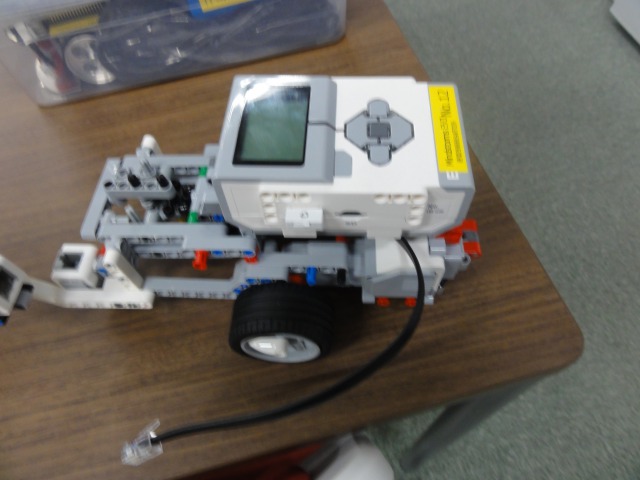
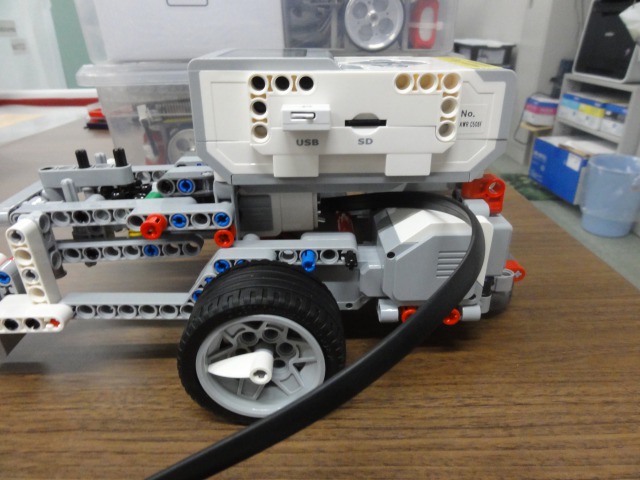
Attach the touch sensor on the right side.

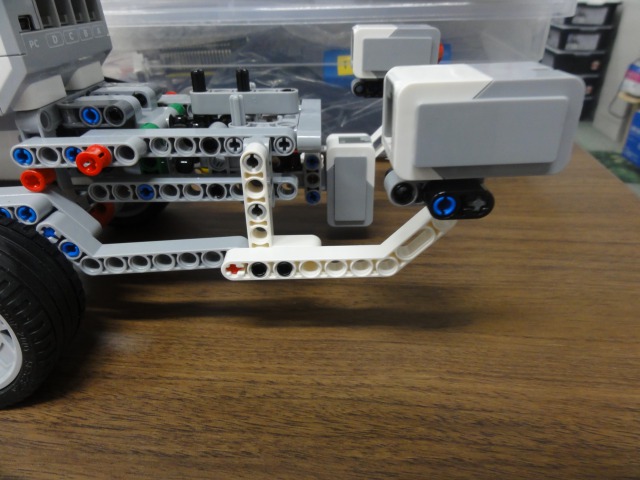
Attach the ultrasonic sensor. ※
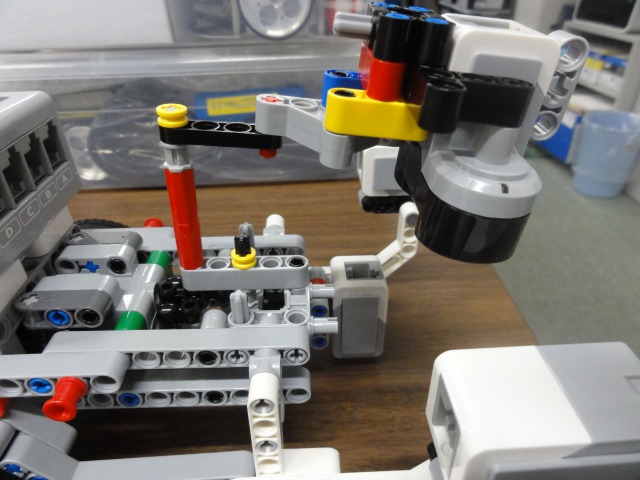
Connect the cables.
Only the right L motor, left L motor, and touch sensors used for wheel drive are required.
The labels attached to the cables indicate the port numbers and device names.
| Right L Motor | Port C | 25 cm cable |
| Left L Motor | Port B | 25 cm cable |
| M Motor ※ | Port A | 25 cm cable |
| Right Touch Sensor | Port 3 | 35 cm cable |
| Left Touch Sensor | Port 1 | 35 cm cable |
| Ultrasonic Sensor ※ | Port 4 | 50 cm cable |
| Gyro Sensor ※ | Port 2 | 25 cm cable |
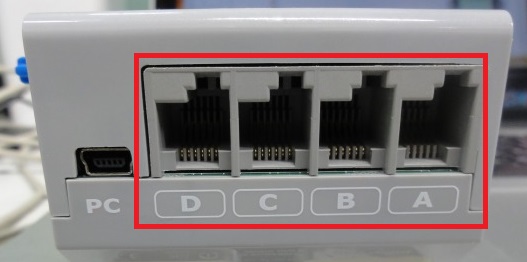
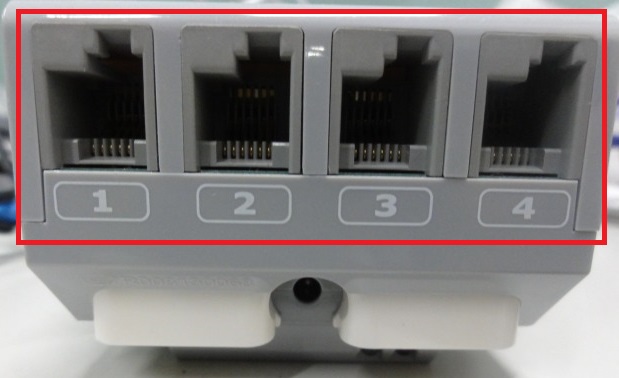
Connect the cables to the EV3.
The EV3 has ports A–D and 1–4 on the top and bottom of the unit. Connect the cables to the appropriate ports.

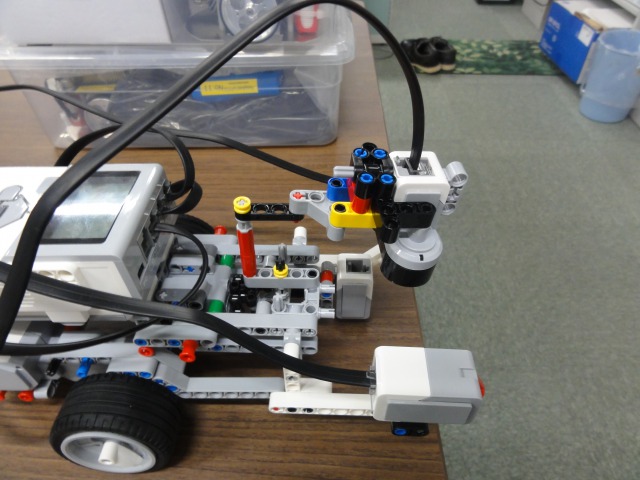
Attach the side parts. ※
Install them so that they hold the cables for the right L motor, left L motor, M motor, right touch sensor, and left touch sensor in place. ※
Route the cables for the right L motor and right touch sensor from the right side, and the cables for the left L motor, M motor, and left touch sensor from the left side. ※
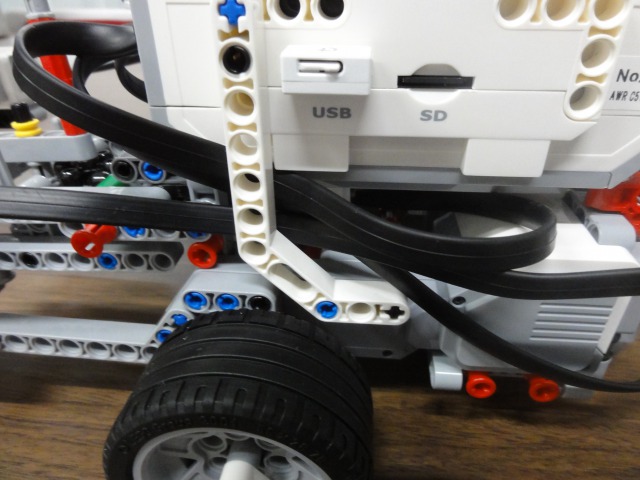
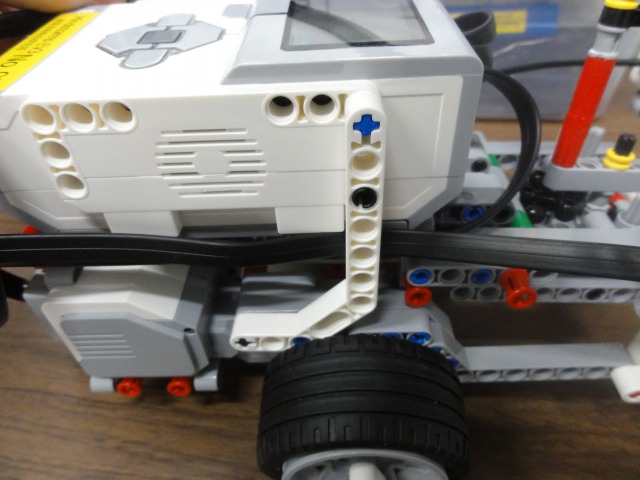
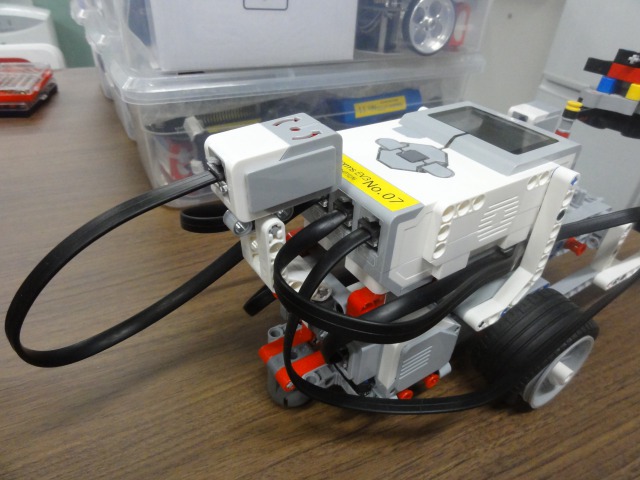
This completes the basic assembly. If you have extra time, try installing the gyro sensor as well. ※

Powering On / Off
Powering On
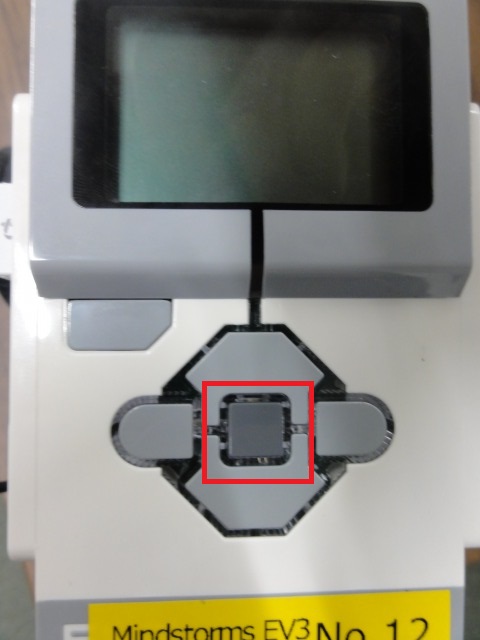
Press the center button to turn on the power.
Powering Off
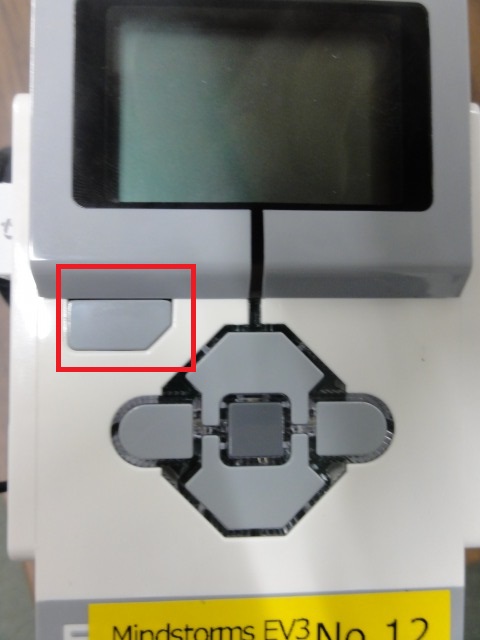
To turn off the EV3, press the Back button at the upper-left corner of the EV3 on the initial screen and select “Power Off”.

Rebooting
To reboot the EV3, press the Back button at the upper-left corner of the EV3 on the initial screen and select “Reboot”.
Resetting
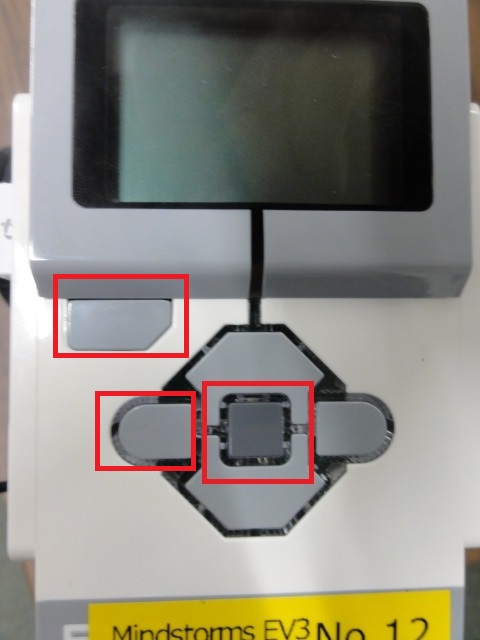
If the startup of ev3dev stops midway, press and hold the Center button, Back button (upper-left), and Left button simultaneously. When the screen turns off, release the Back button to restart the system.
Configuring the Access Point
On the EV3 operation screen, select “File Browser” using the Up/Down buttons and press the Center button.
 ------------------------------
 192.168.0.1
 ------------------------------
 [File Browser               > ]
  Device Browser             >
  Wireless and Networks      >
  Battery                    >
  Open Roberta Lab           >
  About                      >
 ------------------------------
Next, select scripts and press the Center button.
 ------------------------------
 192.168.0.1
 ------------------------------
         File Browser
 ------------------------------
 /home/robot
 ------------------------------
 [scripts                     ]
 ・・
 ・・
 ------------------------------
From the next screen, select start_ap.sh and press the Center button to execute the script.
 ------------------------------
 192.168.0.1
 ------------------------------
         File Browser
 ------------------------------
 /home/robot/scripts
 ------------------------------
 ../
 Component/
 ・・
 [start_ap.sh                 ]
 ------------------------------
After a short time, the wireless LAN access point will start. Connect to the designated SSID access point.
The SSID and password are written on the tape attached to the EV3.

Connecting to the Access Point
The SSID and password are written on the label attached to the EV3.
If the network changes, component registration with the Name Server or port connections may fail. In that case, temporarily shut down OpenRTP, the Name Server, and all components.
If they were started after switching networks, there is no need to restart them.
To exit OpenRTP, click the × button in the upper-right corner.
You will be asked whether to save the system diagram; select Don’t Save.

Execute the openrtp command to start OpenRTP.
To restart the Name Server in RT System Editor, click the “Start Naming Service” button again.

Adding the Name Server
Next, use the [Add Name Server] button in RT System Editor to add:
192.168.0.1;


An RTC named EducatorVehicle0 will then become visible.

Connecting the Ports
In RT System Editor, connect the EducatorVehicle and RobotController components as shown below.

Activation
Once you activate the RTCs, you will be able to control the EV3.