
tutorial (raspberry pi mouse)
✏️ Edit this page on GitHub#contents
This page explains the Raspberry Pi Mouse operating procedures used in RTM training workshops. :contentReference[oaicite:0]{index=0}
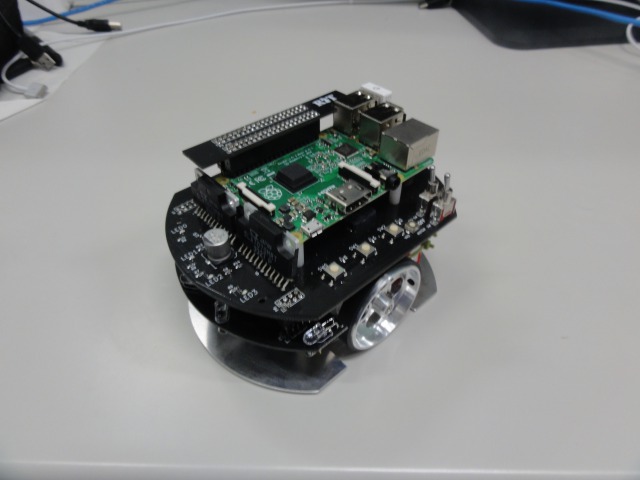
Raspberry Pi Mouse (hereafter referred to as “RasPiMouse”) is a two-wheeled mobile robot sold by RT Corporation. Since it is equipped with a Raspberry Pi, development can be performed using Linux (Raspbian) and other environments. :contentReference[oaicite:1]{index=1}
Specifications
| Raspberry Pi Mouse Specifications | |
|---|---|
| CPU | Raspberry Pi 2 Model B |
| Motor | Two ST-42BYG020 stepping motors |
| Motor Driver | Two SLA7070MRPT units |
| Distance Sensor | Four red LEDs + phototransistors (ST-1K3) |
| Red LEDs for Monitoring | 4 |
| Buzzer | 1 |
| Switch | 3 |
| Battery | One LiPo 3-cell (11.1V) 1000mAh battery |
Download
First, download the RTCs and related software used on the PC side.
Extract the ZIP file using Lhaplus or a similar archive extraction tool.
Powering On and Off
Powering On
The inner switch is the Raspberry Pi power switch.
Turning this switch on powers up the system.

Powering Off
To shut down the system, press and hold the center switch for approximately one second. The operating system will shut down, after which you can turn off the power switch.
Never turn off the power switch directly, as doing so may cause data corruption or other issues.

Connecting to the Raspberry Pi
As a general rule, connect to the Raspberry Pi via wireless LAN.
Connecting to a Wireless LAN Access Point
First, turn on the Raspberry Pi Mouse with the wireless LAN adapter attached.
After a short time, a wireless LAN access point will start.
Connect to the access point with the specified SSID.
The SSID and password are printed on the label attached to the Raspberry Pi Mouse.
For instructions on connecting to a wireless LAN access point, refer to the following pages:
First, click the network icon in the lower-right corner.

Next, select raspberrypi_* from the list.

Enter the password.

Connecting via LAN Cable
The following steps are only required when connecting via a wired LAN. They are unnecessary when using a wireless connection.
First, connect the PC and Raspberry Pi using a LAN cable.

Next, turn on the Raspberry Pi Mouse power switch.
Preparation
Follow the instructions on this page to start the Name Server and RT System Editor.
If a Name Server is already running, restart it.
Also, if your PC has two or more network interfaces, communication may fail. If you are using a wired connection, disable the other network devices before starting the Name Server.


Adding a Name Server
Next, click the Add Name Server button in RT System Editor and add 192.168.11.1.


The following two RTCs will appear:

RaspberryPiMouseRTC is an RT-Component for controlling Raspberry Pi Mouse, developed by the Robot System Design Laboratory at Meijo University.

| RaspberryPiMouseRTC | ||
|---|---|---|
| InPort | ||
| Name | Data Type | Description |
| target_velocity_in | RTC::TimedVelocity2D | Target velocity |
| pose_update_in | RTC::TimedPose2D | Position setting |
| buzzer_hz_in | RTC::TimedShort | Buzzer |
| led4bit_in | RTC::TimedBooleanSeq | LEDs |
| OutPort | ||
| Name | Data Type | Description |
| current_velocity_out | RTC::TimedVelocity2D | Current velocity |
| current_pose_out | RTC::TimedPose2D | Current position |
| ir_sensor_out | RTC::TimedShortSeq | Distance sensor measurements |
| switch3bit_out | RTC::TimedBooleanSeq | Switch on/off status |
About the TimedVelocity2D Type
The TimedVelocity2D type is defined as follows.
     struct Velocity2D
     {
         double vx;
         double vy;
         double va;
     };
     struct TimedVelocity2D
     {
         Time tm;
         Velocity2D data;
     };
vx, vy, and va represent velocities in the robot-centered coordinate system.

vx: Velocity in the X directionvy: Velocity in the Y directionva: Angular velocity around the Z axis
For a robot such as Raspberry Pi Mouse, which has two wheels mounted on its left and right sides, vy is assumed to be 0 because sideways slipping is not considered.
The robot is controlled by specifying vx and va.
Starting the Sample Components
Run start_component_raspimouse.bat included in the supplementary materials.
If the Python version of OpenRTM-aist is not installed or the installation failed, a USB memory device containing standalone executable files will be distributed separately. In that case, use start_component_raspimouse_exe.bat instead.
The following two RTCs will start:

Operation Check
First, try operating the Raspberry Pi Mouse using the joystick.
Before operation, turn on the motor power switch.
After completing the operation check, be sure to turn the motor power off.

In RT System Editor, connect RaspberryPiMouseRTC, FloatSeqToVelocity, and TkJoyStick as shown below.

After activating the RTCs, you will be able to operate the Raspberry Pi Mouse using the joystick.


Control Using a Custom RTC
First, disconnect the connector between the out port of FloatSeqToVelocity and the target_velocity_in port of RaspberryPiMouseRTC.

Insert your custom RTC between FloatSeqToVelocity and RaspberryPiMouseRTC so that the robot stops and sounds a buzzer when the distance sensor value exceeds a specified threshold.
Creating Skeleton Code
Start RTCBuilder.

After startup, create a new project.

Set the project name to TestRasPiMouseCPP (or TestRasPiMousePy).
Configure the project as shown below.
Create it in either C++ or Python.
| Basic | ||
|---|---|---|
| Module Name | TestRasPiMouseCPP or TestRasPiMousePy | |
| Activity | ||
| Enabled Actions | onInitialize, onExecute, onActivated, onDeactivated | |
| Data Ports | ||
| InPort | ||
| Name | Data Type | Description |
| velocity_in | RTC::TimedVelocity2D | Input target velocity |
| distance_sensor | RTC::TimedShortSeq | Distance sensor measurements |
| OutPort | ||
| Name | Data Type | Description |
| velocity_out | RTC::TimedVelocity2D | Output target velocity |
| buzzer | RTC::TimedShort | Buzzer |
| Configuration | ||
| Name | Type | Description |
| stop_distance | short | Distance sensor threshold above which forward motion is stopped when an object is detected. Default value: 300 |
| Language / Environment | ||
| Language | C++ or Python | |
Click the [Generate Code] button to generate the code.

Creating the Processing Logic
C++
Open TestRasPiMouseCPP.cpp and add the following processing to onExecute().
RTC::ReturnCode_t TestRasPiMouseCPP::onExecute(RTC::UniqueId ec_id)
{
  if(m_distance_sensorIn.isNew())
  {
    m_distance_sensorIn.read();
  }

  if(m_velocity_inIn.isNew())
  {
    m_velocity_inIn.read();

    if(m_distance_sensor.data[0] > m_stop_distance ||
       m_distance_sensor.data[3] > m_stop_distance)
    {
      m_velocity_out.data.vx = 0;
      m_velocity_out.data.vy = 0;
      m_velocity_out.data.va = 0;

      m_buzzer.data = 1000;

      m_buzzerOut.write();
    }
    else
    {
      m_velocity_out = m_velocity_in;

      m_buzzer.data = 0;

      m_buzzerOut.write();
    }

    m_velocity_outOut.write();
  }

  return RTC::RTC_OK;
}
Python
Open TestRasPiMousePy.py and add the following processing to onExecute().
  def onExecute(self, ec_id):

    if self._distance_sensorIn.isNew():
      data = self._distance_sensorIn.read()

    if self._velocity_inIn.isNew():
      self._d_velocity_in = self._velocity_inIn.read()

      if self._d_distance_sensor.data[0] > self._stop_distance[0] or self._d_distance_sensor.data[3] > self._stop_distance[0]:
        self._d_velocity_out.data.vx = 0
        self._d_velocity_out.data.vy = 0
        self._d_velocity_out.data.va = 0

        self._d_buzzer.data = 1000

        OpenRTM_aist.setTimestamp(self._d_buzzer)
        self._buzzerOut.write()
      else:
        self._d_velocity_out = self._d_velocity_in

        self._d_buzzer.data = 0

        OpenRTM_aist.setTimestamp(self._d_buzzer)
        self._buzzerOut.write()

      OpenRTM_aist.setTimestamp(self._d_velocity_out)
      self._velocity_outOut.write()

    return RTC.RTC_OK
This RTC reads the distance sensor values and the target velocity.
If the sensor value exceeds the threshold specified by the stop_distance configuration parameter, the RTC stops the robot and sounds the buzzer.
Otherwise, it outputs the input target velocity unchanged.
Building the RTC
C++
Open a command prompt and move to the generated project directory.
Execute the following commands:
cmake .
cmake --build . --config Release
If the build completes successfully, the executable will be generated.
Python
No build process is required.
Starting the RTC
Launch the RTC you created.
C++
Execute:
Release\TestRasPiMouseCPPComp.exe
Python
Execute:
python TestRasPiMousePy.py
The RTC will be registered with the Name Server.
Connecting the RTC
Connect the RTCs as shown below.

Connection order:
TkJoyStick
    ↓
FloatSeqToVelocity
    ↓
TestRasPiMouseCPP (or TestRasPiMousePy)
    ↓
RaspberryPiMouseRTC
In addition, connect the distance sensor output:
RaspberryPiMouseRTC.ir_sensor_out
    ↓
TestRasPiMouseCPP.distance_sensor
And connect the buzzer output:
TestRasPiMouseCPP.buzzer
    ↓
RaspberryPiMouseRTC.buzzer_hz_in
Activating the RTCs
Activate all RTCs.

Verifying Operation
Move the Raspberry Pi Mouse using the joystick.
When an object approaches the front-left or front-right distance sensor and the sensor value exceeds the configured threshold, the robot should stop and the buzzer should sound.
You can adjust the detection threshold from the RTC configuration view by changing the value of stop_distance.

Summary
In this tutorial, you learned:
- How to connect to Raspberry Pi Mouse
- How to operate Raspberry Pi Mouse using RT-Components
- How to create a simple RTC that uses distance sensor information
- How to integrate a custom RTC into an RT system
- How to use RTCBuilder to generate component skeletons
- How to build and execute RTCs in both C++ and Python
By extending the RTC created in this tutorial, you can implement more advanced autonomous behaviors such as obstacle avoidance, wall following, and waypoint navigation.