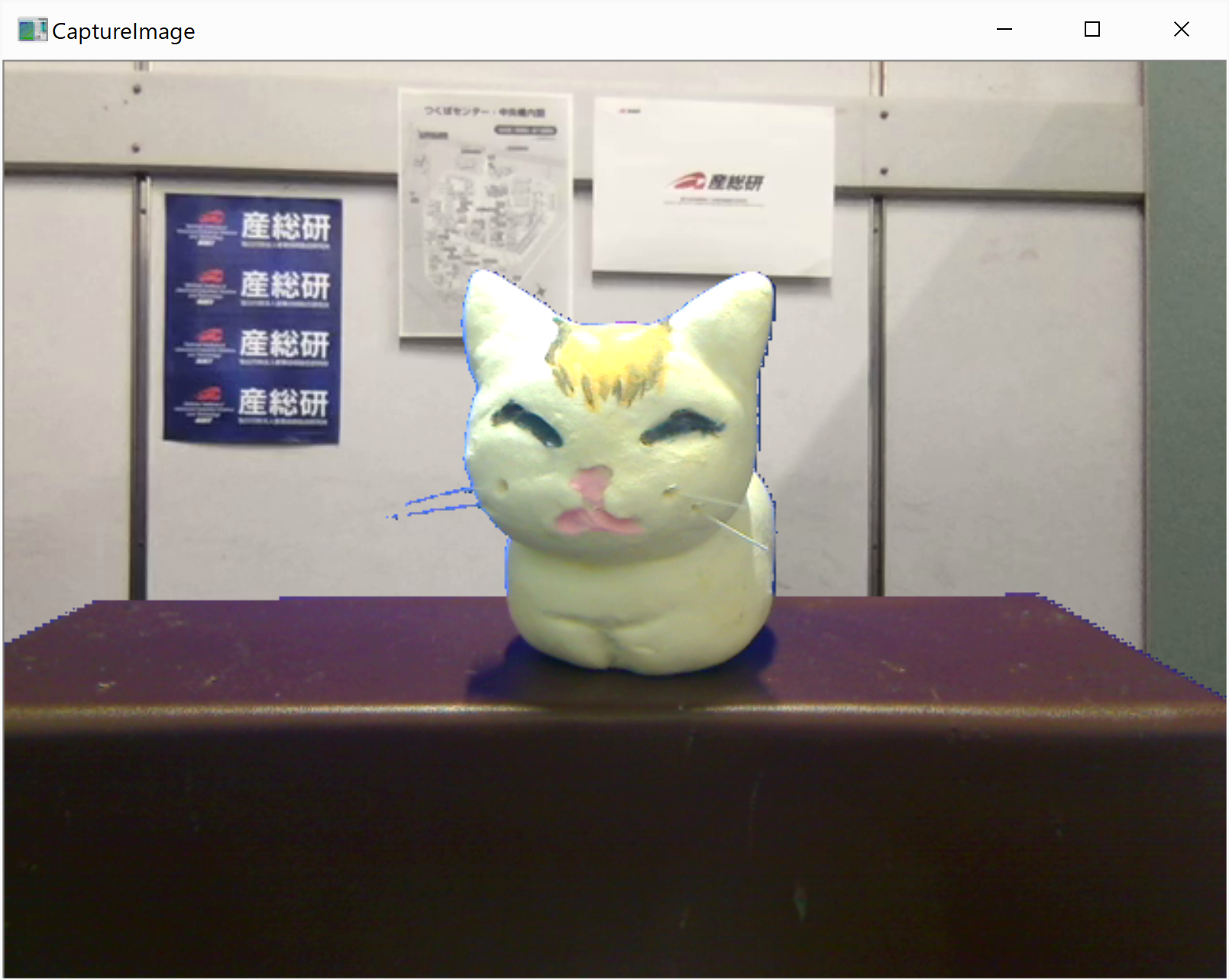
chromakey
✏️ Edit this page on GitHub#contents
Please note that this sample is not included with the Python or Java editions of OpenRTM-aist. On Linux, build and install it according to Building OpenCV Sample Code on Linux.
Overview
Chromakey is a sample OpenCV component that performs chroma key compositing of two images.
It is used together with OpenCVCamera and CameraViewer.
Usage
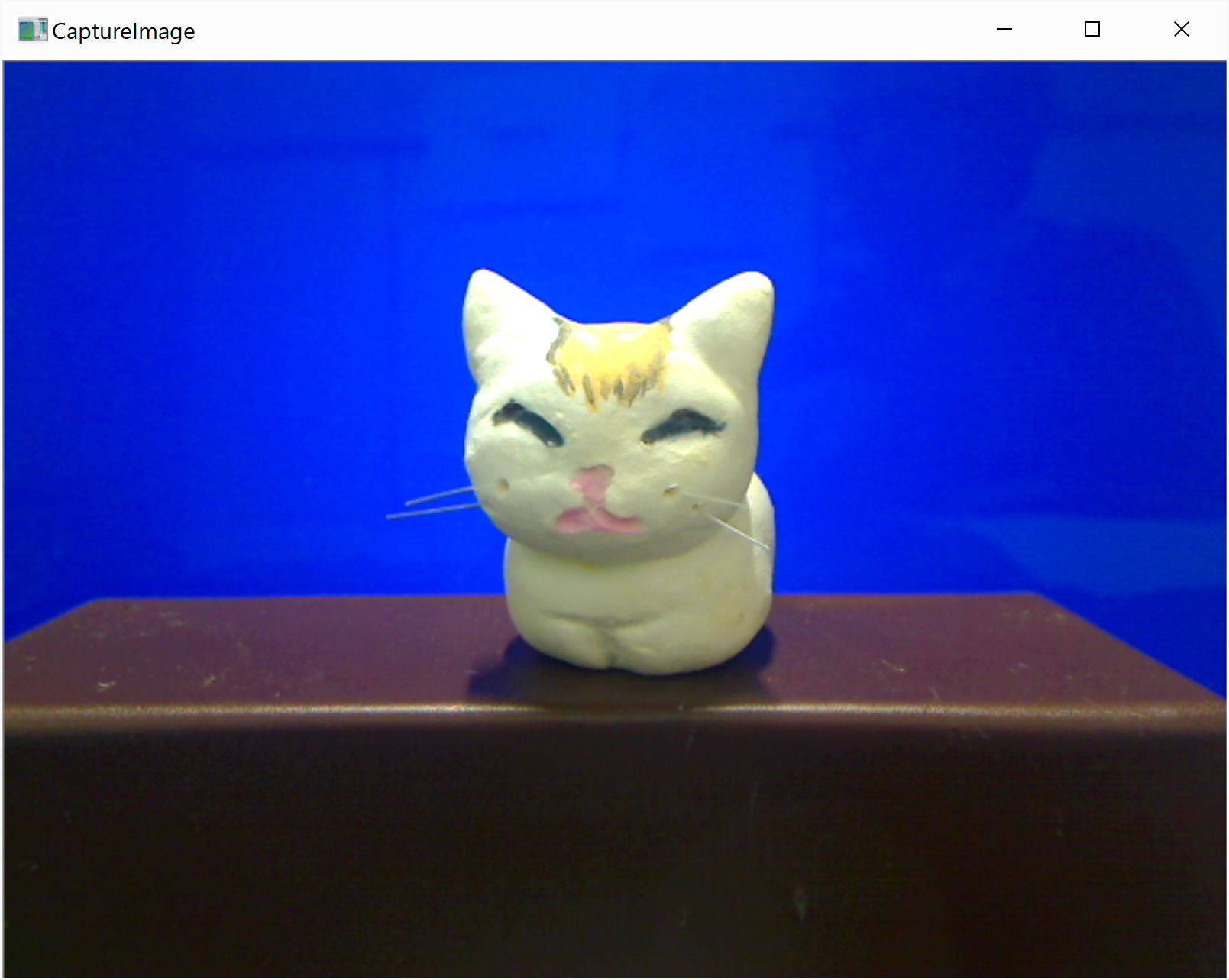
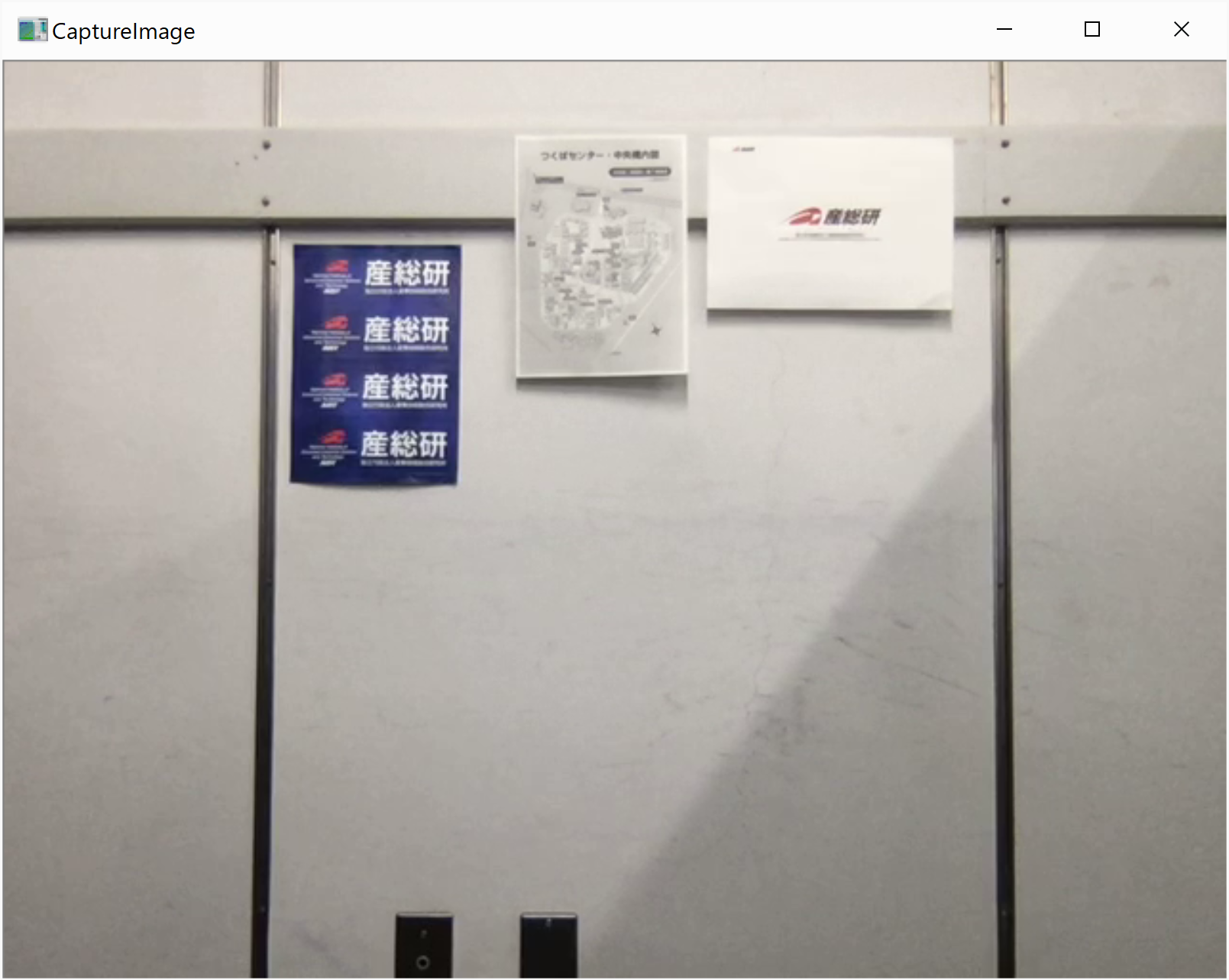
Chromakey is an RTC component that implements a technique called chroma key compositing. It makes a specific color in an image transparent (for example, green used as a background during shooting) and composites it with another image. To run it, start two OpenCVCamera components to capture two images. CameraViewer is used for displaying the output.
- Two images to be composited
-
Procedure (Windows Environment)
-
Start OpenRTP and RTSystemEditor according to Procedure for Starting OpenRTP (1.2 Series, Windows), and make sure the RTCs are displayed in the Name Service View. For details on using RTSystemEditor, refer to RTSystemEditor.
-
Open a command prompt with administrator privileges so that two OpenCVCamera components can be executed.
-
Edit rtc.conf. For example, enter the following commands:
-
cd "\Program Files\OpenRTM-aist\1.2.1\Components\C++\OpenCV\vc14"
notepad rtc.conf
Add the following line:
manager.components.naming_policy: ns_unique
- Close the command prompt.
-
In Explorer, navigate to \Program Files\OpenRTM-aist\1.2.1\Components\C++\OpenCV.
-
Double-click CameraViewer.bat.
-
Double-click OpenCVCamera.bat.
-
Double-click OpenCVCamera.bat again.
-
Double-click Chromakey.bat.
-
In the RTSystemEditor Name Service View, click [>] and confirm that the started components CameraViewer0, Chromakey0, OpenCVCamera0, and OpenCVCamera1 are displayed.
-
In RTSystemEditor, click the [Open New System Editor] button
 at the top of the screen to open a new System Editor and display a new [System Diagram].
 -
Drag and drop the four components above onto the System Diagram.
-
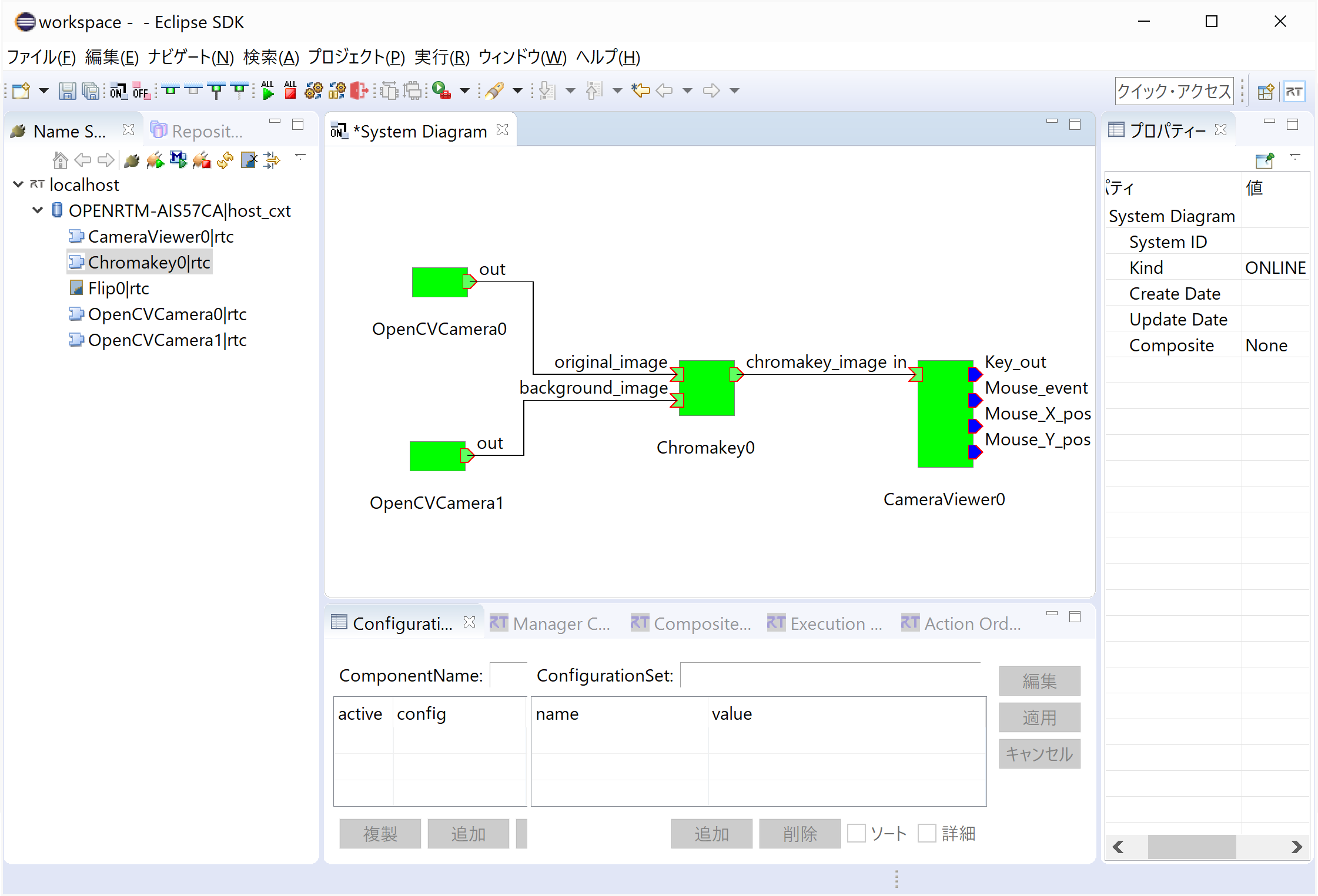
Connect the ports of each component as shown below.
-
Right-click the OpenCVCamera0 component and select [Activate]. If it does not turn green, select the component, open the Configuration View at the bottom, click [Edit], change device_num to the number corresponding to the USB camera used for capturing the foreground image, and click [Apply].
-
Right-click the OpenCVCamera1 component and select [Activate]. If it does not turn green, select the component, open the Configuration View at the bottom, click [Edit], change device_num to the number corresponding to the USB camera used for capturing the background image, and click [Apply].
-
Right-click any component and select [Activate Systems].
-
Move the windows around and display the CameraViewer window.
-
Click the Chromakey0 component in the [System Diagram] (System Editor View). The Configuration View will appear at the bottom. If it does not appear, click the [Configuration] tab.
-
Click the [Edit] button to configure the chroma key color.
Set the values of lower_blue, upper_blue, lower_green, upper_green, lower_red, and upper_red to the RGB component ranges (blue, green, and red) of the color that should be made transparent in the foreground image background (green in this example).
-
Click the [Apply] button.
-
Confirm that the two images are composited as shown below.