
configsample
✏️ Edit this page on GitHub#contents
This sample is included with the C++, Python, and Java editions of OpenRTM-aist.
Overview
This sample demonstrates how to use configuration sets in RT Components.
Start the ConfigSample component. When the component starts successfully, configuration sets are already configured in advance.
Use RTSystemEditor to inspect the configuration sets.
If an error message such as “The specified path could not be found.” occurs when starting the component, modify the value of “example.ConfigSample.config_file” in the rtc.conf file located in the RTMExamples/ConfigSample directory as follows.
- Replace it with the path shown below.
.\\RTMExamples\\ConfigSample\\configsample.conf
(Use '\\' instead of '\' between directory names and file names.)
- Alternatively, replace it with the full path to “configsample.conf”. In this case as well, use ‘\’ between directory names and file names as described above.
Startup Screen
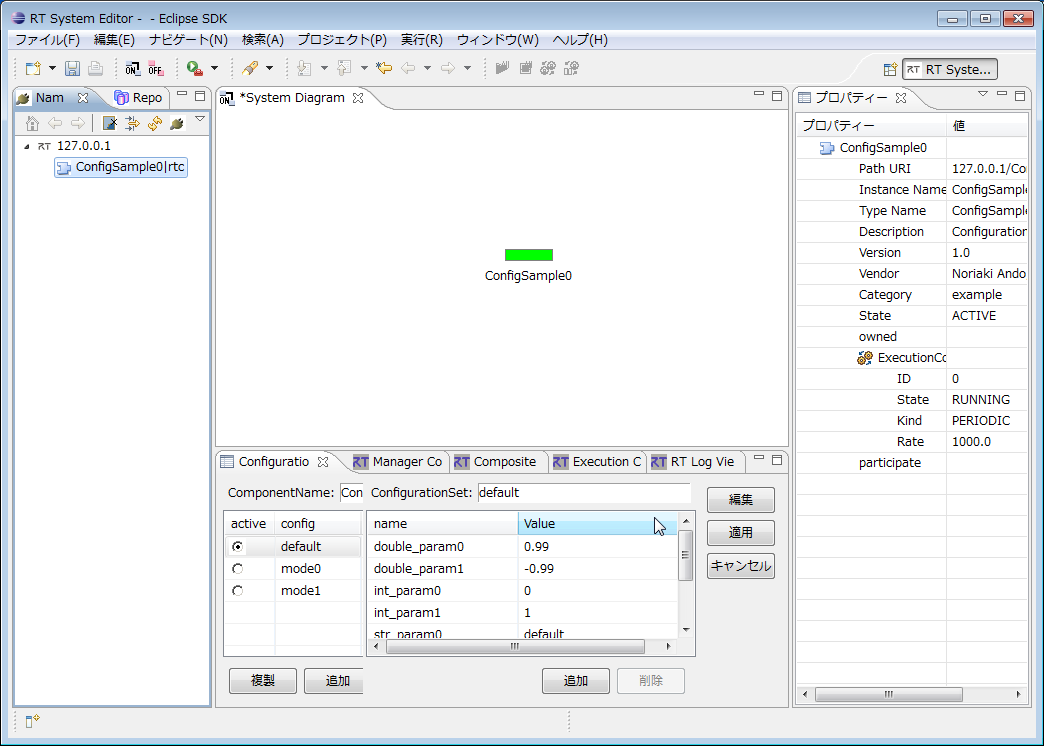
Usage
The dataset corresponding to the ConfigurationSet selected and configured in the ConfigurationView of RTSystemEditor is displayed on the prompt and continuously updated.
-
Procedure
-
Start RTSystemEditor and prepare a SystemEditor. For details on using RTSystemEditor, refer to RTSystemEditor.
-
Start the ConfigSample component. The startup method depends on the operating system and OpenRTM-aist language edition. Refer to the table below.
-
| Windows | Linux | |
|---|---|---|
| C++ Edition | ConfigSample.bat | ConfigSampleComp |
| Python Edition | ConfigSample.bat | ConfigSample.py |
| Java Edition | ConfigSample.bat | ConfigSample.sh |
-
The component will appear in the Name Service View of RTSystemEditor. Drag it onto the SystemEditor.
-
Select an appropriate ConfigurationSet (default, mode0, or mode1) from the Configuration View of RTSystemEditor.
-
Modify the values as necessary.
-
Click the [Apply] button.