
objecttracking
✏️ Edit this page on GitHub#contents
Please note that this sample is not included with the Python or Java editions of OpenRTM-aist. On Linux, build and install it according to Building OpenCV Sample Code on Linux.
Overview
ObjectTracking is a sample OpenCV component that tracks an object selected on the screen and indicates its position by enclosing it with a red ellipse.
It is used together with OpenCVCamera and CameraViewer.
Startup Screen
Usage
ObjectTracking is a component that tracks an object selected on the screen and displays its position enclosed by a red ellipse. In this example, it is used together with the OpenCVCamera component for capturing images from a USB camera and the CameraViewer component for displaying processed images and selecting objects with the mouse.
The following describes usage on Windows.
-
Procedure
-
Start OpenRTP and RTSystemEditor according to Procedure for Starting OpenRTP (1.2 Series, Windows), and ensure that RTCs are displayed in the Name Service View. For details on using RTSystemEditor, refer to RTSystemEditor.
-
In Explorer, navigate to:
-
\Program Files\OpenRTM-aist\1.2.1\Components\C++\OpenCV
-
Double-click CameraViewer.bat.
-
Double-click OpenCVCamera.bat.
-
Double-click ObjectTracker.bat.
-
In the RTSystemEditor Name Service View, click [>] and confirm that the CameraViewer, ObjectTracking, and OpenCVCamera components are displayed.
-
In RTSystemEditor, click the [Open New System Editor] button
 at the top of the screen to open a new System Editor and display a new [System Diagram].
 -
Drag and drop the above three components onto the System Diagram.
-
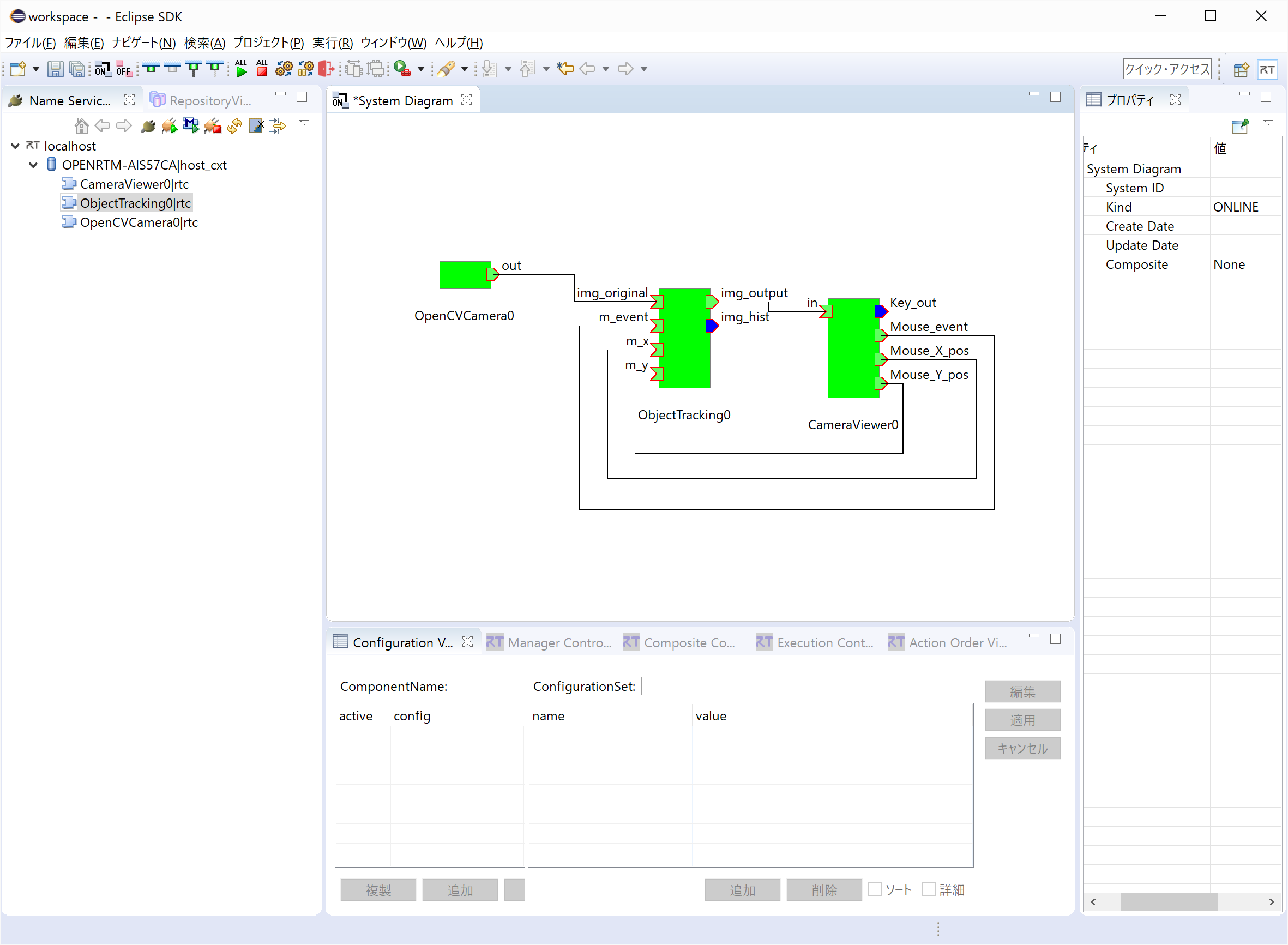
Connect the ports of each component as shown below.
-
Right-click any component and select [Activate Systems].
-
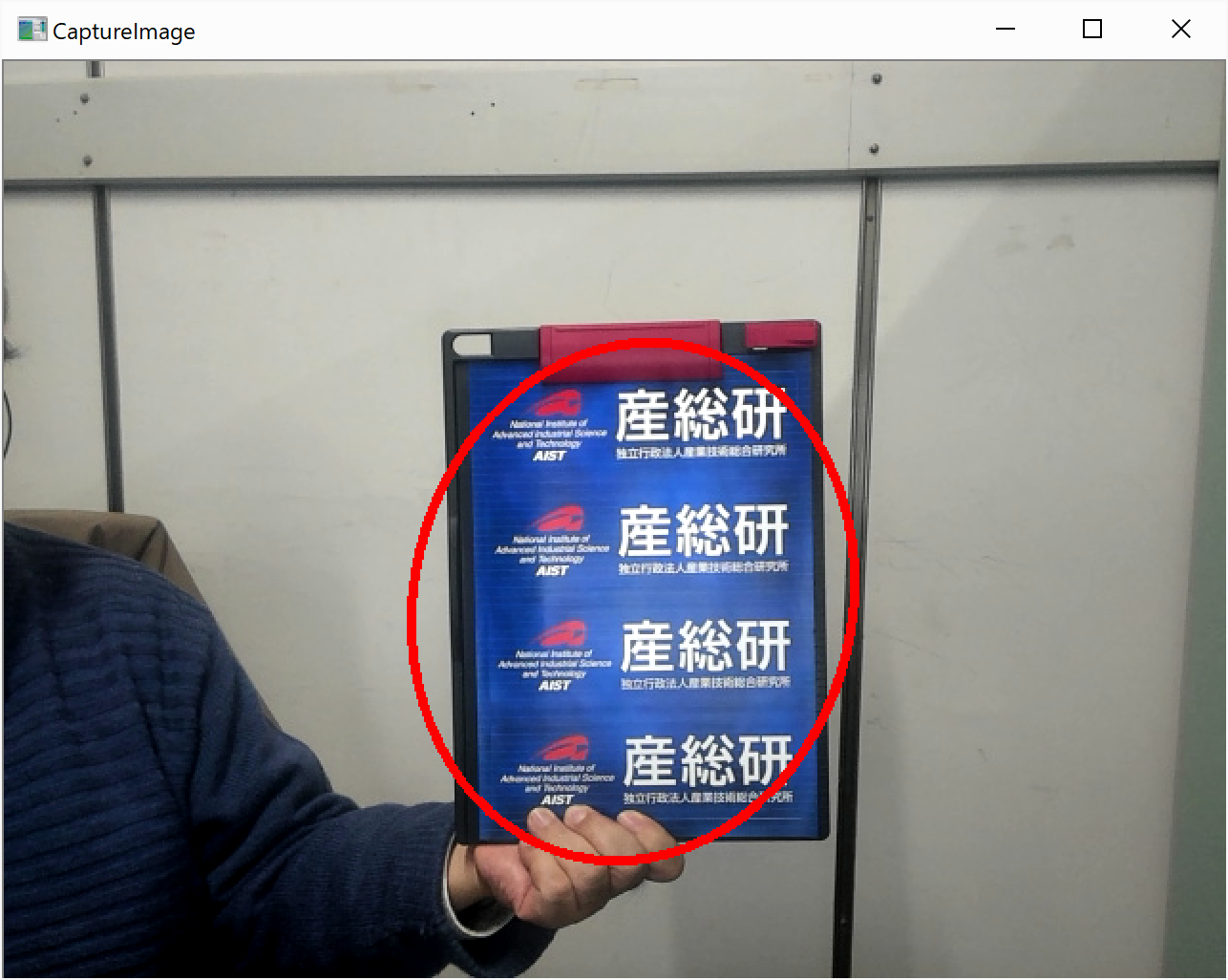
Arrange the windows so that the CameraViewer window is visible.
-
While holding down the left mouse button, select the object you want to track. A rectangular selection area should appear as an inverted-highlight rectangle. (Depending on the environment, it may take some time before the selection rectangle becomes available.)
-
If the selection is successful, a red ellipse will appear as shown in the figure above. Physically move the selected object and confirm that the ellipse moves together with the object on the screen.
-
The histogram of the selected image region is briefly displayed from the “img_histgram” OutPort when the rectangular selection is made.