
seqio
✏️ Edit this page on GitHub#contents
This sample is included with the C++, Python, and Java editions of OpenRTM-aist.
Overview
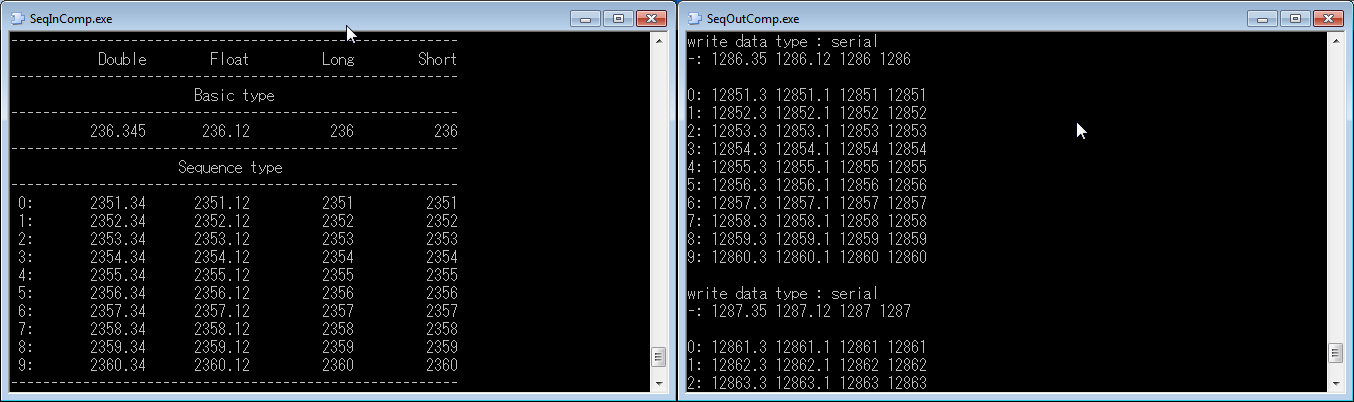
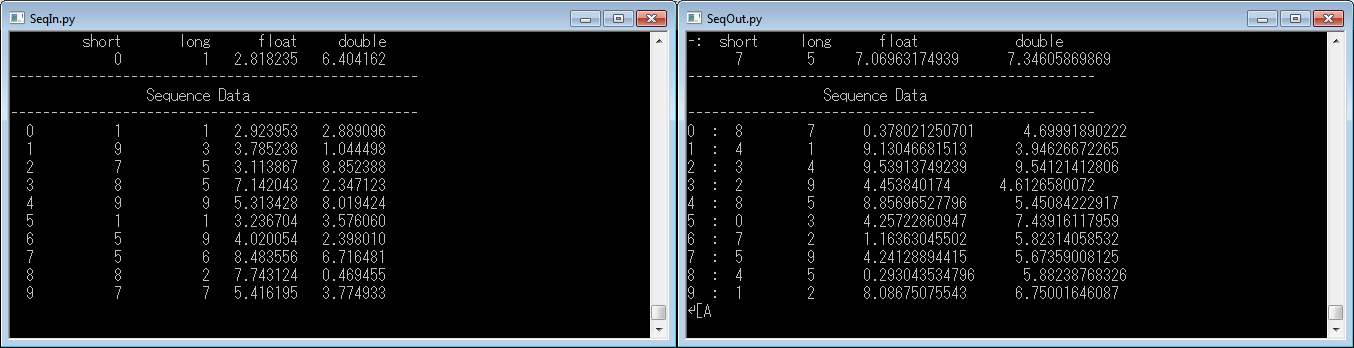
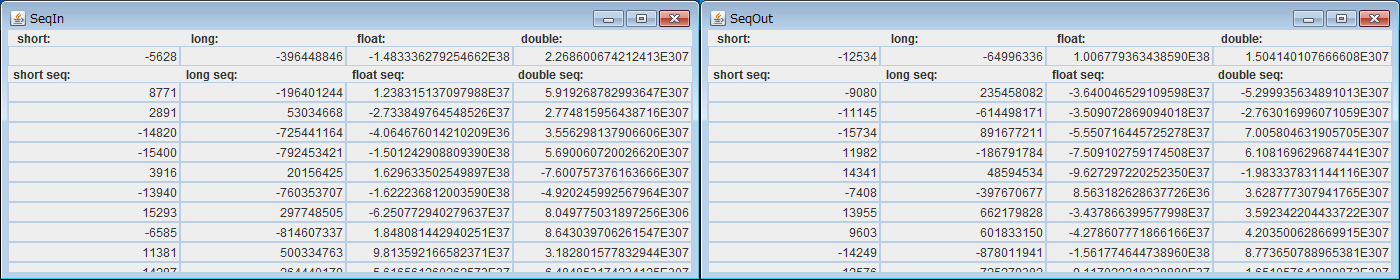
This sample demonstrates how to use InPorts and OutPorts. When the SeqIn and SeqOut components are started, a GUI or console window is displayed.
Both SeqIn and SeqOut provide the following DataPort types:
TimedShort, TimedLong, TimedFloat, TimedDouble, TimedShortSeq, TimedLongSeq, TimedFloatSeq, and TimedDoubleSeq.
The output of each port is determined by random values. When corresponding ports are connected, the output values on the SeqOut side and the input values on the SeqIn side are displayed in their respective GUI or console windows. (Use RTSystemEditor to connect the ports.)
Startup Screens
Usage
The SeqIO sample continuously outputs numeric data from SeqOut, sends it to SeqIn through data ports, and displays it in a GUI or console window.
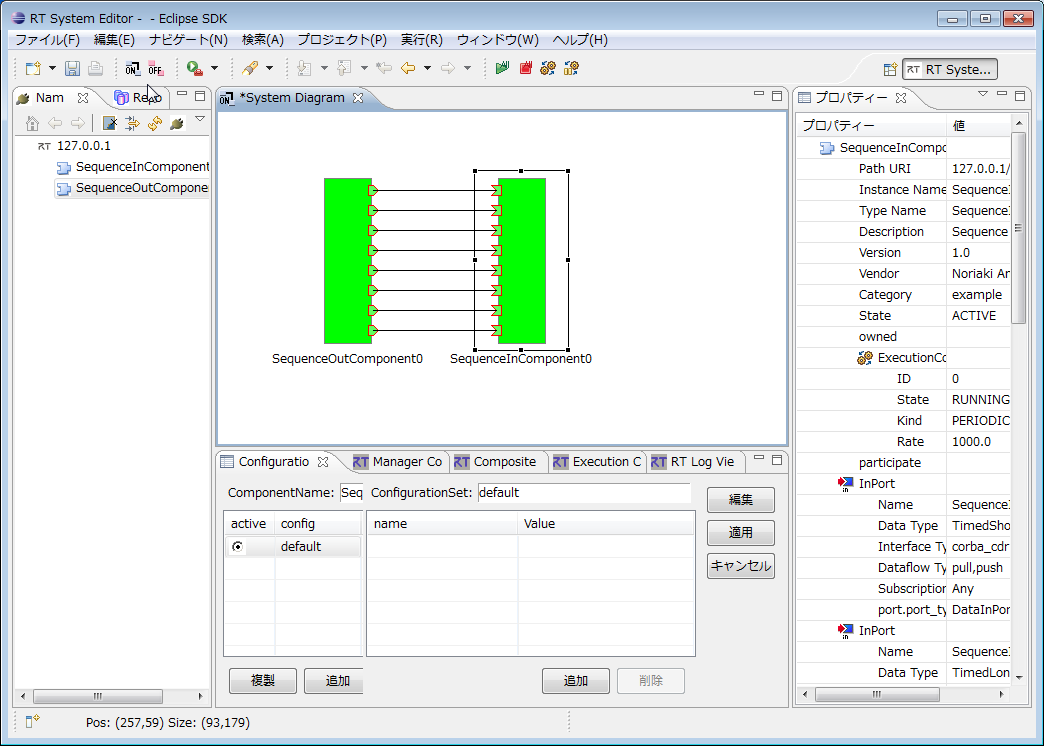
Connect the corresponding ports of SeqOut and SeqIn in RTSystemEditor. When both components are activated, not only the values output by SeqOut but also the values received by SeqIn change continuously, allowing observation of data port input and output.
-
Procedure
-
Start RTSystemEditor and prepare a SystemEditor. For details on using RTSystemEditor, refer to RTSystemEditor.
-
Start both the SeqOut and SeqIn components. The startup method depends on the operating system and the OpenRTM-aist language edition. Refer to the table below.
-
| Windows | Linux | |||
|---|---|---|---|---|
| SeqIn Component | SeqOut Component | SeqIn Component | SeqOut Component | |
| C++ Edition | SeqIn.bat | SeqOut.bat | SeqInComp | SeqOutComp |
| Python Edition | SeqIn.bat | SeqOut.bat | SeqIn.py | SeqOut.py |
| Java Edition | SeqIn.bat | SeqOut.bat | SeqIn.sh | SeqOut.sh |
-
Both components will appear in the NameServiceView of RTSystemEditor. Drag them onto the SystemEditor.
-
Connect the corresponding ports of the two components. (Refer to the SeqIO execution example above.)
-
Right-click either component and select [Activate System].